
Fluent 2 is a massive overhaul of what Fluent has been for more than a year. It brings much more intelligent & flexible Memory, a bunch of super useful tools, and a desktop pet that is truly useful because it knows you and what you're working on. Fluent can now learn and remember stuff about you proactively, and use that in other tasks. Not only does it remember some useful and important details, but also learns from your past conversations with him, bringing up more relevant results.
Intelligent Memory
We brought Fluent's Memory to its new limits: it is now not only a "traditional" hybrid RAG engine – it is more proactive and contextually aware. And of course, it stays model-agnostic. Fluent can now remember and recall any useful information, like that you're a vegan, or that you do not work on Fridays – automatically and sometimes transparently. You will see a memory icon under your AI's chat responses whenever Memory is involved.
What does this bring to the table? Say you ask Fluent to write a response to some person who asked you whether you will be able to receive a business parcel tomorrow. Today it is Thursday. Fluent learned in the past you're not working on Fridays, so it will take it into account when preparing a response. And "magically", you get something like this written by Fluent:
Hey John,

Unfortunately for you, I'm not working on Fridays. Please ask Sara, she's usually there until 14:00.

Best,
Vadim
Even the fact that Sara is usually there on Fridays until 14:00 would have also been taken out of your past conversations with her. So normally, all of that would have been written without calling any Memory tools – if you have the on-device relevance models option enabled, Fluent is way more intelligent in how it learns, stores and retrieves your memories.
There are a bunch of new options and settings, but if you wonder which one is the most useful – it is on-device relevance models. It's ~0,6GB overhead is completely justified by the quality of learning and retrieval, so we highly recommend enabling it.
Background Indexing
Add a folder with your receipts right from Finder contextual menu, and Fluent will watch this folder in the background. Whenever something changes, or a new receipt gets added – Fluent will catch it and automatically update its knowledge. Folders or files are usually added only on your request, as Fluent is designed to maintain only the data you add, explicitly, rather than watching your whole disk by default.
And once your receipts are in Memory, you can ask Fluent about all of them at once:
You: How much did I spend on charging this year?

Fluent: You spent €412.80 on charging this year, based on 38 receipts.
The answer is exact – Fluent calculates it from every single receipt, not just from a few most relevant ones, as a "traditional" RAG would do. The same works for counts and breakdowns, e.g. by month.
Graph Relations & View
Your memories are now also connectable. Relations are helpful but not mandatory. And Fluent can identify and connect things automatically on its own. Here are a few cases where connecting memories is genuinely useful:
- Connecting your invoices and receipts to your tax declarations, along with some law documents that help in generating fully correct declarations, and contact details of your tax office. Knowing those relations could help Fluent in automating your full tax declaration cycle.
- Connecting your client's contract to the project brief, along with all meeting notes with this client. This way, Fluent could write a status update which takes into account everything you agreed on – even the small changes from the last call.
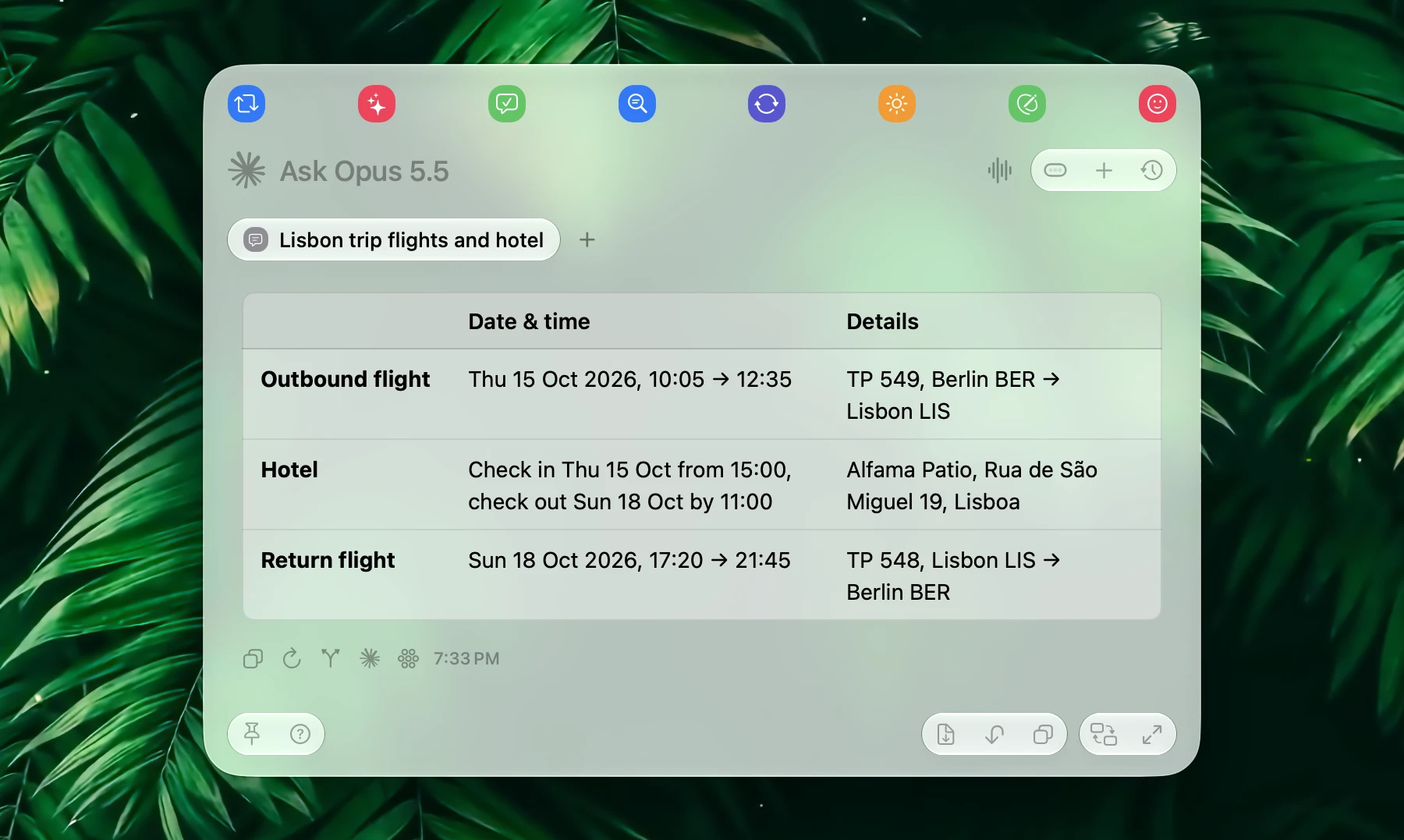
- Connecting your train tickets and hotel booking to the trip itself. Then you can simply ask "when does my train leave, and what's my booking number?" – and Fluent would answer both at once.
- Connecting your recipes folder to your food preferences, like that you're a vegan. Next time you ask for dinner ideas, Fluent would propose you some tasty vegan-only dishes.
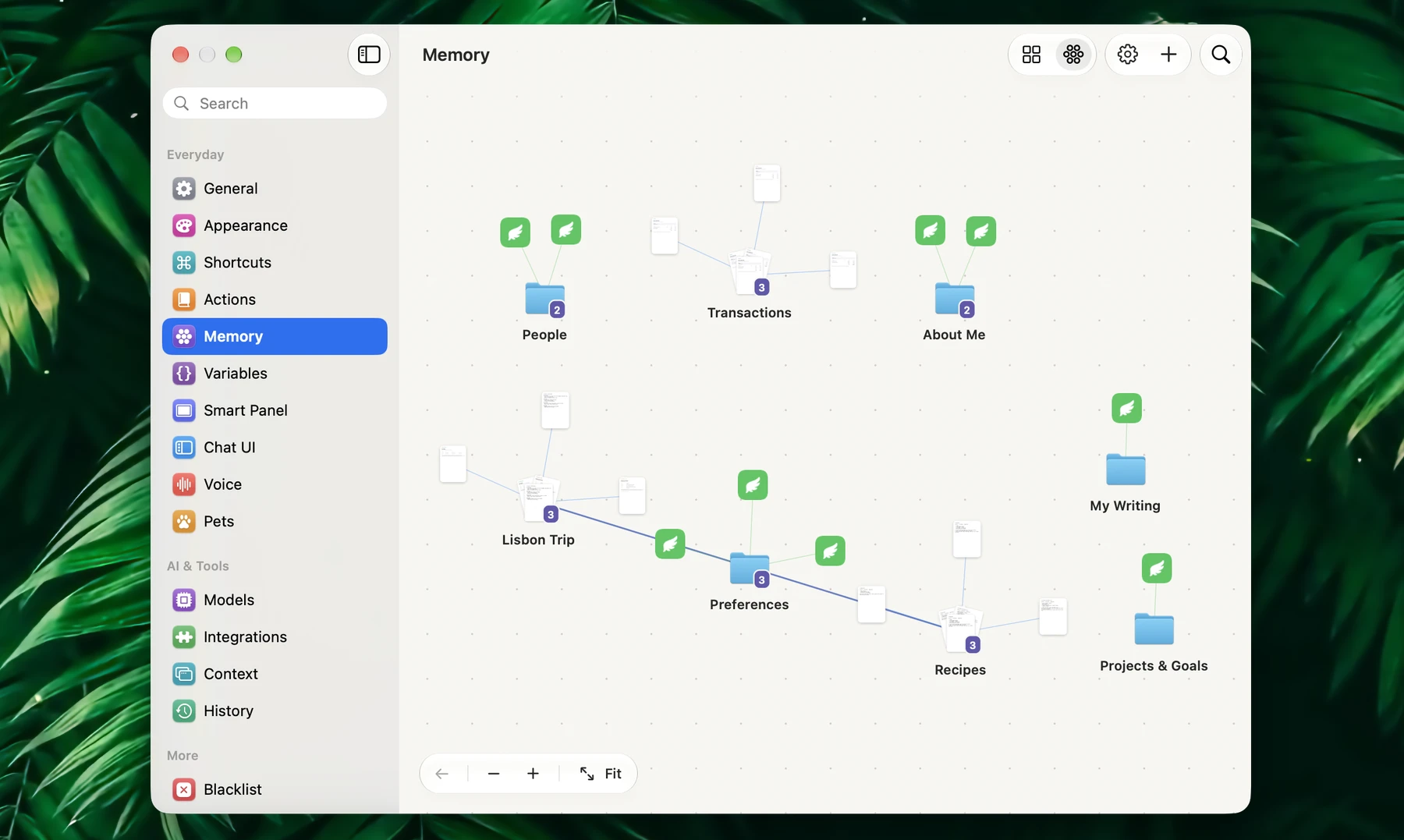
And of course, you can see it all. Head over to Settings > Memory – your groups, files and saved details are now displayed as a graph, along with all the relations between them. You can connect items right there, or zoom into any of them to preview what's inside.
Pet Watches You and Suggests
Fluent now has its own desktop pet! It may look like just a cute toy, but it is actually a very useful assistant. Turn it on under Settings > Pets, and Flumi will appear right on your desktop – or one of ten other characters, if you like them more. Please keep in mind that the pet is still in beta, so consider it as an early preview.
The pet watches what you're doing and suggests what can be done with it. Whenever you open an app, a web page or a folder – it reads what is on the screen and shows a few ideas above its head. Say you're looking at some headphones in an online shop: the pet can check if they are worth buying, or find some alternatives. For a recipe it would make you a shopping list, and for a job posting – write a cover letter. In total, there are ideas for more than sixty kinds of things, and if the pet sees something it doesn't know – it will come up with ideas on its own.
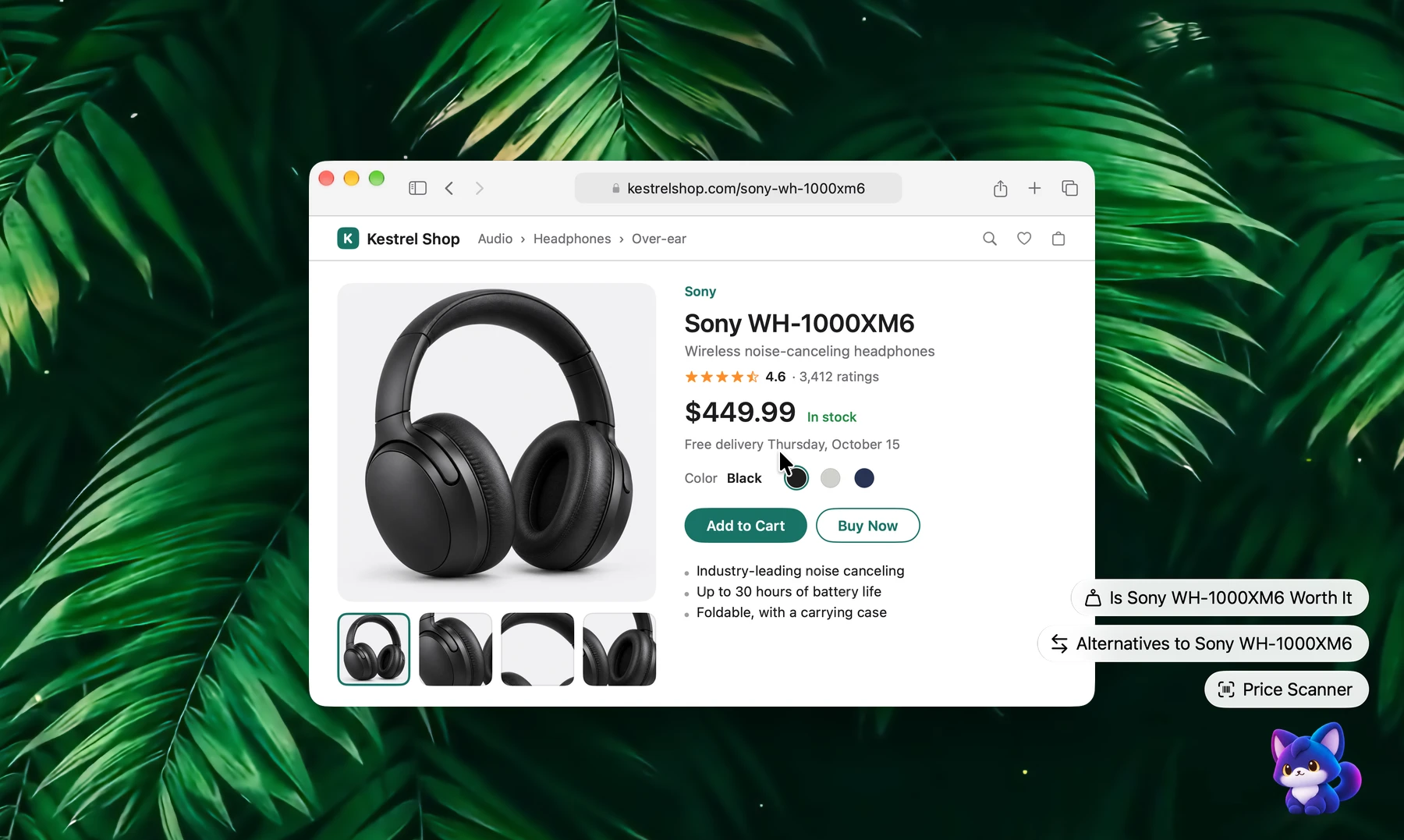
Click any idea, and the pet will start working on it. The answer shows up in a small window right next to the pet, where you can continue the conversation, insert the result into your app, or move it to the Smart Panel or Chat UI. Of course, you can also just click the pet and ask anything, or drop files, text and links on it. And if you have dictation enabled – hold the pet and speak, we call it "Hold to Talk". There is also a little badge on the pet, which shows how many of your actions and chats were finished while you were busy with something else.
But what makes the pet truly useful – is that it knows you. While you read emails and chats, it catches the important stuff. If someone asks you to do something – the pet can remind you about it later. It also offers to add meetings and deadlines from messages to your calendar. And booking numbers, tracking numbers or promo codes – it will offer to save to Memory, so you can easily find them later.
On top of that, while you're writing a reply, the pet can offer you a rewrite in your own style. It learns how you write from your writing samples in Memory, so the result sounds like you, and not like AI. Say Sara asks you for a call tomorrow, and you quickly type something like this:
cant make it tmrw sorry, monday?And the pet would propose you this instead:
Hey Sara,

Sorry, I can't make it tomorrow. Can we move our call to Monday?

Best,
Vadim
Just click "Apply", and the rewrite will replace your draft. And if your draft is already good enough – the pet will leave it as is.
Since the pet looks at what's on your screen, we designed it to work on-device by default: it reads your windows and generates ideas with Apple Intelligence, so nothing leaves your Mac. Your AI model receives a request only when you click an idea or ask something, exactly like in the Smart Panel. Moreover, the pet will always ask for your approval before sending, moving or deleting anything.
Please note, that this requires a Mac with Apple silicon and macOS 26, and Apple Intelligence has to be turned on. If your Mac doesn't support it, or you're writing in a language Apple Intelligence doesn't understand yet (e.g. Russian or Ukrainian) – just pick another model under Settings > Pets. And if you think the pet is too talkative, you can set it to show ideas only when you point at it. All the details are in the Pet guide.
Give Fluent Hands to Help You
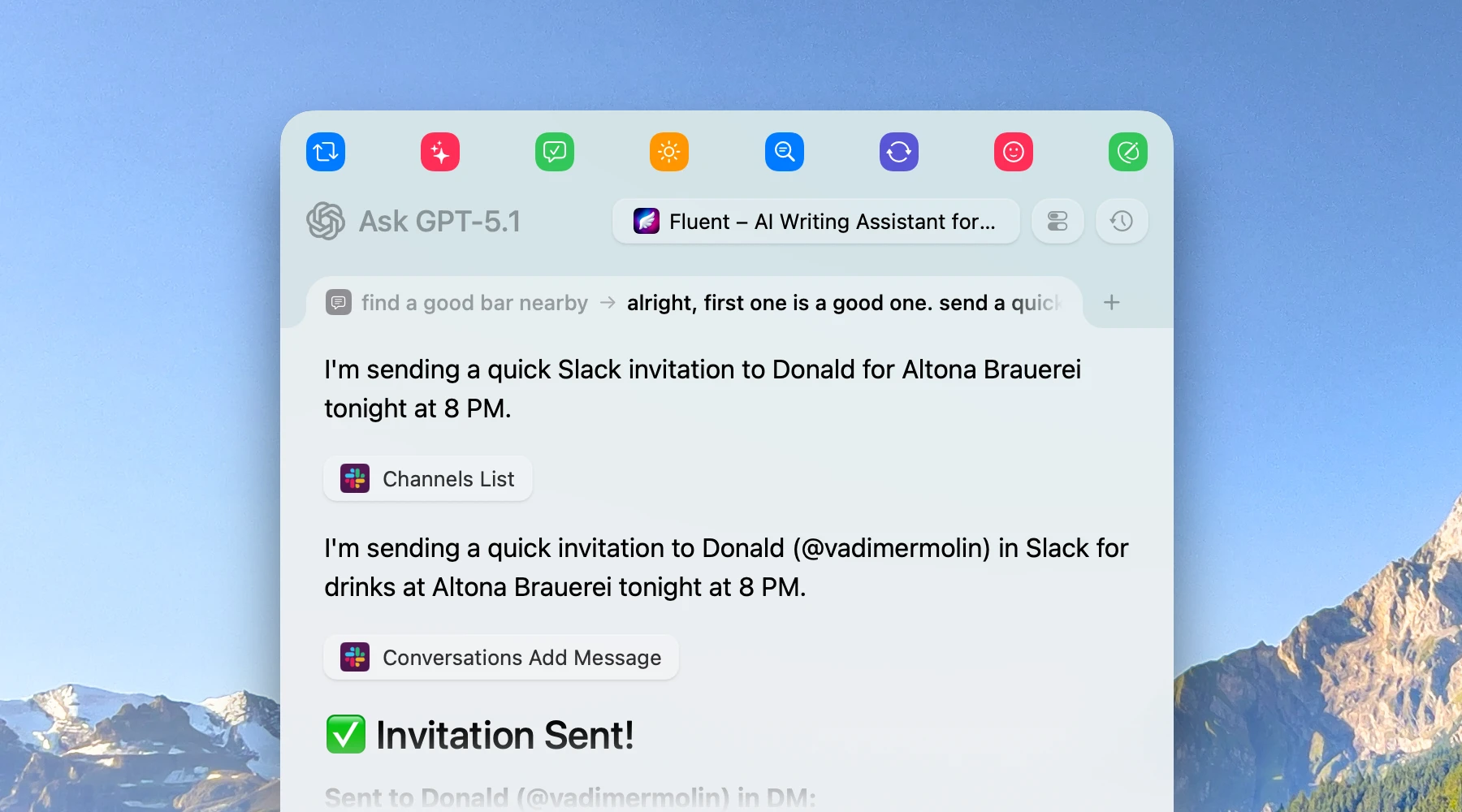
Fluent can now not only answer your questions, but also do things for you in other apps. We call it Computer Use, and it's perfect for all the boring work – like filling in forms or copying data from one app to another. Just ask something like:
Fill in the shipping form in Safari with my address from Memory
Copy the totals from this PDF into the open Numbers sheet
In Music, find Kind of Blue and play it
Fluent reads the app's buttons and fields, and then clicks, types and scrolls there with its own pointer – your mouse and keyboard are not touched at all. So you can continue working, while Fluent is doing its job.
Computer Use is enabled by default, and it only needs the Accessibility permission. Screen Recording is optional – it's needed only if you want Fluent to look at screenshots. Keep in mind, that by default Fluent doesn't ask before each click. If you want to approve every step, enable "Ask Before Running" for the "Interact" tool. And to stop Fluent at any moment – just press Esc.
There is even more if you use Chrome or another Chromium browser. Enable "Background browser control" in Computer Use settings, and Fluent will work in the tabs you already have open – without switching them and without bringing the browser to the front. No extension needed, and it works with Chrome, Edge, Brave, Vivaldi, Arc, Helium and Chromium.
In addition, Fluent got three new built-in integrations, and all of them are enabled by default:
- Fluent integration connects new services for you. Just say "connect my Notion" or "set up Groq" – Fluent will find the best way to connect, sign you in via browser and test the connection. Your API keys go straight to Keychain, and never to the model.
- Actions integration lets you create, run and schedule actions right from the chat. Ask something like "make me an action that turns meeting notes into a follow-up email", then "run it every weekday at 8:30" – and that's it. Fluent will even pick an icon and a color for it, and of course, it asks you before changing or deleting anything.
- Code integration is for the tasks where exact results matter. Fluent writes a small script and runs it inside itself, calling your enabled tools. Scripts are running in a sandbox, so they have no network or file access on their own.
Settings, Redefined
Settings got a complete redesign as well. It is now a single window, which looks just like macOS System Settings – with a sidebar and a search that finds literally any setting. There are also new sections: Appearance, Shortcuts, Actions, Chat UI and Pets.
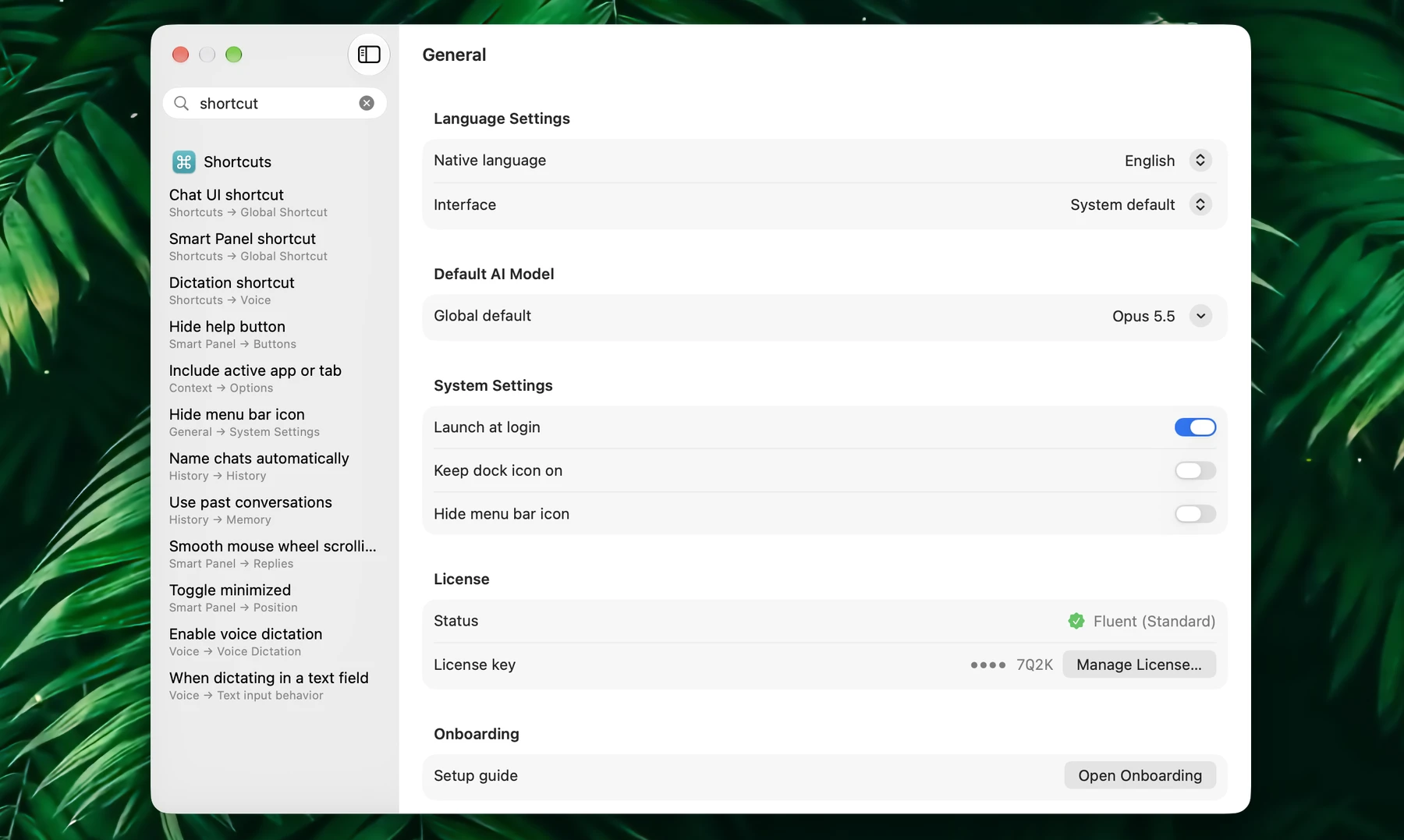
Actions are now part of Settings too, so there are no more separate windows for them – you will find all your actions, along with the action editor, under Settings > Actions. Moreover, the Chat UI can now have its own font, and the Smart Panel follows the theme you choose in Appearance.
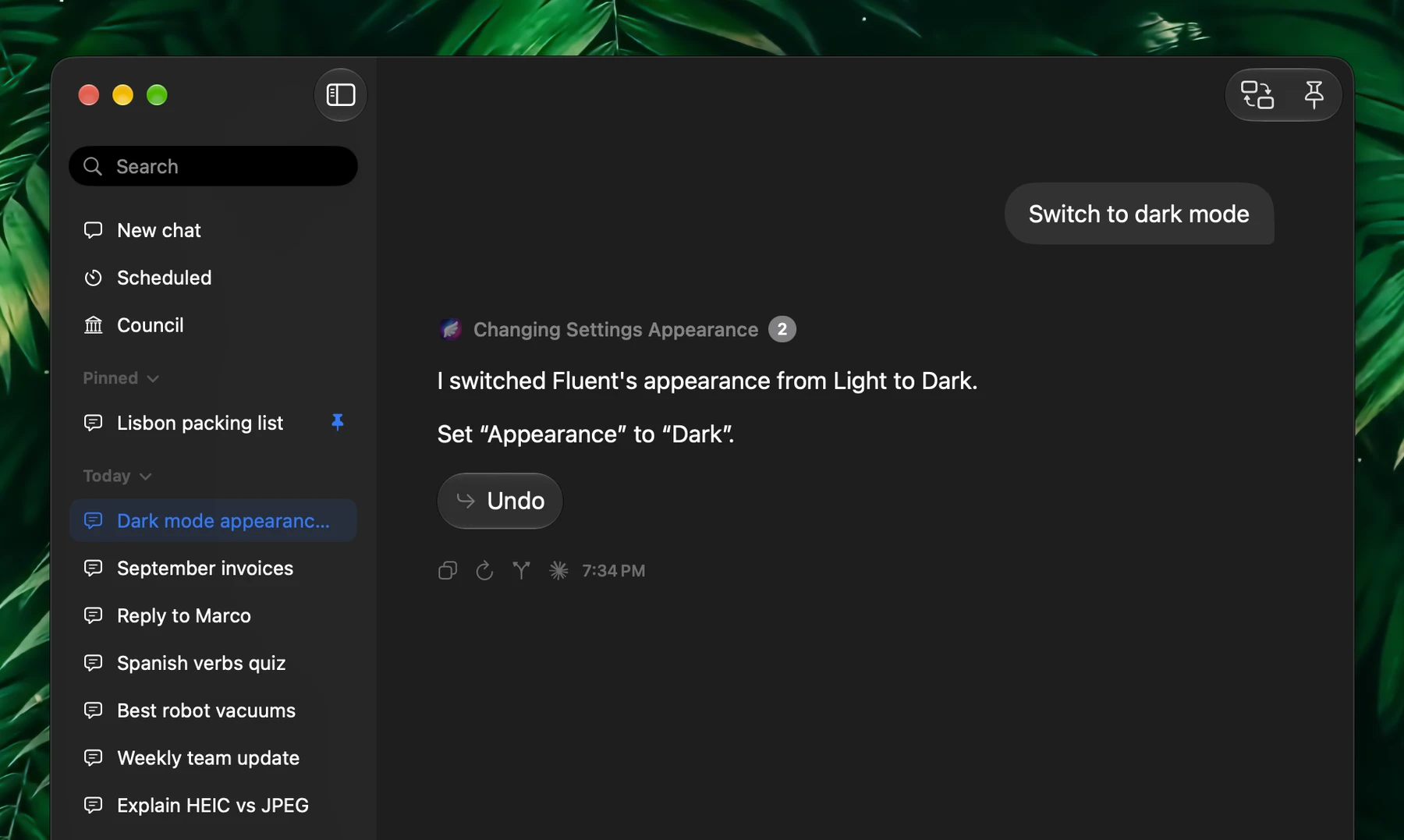
Now, the most interesting part – you don't even need to open Settings anymore. Just ask Fluent in any chat:
Switch to dark mode
Set my dictation shortcut to Control-Option-D
Where do I turn on the desktop pet?
Fluent will change the setting on its own, and if you don't like the result – there is an "Undo" button right under the reply. And if you ask where some setting is – Fluent will open Settings and show it to you.
For new users, we made the first setup much simpler. The new welcome screen and model setup come with ready-made connections for Cerebras, Groq, DeepSeek, Together AI, Fireworks AI, Moonshot AI, SiliconFlow, Nebius, MiniMax, Alibaba Cloud, Ollama and LM Studio. And if you skipped it – you can always open it again under Settings > General > Onboarding.
More in Fluent 2
Fluent 2 is quite an update, so here's what else is new, briefly:
- Use the AI subscription you already pay for. Claude Code, Codex, Antigravity and GitHub Copilot now work as providers in Fluent – no API keys and no per-token billing. Just install and sign in under Settings > Models > Subscription Providers, and all of Fluent's tools and integrations will work with them as usual. Back in 1.7 we planned OpenAI and Gemini subscriptions support – and here it is, with even more providers.
- Thinking levels. Now you can choose how much the model thinks, right in the prompt field – with the new button next to "+", or just press ⌥Tab. Fluent supports every level your model has, from Minimal to Max and Ultra, plus Auto and Off. Each chat keeps its own level, and actions can have their own as well.
- Agentic planning for everyone. Remember agentic planning from 1.10.3? It is now enabled by default, and complex requests are split into steps, which run in parallel. Fluent decides on its own whether a request needs planning, so simple requests stay fast and cost nothing extra.
- 38 new assistant actions. Research a question, check a claim, plan your day, find focus time, total the expenses in a folder, compare quotes, practice a language and much more.
- Pictures in replies. Ask Fluent to "show me pictures of Kyoto's temples", and you will get them right in the reply. Web Search needs to be enabled for this.
- Wake Mac to run. Scheduled actions can now wake up your Mac, run, and let it sleep again afterwards. Very handy for the morning briefings.
- Firefox support. Firefox, Zen, LibreWolf and Waterfox now work the same way as Safari and Chrome – Fluent reads the active tab without any browser setup.
- Cheaper long chats. Big tool results are no longer sent again with every message, older messages get summarized, and Anthropic requests use prompt caching.
- Fresh Smart Panel. Grouped buttons, tabs with chat names and way smoother scrolling. And chats now name themselves automatically.
And this is still not everything – there are tons of other improvements and fixes, so check out the changelog for all the details.
Getting Started
Fluent 2.2 is available now. Existing users can update directly, and new users can download Fluent for free or install it with Homebrew:
brew install --cask importnil/tap/fluentExcited? Give it a try!
Download Fluent for FreeWhat’s Next
The pet is still in beta, so we will continue improving it based on your feedback – along with Memory and Computer Use.
Stay tuned for more updates, and as always, we'd love to hear your feedback and feature requests in our Discord server or on r/FluentMac.