
Computer Use
Computer Use lets Fluent do things in your Mac's other apps: it reads what's in an app's window, then clicks, types, scrolls and drags there with a pointer of its own. Your own mouse and keyboard stay yours, so you can keep working while it does.
Ask in the Smart Panel or the chat window, and name the app when more than one could do it.
Try Asking
| Ask | What Fluent does |
|---|---|
| "Fill in the shipping form in Safari with my address from Memory" | Finds the form's fields and types into each one |
| "Copy the totals from this PDF into the open Numbers sheet" (with the PDF attached) | Reads the PDF, then types each total into its cell |
| "In Music, find Kind of Blue and play it" | Searches the catalog and starts the album |
| "What do you see on my screen?" | Takes a screenshot of the display and describes it |
How It Works
- Fluent reads the app's buttons, fields, lists and text through Accessibility, in the background: the app doesn't have to be in front.
- It acts with its own pointer, drawn over the app, then looks at the app again to check what changed.
- The answer's badge says what it's doing ("Working with Music"); click the badge for the details.
Fluent can work in any app that's running, except Fluent itself. It works best in apps whose controls Accessibility can read, as most Mac apps' are. For a game or a drawing canvas, it can look at screenshots instead.
Turn It On
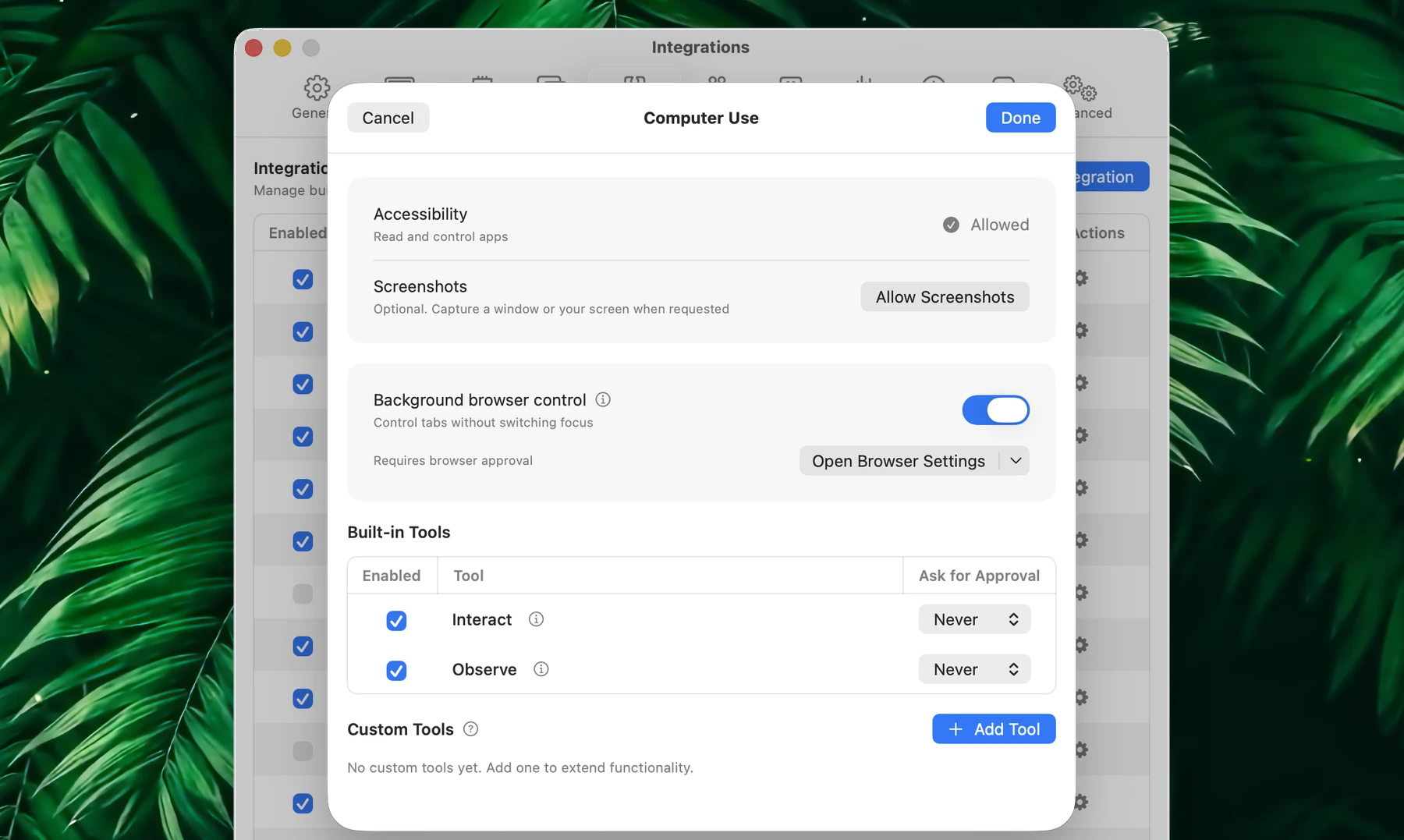
Computer Use is on by default. Its settings open from the gear next to it in Settings → Integrations:
| Permission | Needed for | In its settings |
|---|---|---|
| Accessibility | Reading and controlling apps | Allow Accessibility, which opens System Settings |
| Screenshots (Screen Recording) | Only when Fluent should look at a window or your screen as a picture | Allow Screenshots |
A permission that's granted shows Allowed. To keep Computer Use out of your requests, switch it off in the list of integrations.
Stop Or Approve
- Esc stops Fluent's pointer in the middle of a step, and Fluent is told that you stopped it. With the Smart Panel in front, Esc also closes the panel, which ends the request too unless Keep requests running in background is on.
- To end the whole request, click the ring in the prompt row, as for any answer.
- Computer Use doesn't ask before it acts. To confirm each step, set Ask for Approval to Always for its Interact tool, in the same settings: Fluent then waits for Approve before each batch of clicks and keys.
Background Browser Control
In a browser, Computer Use clicks as it does in any app, which can bring the browser's window forward. With Background browser control, it works in the tabs you already have open in Chrome, Edge, Brave, Vivaldi, Arc, Helium or Chromium, without switching tabs or bringing the browser to the front. No extension is needed.
To set it up:
- Turn on Background browser control in Computer Use's settings.
- Click Open Browser Settings (its menu lists each browser you have), and turn on Allow remote debugging on the page that opens.
- The first time Fluent connects, the browser asks whether to allow it: approve it.
That approval gives Fluent broad access to the browser, so turn this on only if you want Fluent working in your tabs. With it off, Fluent controls the browser like any other app.
If It Doesn't Work
| What happens | What to do |
|---|---|
| Fluent says it can't read or control the app | Allow Fluent in System Settings → Privacy & Security → Accessibility, or click Allow Accessibility in Computer Use's settings |
| It can't take a screenshot | Click Allow Screenshots and turn on Fluent under Screen Recording; reopen Fluent if macOS asks |
| The browser comes to the front | Turn on Background browser control and allow remote debugging in the browser |
| It works in the wrong app | Name the app in your request: "in Numbers, …" |