
Council
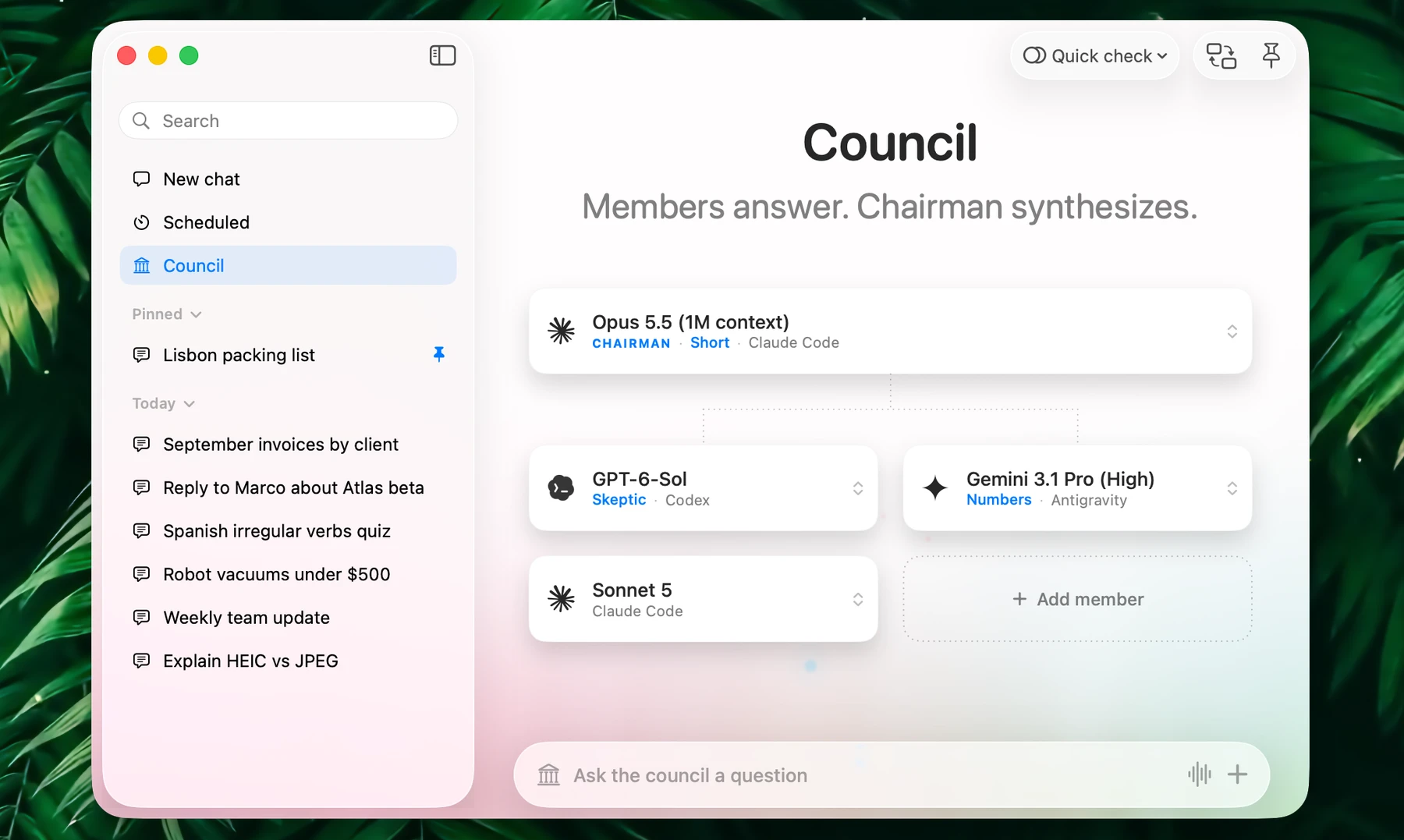
Council asks several models the same question at once. They review each other's answers without knowing who wrote which, and a chairman model writes one final answer from the best of them.
Use it when one model's answer isn't enough: a decision with trade-offs, a claim you want checked, a plan you want torn apart before you act on it.
How It Works
A Council runs in three stages:
| Stage | What happens |
|---|---|
| Answer | Every member answers your question on its own, all at the same time. Members can use your integrations, such as web search, as they would in a chat. |
| Review | Each member reads the other answers, labeled Response A, B, C with no model names. It rates each one for accuracy, completeness, insight and reasoning, and ranks them from best to worst. |
| Synthesis | The chairman reads every answer and review, keeps what holds up, corrects what doesn't, and writes the final answer. |
The final answer ends with a Chairman verdict: what the council agreed on, what the chairman corrected or dropped, and a confidence score from 0 to 100%.
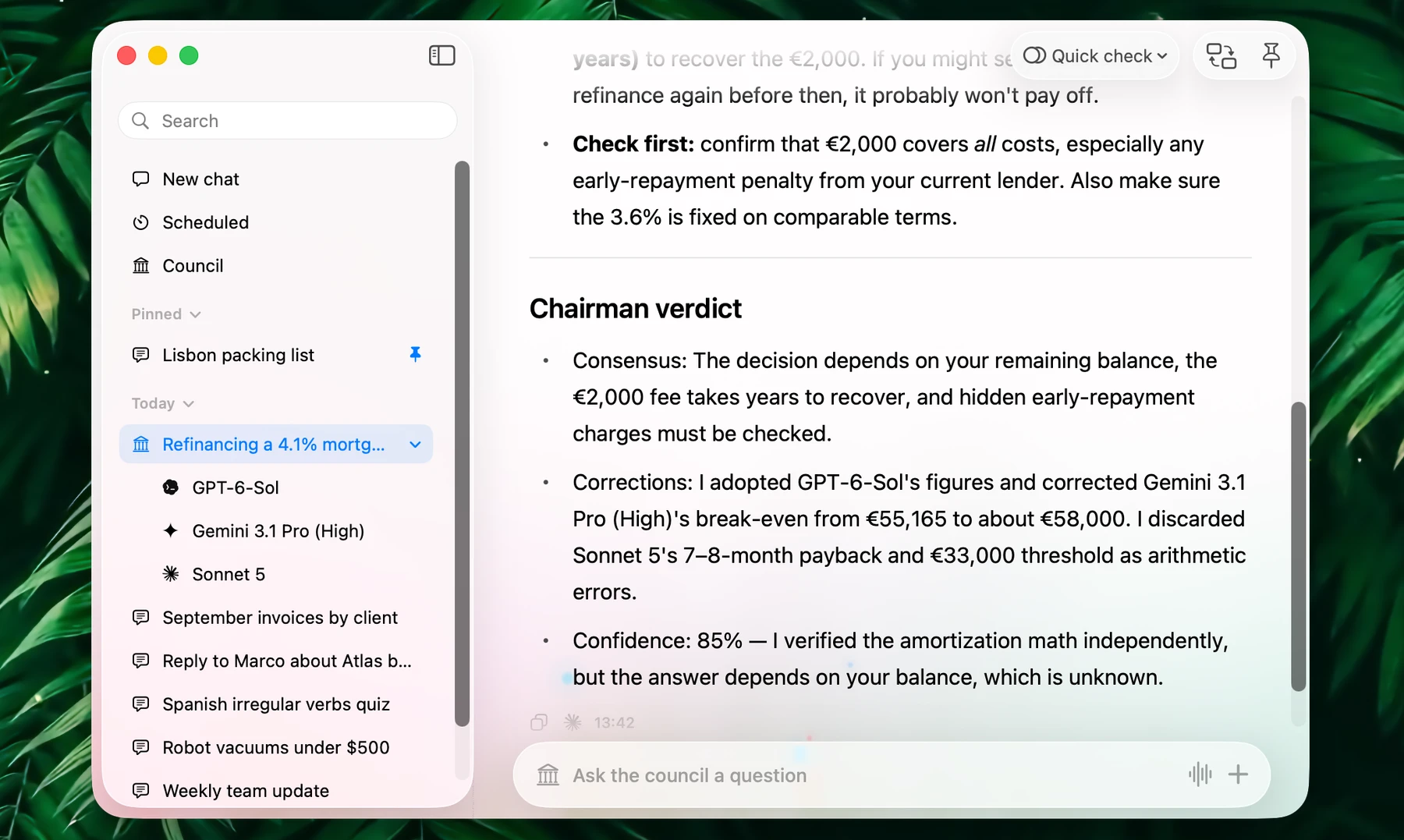
Everyone answers in the language of your question. Model names are filled into the reviews afterwards, so you can see who said what about whom. With a single member there's nothing to review, and the chairman works from that one answer.
Questions that work well:
- "Should I refinance a 4.1% mortgage at 3.6%? The fee is €2,000 and 12 years are left."
- "Review this contract for risks to me as the freelancer." with the contract attached
- "Is it true that cracking your knuckles causes arthritis? Cite sources."
Start A Council
- Open the chat window and click Council in the sidebar, under New chat and Scheduled.
- Click the chairman card and choose the model that writes the final answer. It starts as your default model.
- Click Add member and choose a model. Add up to ten.
- Type your question where it says Ask the council a question, and press Return.
You can attach files and images as you would in a chat. Every member, every reviewer and the chairman receive them, so a claim about a picture or a document is checked against the original.
The chairman and members you set up stay for next time, even if you never save them as a preset.
If the Council page says "Add an API key for a provider", no provider is set up yet. Click Open Settings and add one in Settings → Models.
Members And Chairman
Members and the chairman can be any model you have set up: cloud and custom providers, subscription providers you're signed in to, downloaded local models and Apple Intelligence. The cards open the same model menu as a chat.
- Change a model: click its card and choose another one.
- Remove a member: hover over its card and click the ×.
- Chairman: any model, including one of the members. It reads everything the council wrote, so give it a strong model.
- Unavailable: a card shows this in orange when its provider can't run right now, for example after a key was removed or you signed out. The Council still runs, and that member reports its error.
Tip: mix model families, so the members don't all share the same blind spots.
Instructions
Give a member, or the chairman, its own instruction. Click its card and choose Add Instruction at the top of the menu. Enter a short Name, which shows on the card, and the Instruction itself.
| Name | Instruction |
|---|---|
| Skeptic | Argue against the obvious answer and look for what could go wrong. |
| Numbers | Back every claim with figures and show your calculations. |
| Beginner | Explain it the way you would to someone new to the topic. |
For the chairman, an instruction shapes the final answer, for example Short: "Keep the final answer under 200 words."
A member follows its instruction when it answers and when it reviews, and the chairman sees each member's instruction. Use Edit Instruction or Remove Instruction in the same menu. Choosing a different model for a card removes its instruction.
Council Presets
A preset saves a chairman, its members and their instructions, so you can switch setups in one click: for example "Quick check" with three fast models and "Deep dive" with ten.
Use the Presets button in the toolbar while the Council composer is open. It shows the active preset's name.
| Menu item | What it does |
|---|---|
| New Preset | Saves the current chairman and members under a name you choose |
| Update "Name" | Saves your changes into the active preset |
| A preset | Loads it. (Unsaved) after the active preset's name means you changed it since |
| Manage Presets | Rename, duplicate, delete, or drag presets into a new order |
Loading a preset replaces the current setup. If that setup isn't saved, Fluent asks first: Continue replaces it, Cancel keeps it. Choosing the active preset again drops its unsaved changes.
Watch It Run
Each card shows its model's progress and how long it has been working:
| Card | Shows |
|---|---|
| Member | Answering…, Answered, Reviewing…, Reviewed. No answer, Error or Cancelled when it didn't answer |
| Chairman | Standing by, Synthesizing…, Synthesized, or Failed and Cancelled |
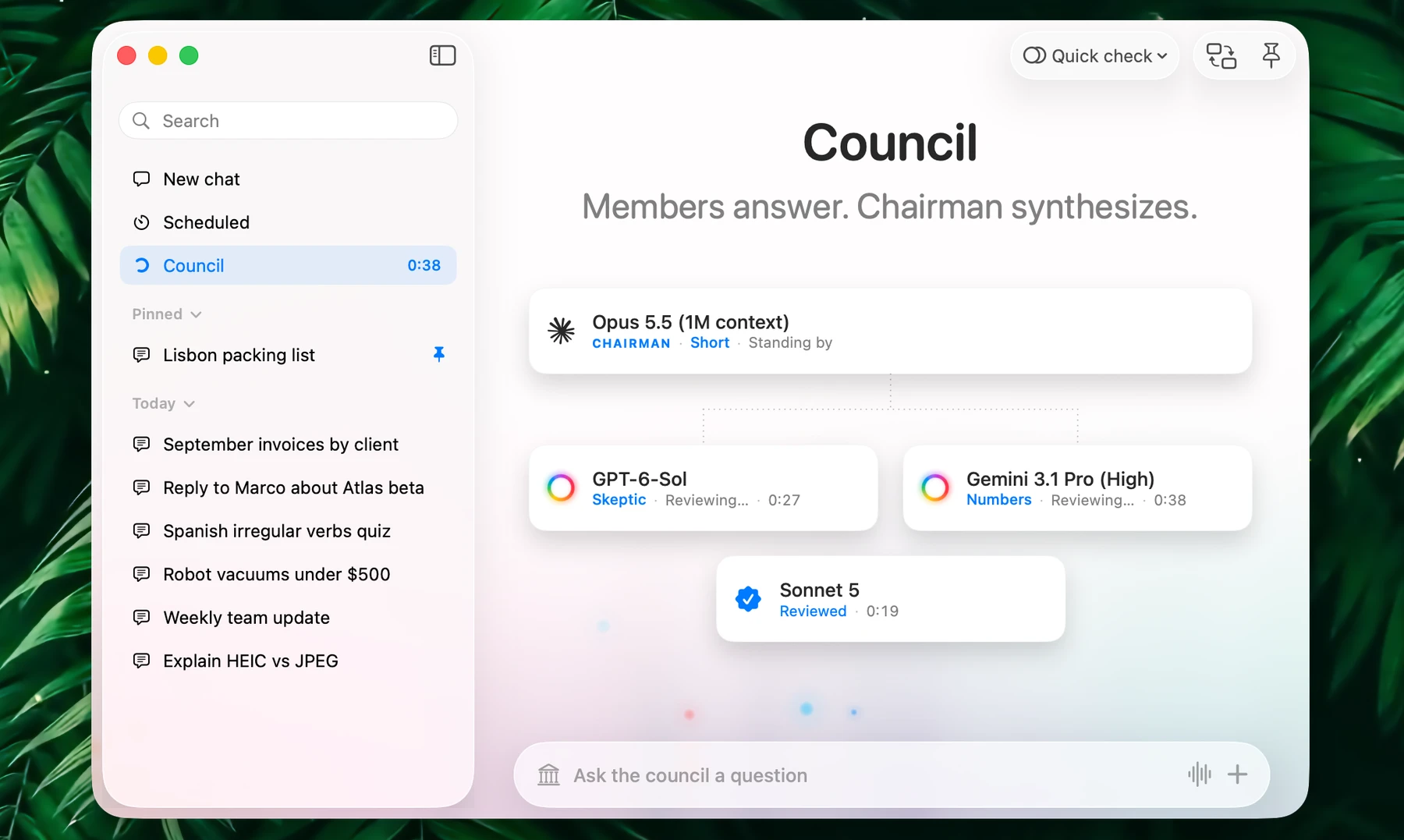
- Read along: click any card to read what that model has written so far.
- Stop a slow member: click the spinning ring on its card. The Council goes on without it. Stopping the chairman ends the Council without saving it.
- Leave it running: open other chats, switch apps or close the window. The Council row in the sidebar shows a spinner and the elapsed time.
You can't change members while a Council runs. When it finishes, the final answer appears under the cards.
If no member answers, or the chairman can't write the synthesis, a message says so. Click Try again to reset the composer, then ask again, perhaps with other models. A Council that fails isn't saved.
Read The Result
A finished Council is saved as one conversation in the chat window's sidebar, among your other chats. Click the arrow next to it to list its members.
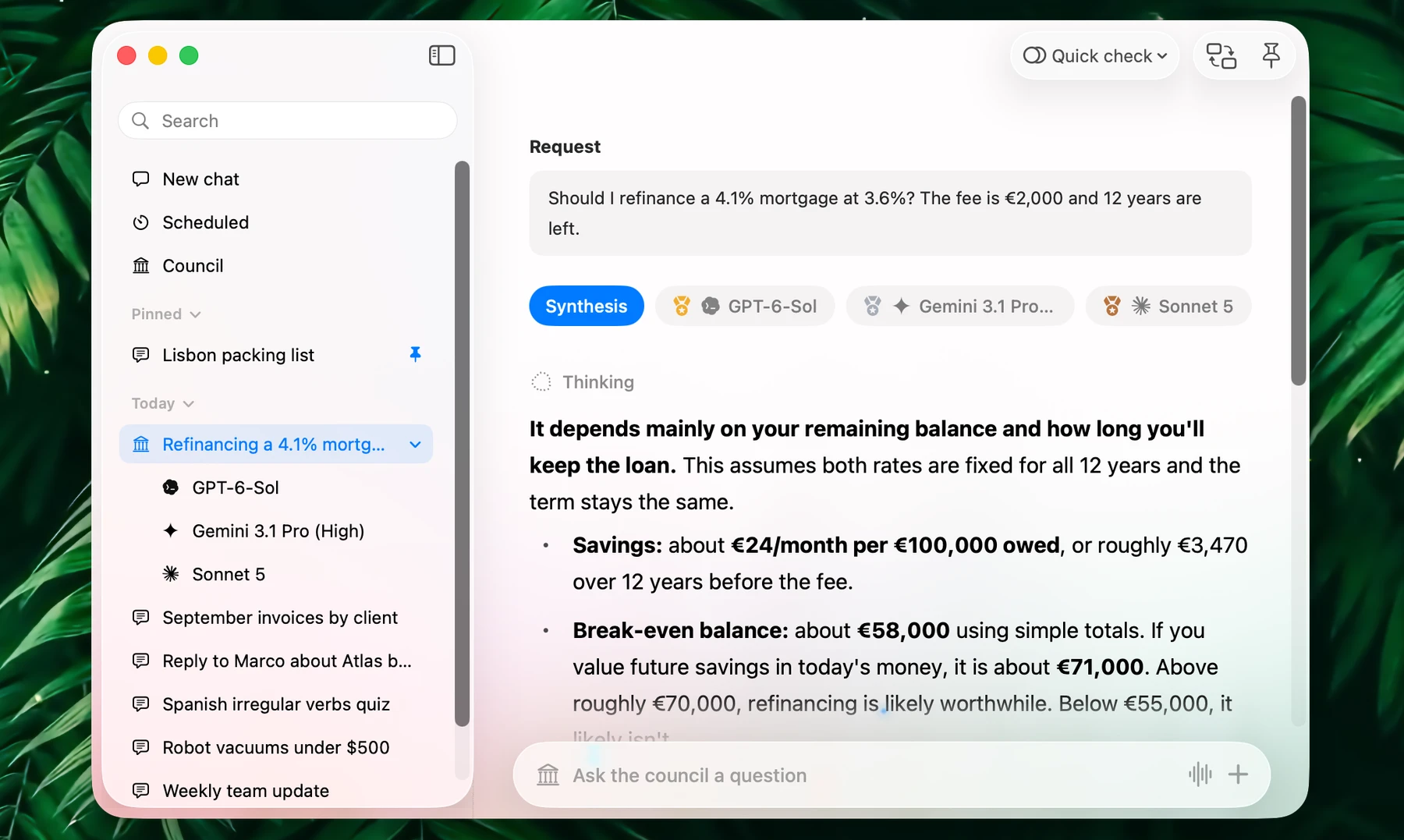
At the top, Request shows your question. Below it, switch between:
| Tab | What it holds |
|---|---|
| Synthesis | The chairman's final answer, with the Chairman verdict: Consensus, Corrections and Confidence |
| A member | That member's own answer, then its peer review of the others: a short critique of each and its ranking |
Member tabs are ordered by the council's ranking, which adds up every member's review: first place in a review earns the most points. The top three carry gold, silver and bronze medals, the rest #4, #5 and so on. Members that don't fit show under +2, +3 and so on.
Under each tab, the reply details show the model, time and tokens, and the cost for NanoGPT models. Copy any answer from there.
A Council answers one question and can't be forked, renamed or pinned. To ask something else, open Council and ask: it runs as a new Council. To remove one, right-click it and choose Delete council chat.
Notifications And The Menu Bar
When a Council finishes while you aren't looking at it:
- A notification shows your question, Completed or Failed, and the start of the answer. Click it to open the Council in the chat window.
- The menu bar icon counts it, and the menu lists it under Finished. Click Open to read it.
- Its title shows in green in the sidebar until you open it.
While it runs, the menu lists it under Running. Councils are stopped from their cards, not from the menu bar.
Where Councils Appear
| Place | Councils |
|---|---|
| Chat window's sidebar and its search | Yes, with your other chats |
| Smart Panel history menu (⌘Y) | No, and ⌘⇧T doesn't reopen them |
| History | Saved like chats. With Enable history off in Settings → History, a Council isn't kept |
| Memory | The chairman can use what Memory knows, but a Council never saves anything to Memory |
Time And Cost
A Council of N members sends about 2N + 1 requests: an answer and a review from each member, then the synthesis. A member that uses tools, such as web search, makes more. Reviews and the synthesis include the other answers, so they're longer than your question alone.
| Members | Requests (about) |
|---|---|
| 3 | 7 |
| 5 | 11 |
| 10 | 21 |
Members answer at the same time and review at the same time, so a Council takes about as long as its slowest answer, plus its slowest review, plus the synthesis.
To keep it fast and affordable:
- Use three to five fast members and one strong chairman
- Stop a member that keeps everyone waiting
- Use a subscription provider, which counts against your plan's limits instead of billing per token
- Save a small preset for everyday questions and a large one for the questions that deserve it