
Quick Start
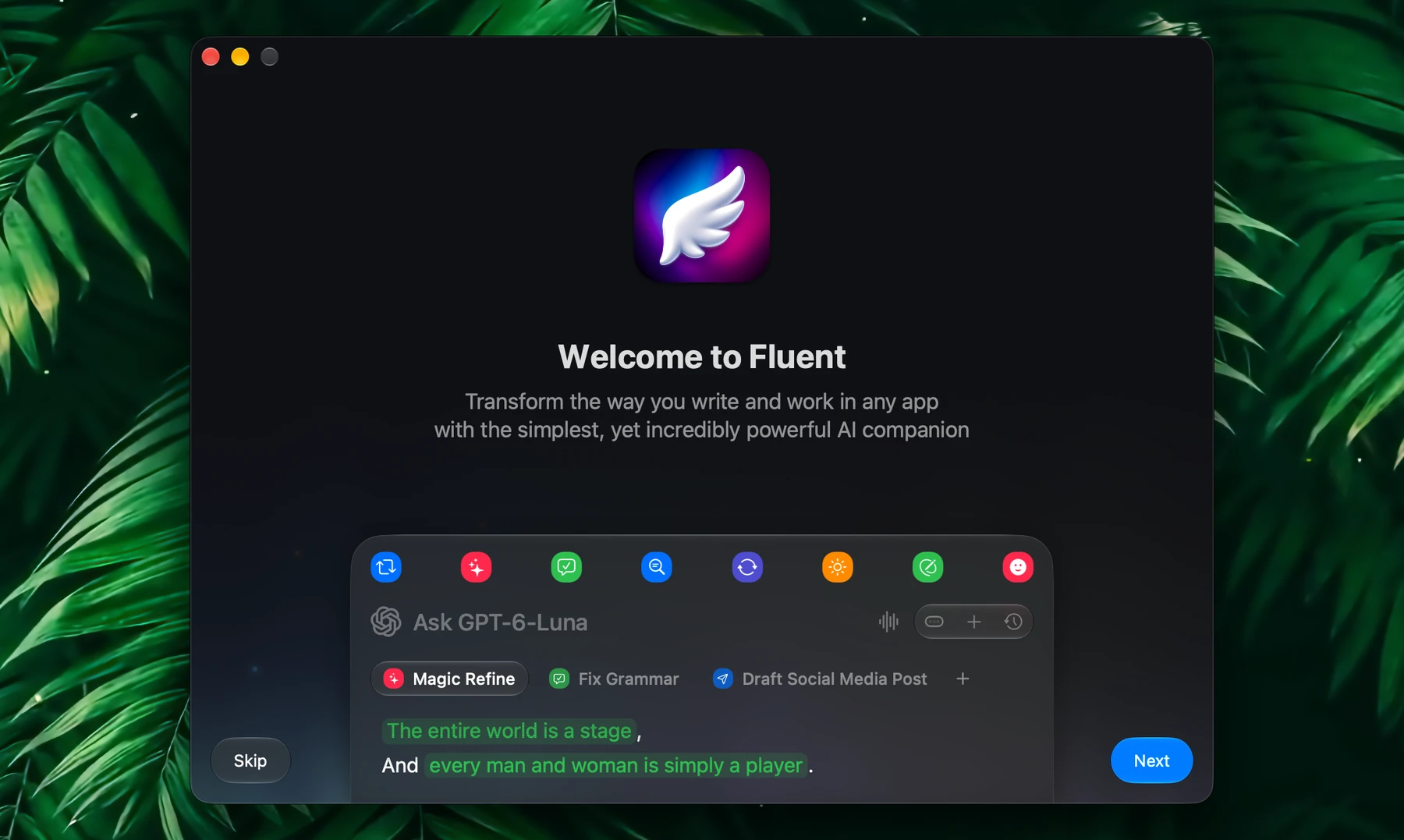
Fluent is a lightweight AI assistant for your Mac. It opens over any app with one shortcut, sees what you're working on, and can work with your files, apps and the web. You choose the AI: a cloud model, the subscription you already pay for, or a model running on your Mac.
Key Features
- Native macOS app, light on memory and battery
- Opens over any app, with the text, tab or app you're working on
- Keeps the formatting of the text you select
- Actions for repeated tasks, 38 ready-made assistant actions, scheduled runs
- A chat window for longer conversations, and Council to ask several models at once
- A pet on your desktop with ideas for whatever is on your screen (beta)
- Your own API keys, or the AI subscription you already pay for: Claude, ChatGPT, Google AI or GitHub Copilot
- 500+ models, including local models that run fully offline
- Memory that learns about you and your files, on your Mac
- Real-time voice dictation, on-device
- 16 built-in integrations and a directory of 20,000+ external MCP servers
How It Works
- Press your Smart Panel shortcut (⌥Space by default) in any app
- Type a request or run an action. Selected text, attached files, tabs and apps go along with it.
- The model you chose, cloud or local, answers. With integrations it can also act: search the web, read files, add a calendar event.
Depending on the task, Fluent is a quick chatbot that answers questions, a writing assistant that refines your text, or an agent that gets multi-step work done on your Mac.
Installation
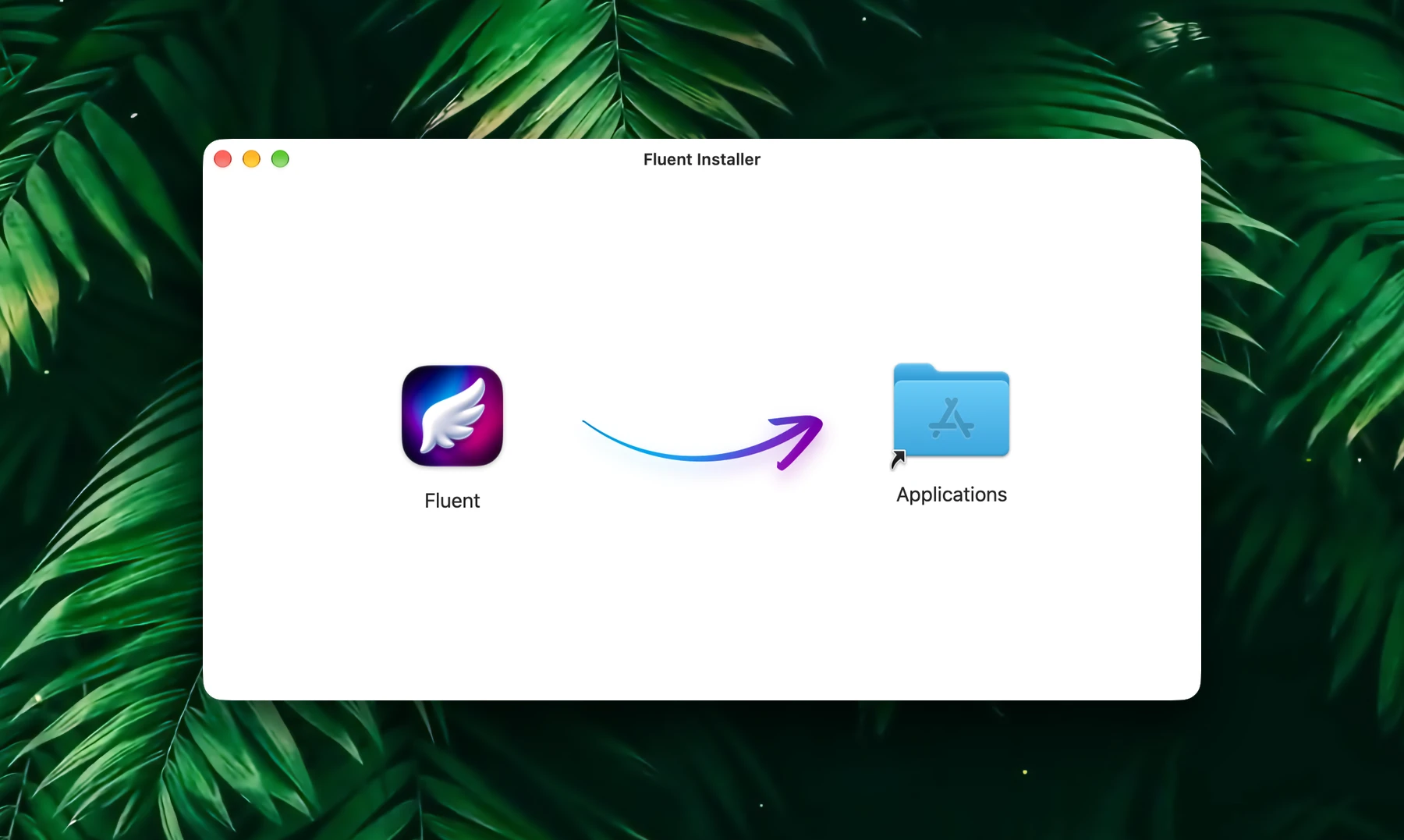
Download the latest version of Fluent with the button in the top-right corner of this page.
Open the dmg file and move Fluent into the Applications folder. That's it! Fluent requires macOS 14.2 or later.
With Homebrew, install it from the Terminal instead:
brew install --cask importnil/tap/fluentOnboarding
On first launch, a setup guide walks you through Fluent in ten short steps. Click Next or press →, or Skip at any time: everything is in Settings later. To run the guide again, open Settings → General → Onboarding → Open Onboarding.
Welcome
A short welcome with a preview of the Smart Panel.
Tweak Your Panel
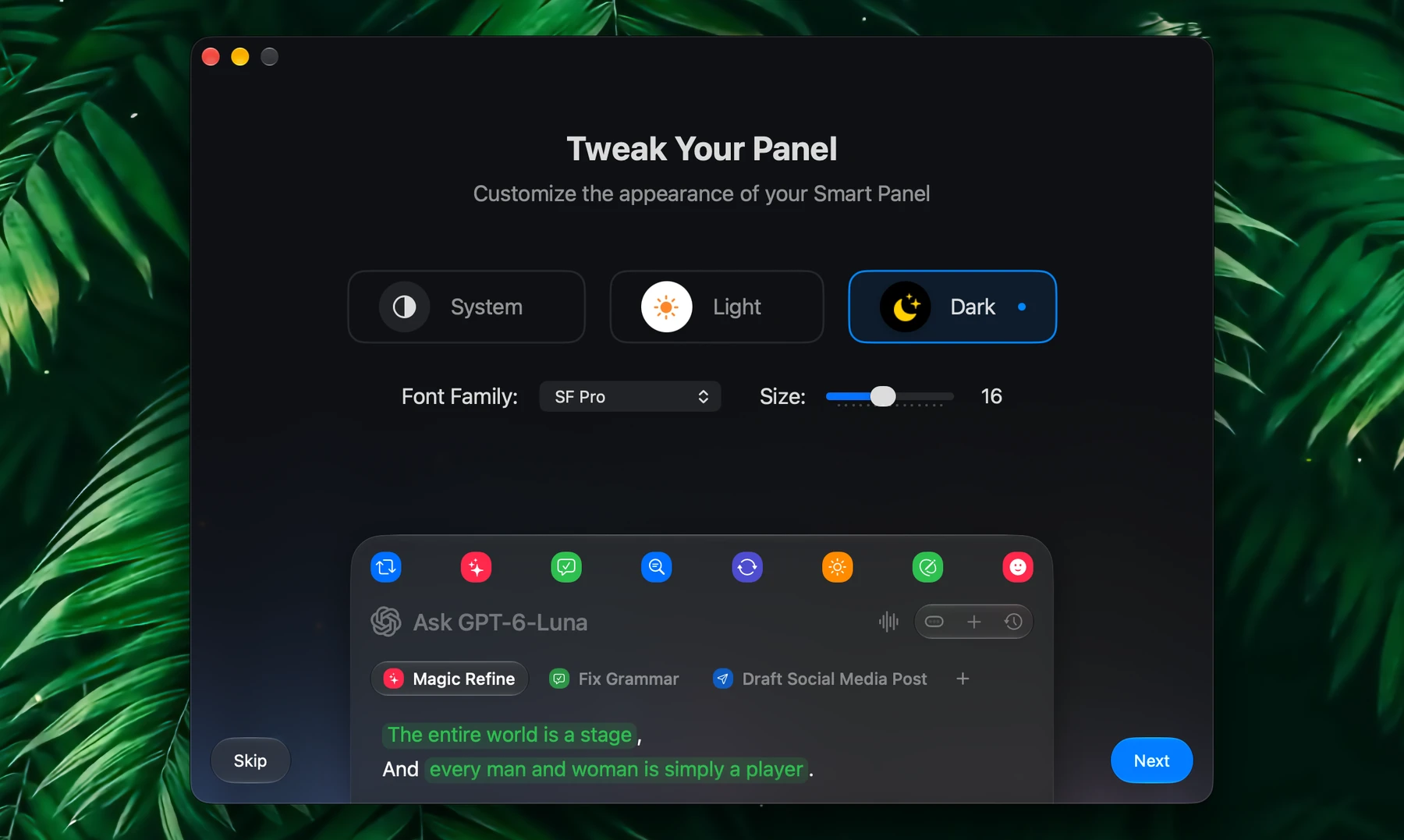
Pick Fluent's theme (System, Light or Dark), and the Smart Panel's font family and size. The preview below shows your changes. More options, such as Liquid Glass, are in Settings → Appearance.
Smart Panel Mode
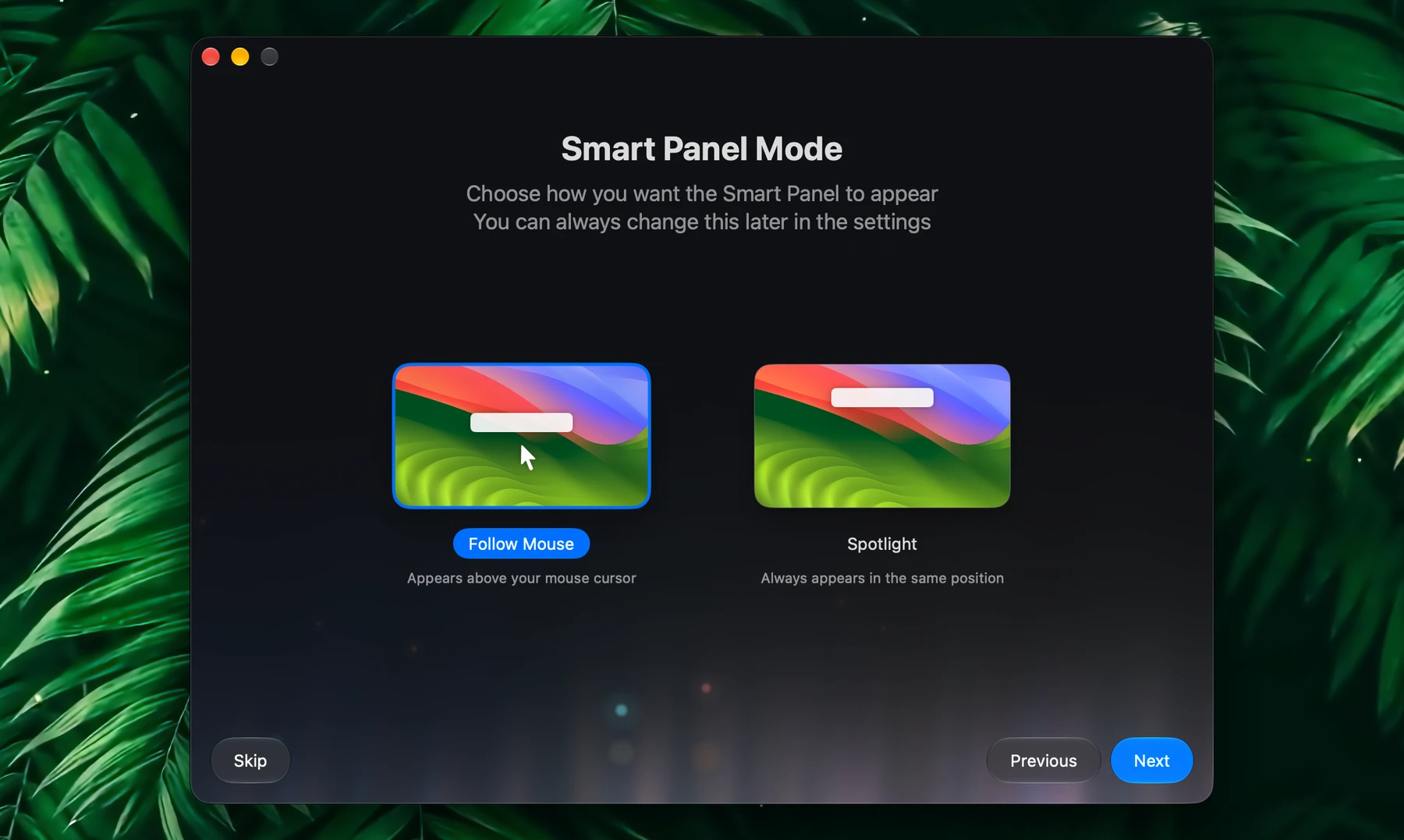
Choose where the Smart Panel opens:
- Follow Mouse opens it right above your mouse pointer. This is the default.
- Spotlight opens it at the same spot every time, like Spotlight, Alfred or Raycast.
Conversation Flow
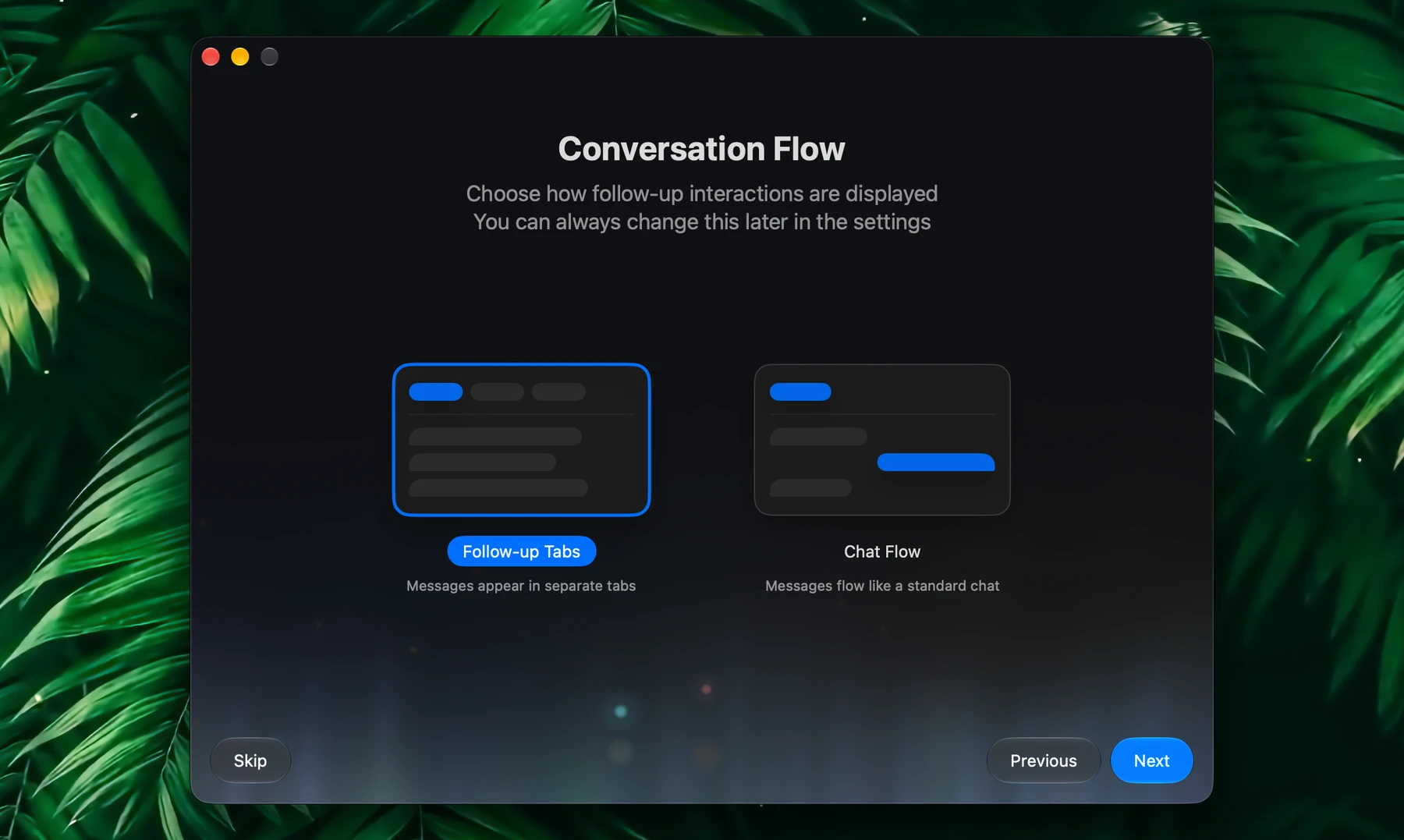
Choose how follow-up questions appear in the Smart Panel:
- Follow-up Tabs: each follow-up opens in its own tab
- Chat Flow: messages flow like a standard chat
Accessibility Permissions
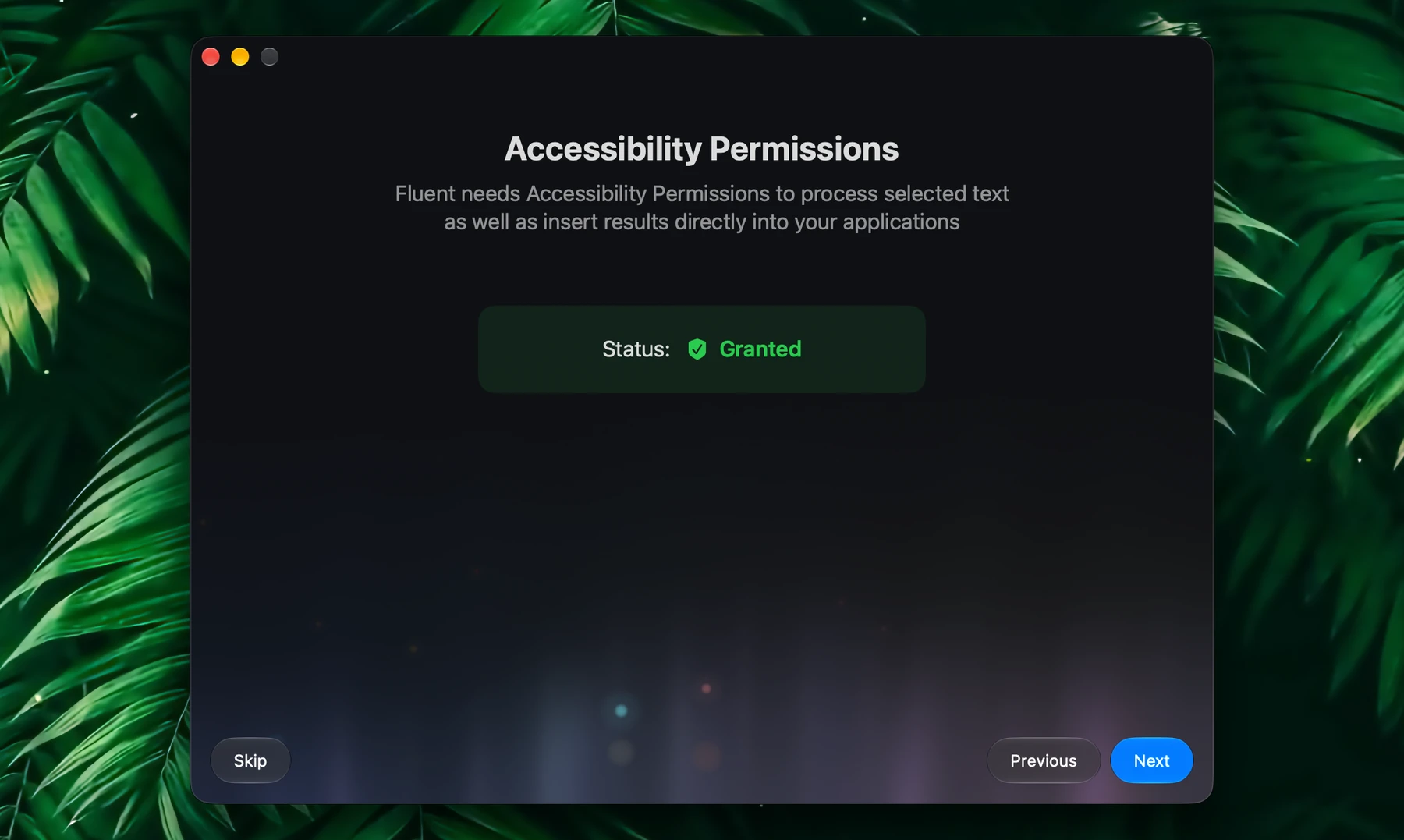
Fluent needs Accessibility to react to your shortcuts, read the text you select and insert results into your apps. Click Authorize in Accessibility and turn on the switch next to Fluent. The status turns to Granted, and the shortcuts work right away.
This is the only permission Fluent needs up front. Others are asked for only when a feature needs them, for example:
- Automation, the first time Fluent reads or controls your browser, Finder or Notes
- Calendar and Reminders, the first time those integrations are used
- Microphone, when you turn on voice dictation
- Mail folder, the first time you attach a Mail conversation: Fluent reads it from Mail's own storage, which is fast even in mailboxes with hundreds of thousands of messages
- Location, only for the Location integration
Cloud Models
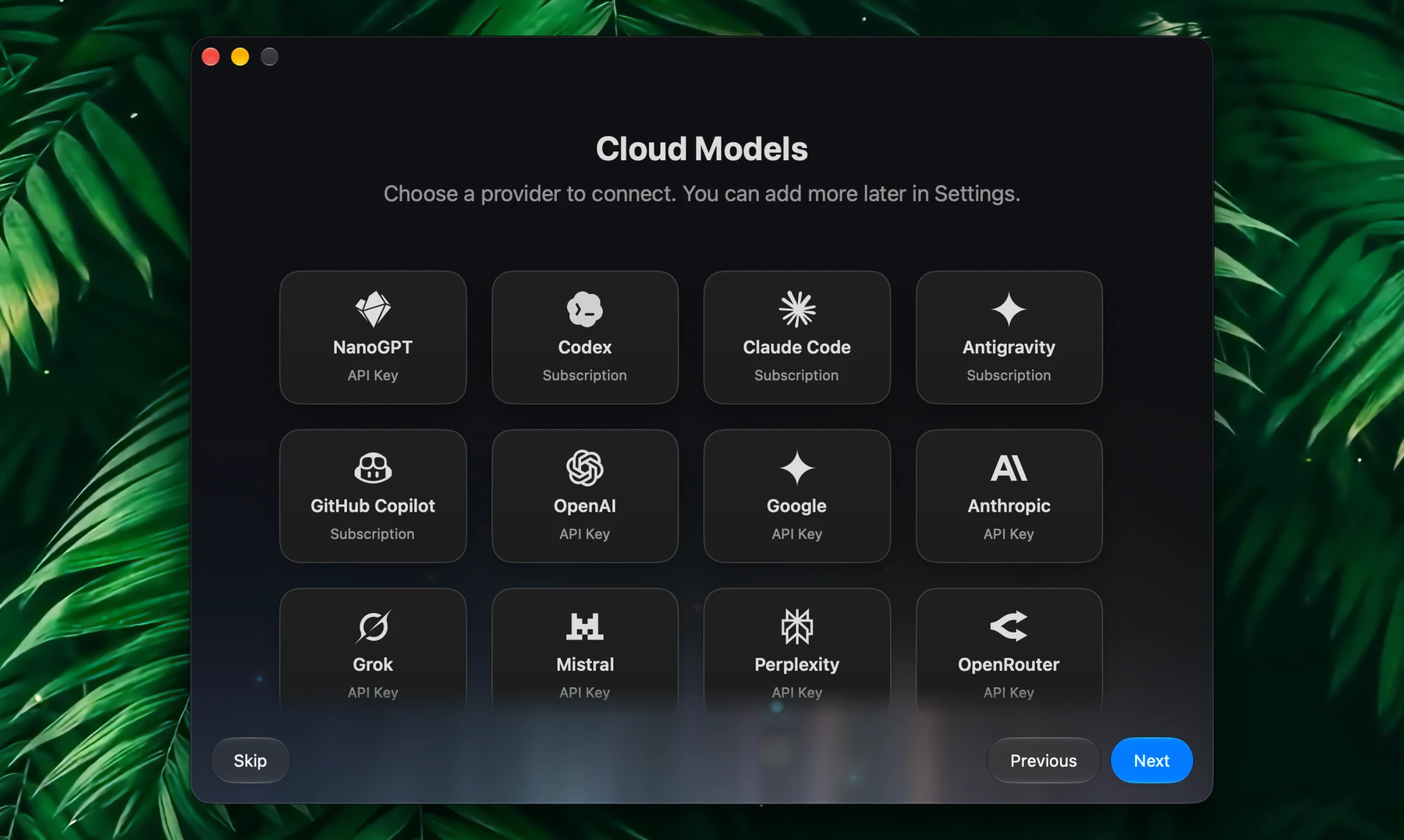
Choose a provider to connect. Each tile says what it needs, and shows Connected once it's set up:
| Tile | How to connect |
|---|---|
| Subscription: Codex, Claude Code, Antigravity, GitHub Copilot | Install & Sign In (or Sign In), then approve in your browser. No API key: Fluent uses the plan you already pay for. |
| API Key: NanoGPT, OpenAI, Google, Anthropic, Grok, Mistral, Perplexity, OpenRouter, Cerebras, Groq, DeepSeek, Together AI, Moonshot AI, SiliconFlow, Nebius, Fireworks AI, MiniMax, Alibaba Cloud | Paste your key and click Connect. Get API Key opens the provider's key page. |
| Local: Ollama, LM Studio | Start the server in that app and load a model, then click Connect. The key is optional. |
Connect one or several. You can add more later in Settings → Models. See Models & Providers.
Local Models
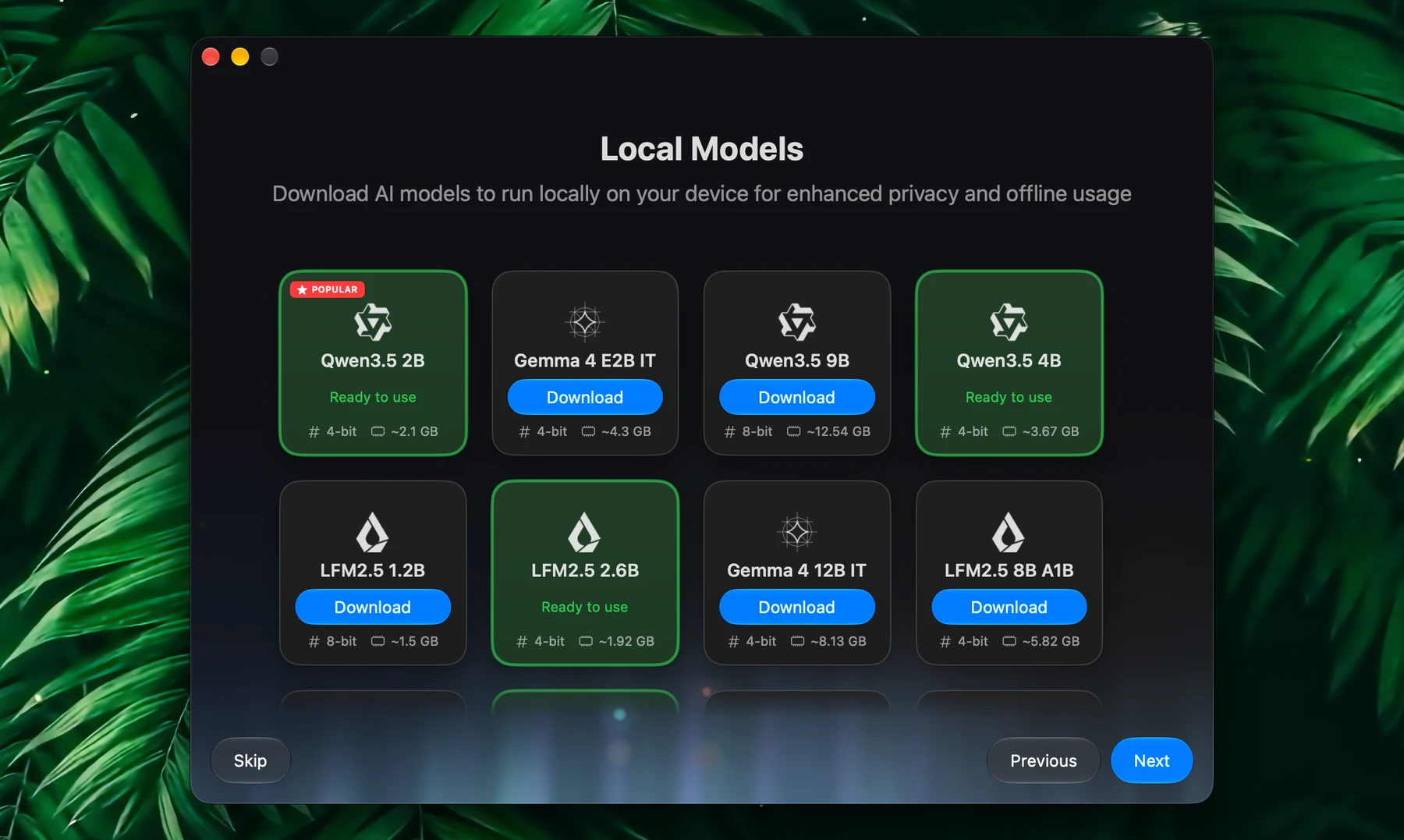
Download a model to run on your Mac, for privacy and offline use. Each card shows how much memory the model needs; click Download. Many more models are in Settings → Models → Local (MLX), where you can also load a model folder from disk. Local models need a Mac with Apple silicon.
Ollama and LM Studio also work, as providers from the previous step.
Realtime Dictation
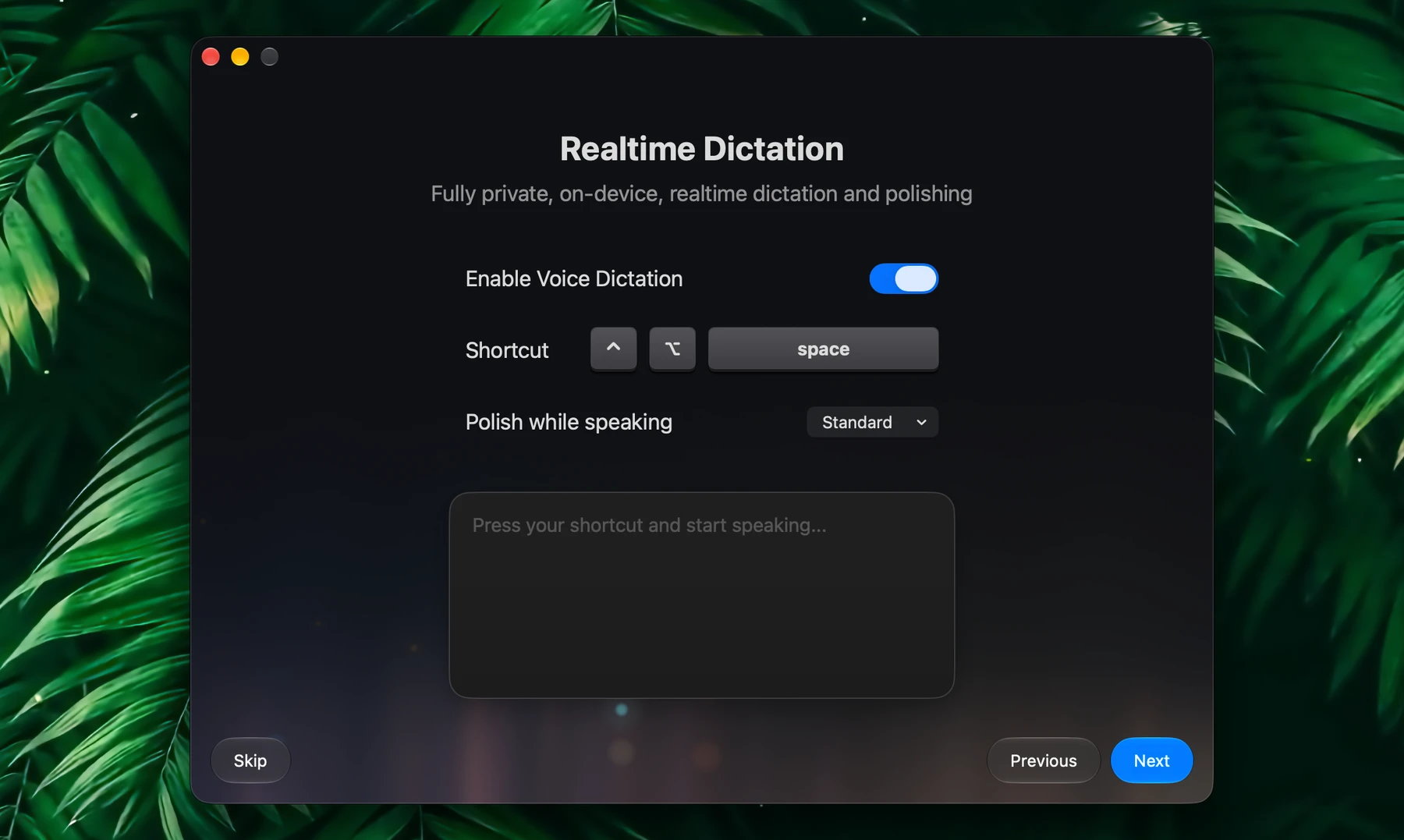
Fully private, on-device dictation in any app. Turn on Enable Voice Dictation: macOS asks for the microphone, and Fluent downloads its speech and polish models. Then:
- Shortcut: press it in any text field to start dictating, and again to stop (⌃⌥Space by default)
- Polish while speaking: how much Fluent cleans up what you say, from As dictated to Strong
- Try it right away in the test field
More options are in Settings → Voice. See Voice.
Meet Your Pet
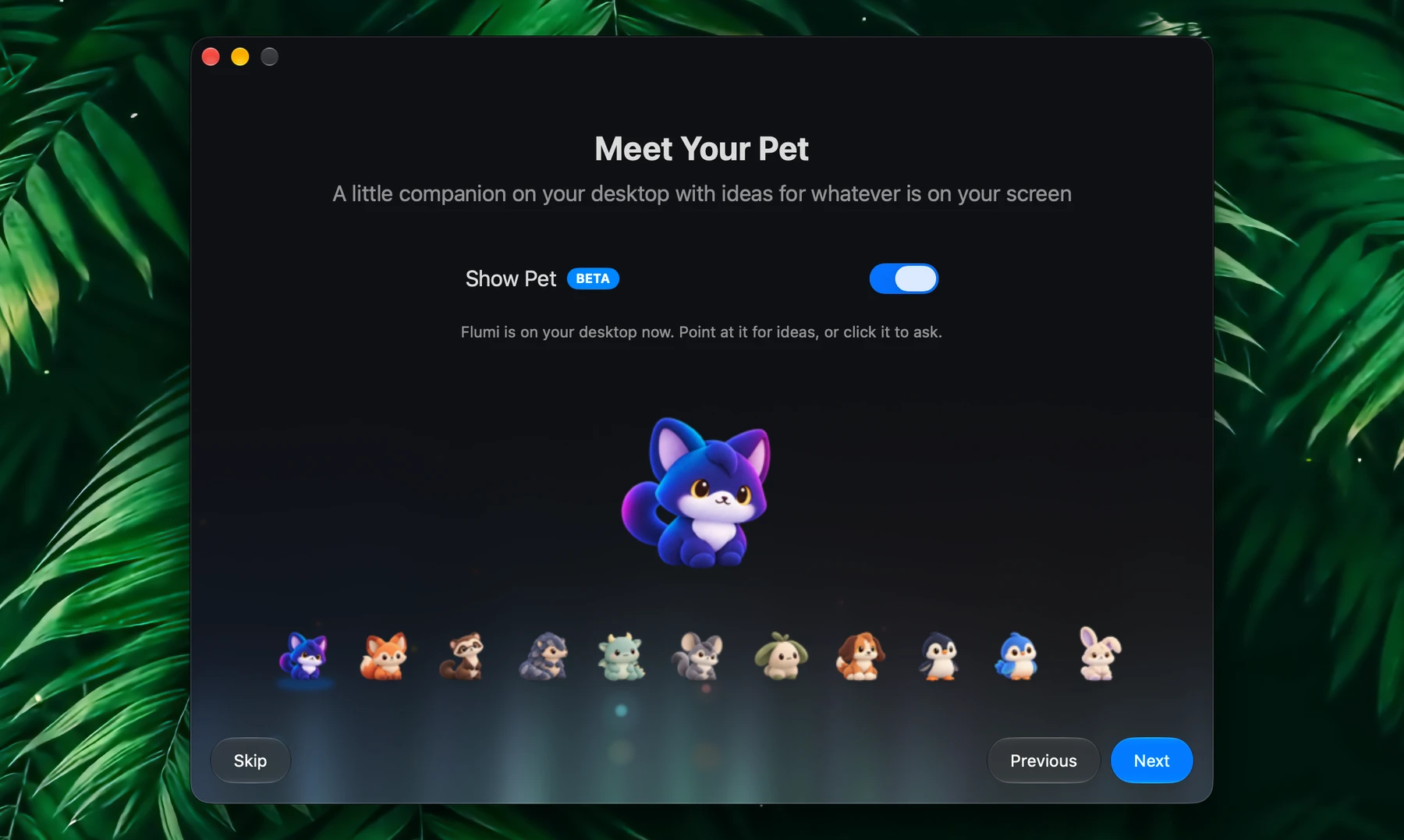
Turn on Show Pet for a little companion on your desktop with ideas for whatever is on your screen, and pick a character from the row below. Point at it for ideas, or click it to ask. It's in beta. See Pet.
Ready To Go
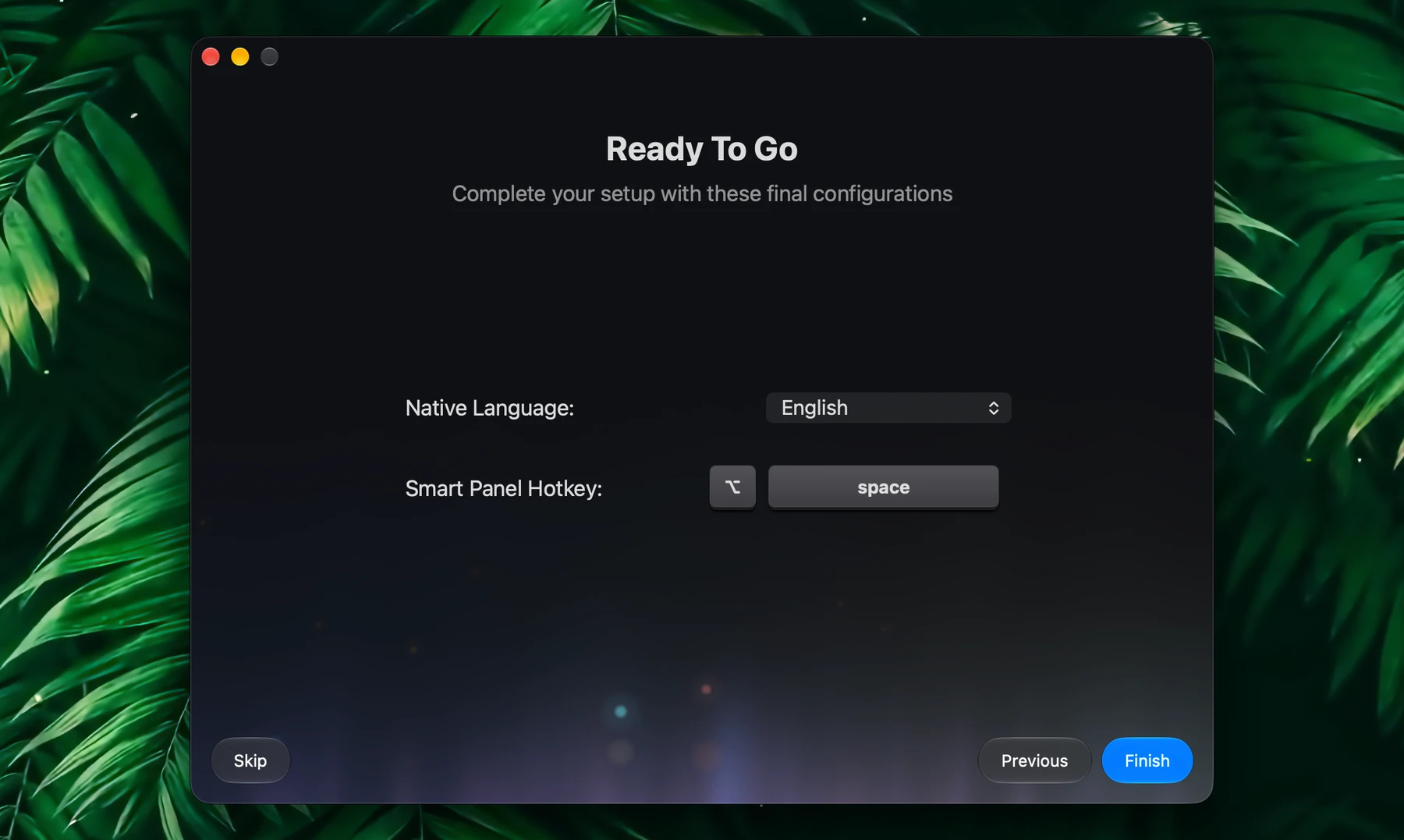
Set your Native Language, the language Fluent translates into and listens for when you dictate, and your Smart Panel Hotkey (⌥Space by default). Click Finish.
Fluent then picks a default model from the providers you connected, a subscription first, sets itself to open at login, and opens Settings at your actions. Change the model or login item in Settings → General.
Try It
| Do this | What happens |
|---|---|
| Select a paragraph and press ⌃⌘G | Fix Grammar corrects it in the Smart Panel. Press ⌘↩ to put it back in place. |
| On a web page, press ⌥Space, then ⌘` | The page is attached. Ask "Summarize this in five bullets." | |
| Ask "What's on my calendar tomorrow?" | Fluent reads Calendar through its integration. macOS asks for access the first time. |
| Tell Fluent "Remember that I'm vegan" | Memory saves it. Later, "Any dinner ideas?" gets vegan ones. |
| Press ⌃⌥Space in any text field and speak | Your words are typed as you speak (once dictation is on) |
| Press ⌘E in the Smart Panel | Fluent switches to the chat window, made for longer conversations. See Chat. |
Memory is on from the start. A reply shows what Memory used or saved for it, and Settings → Memory shows everything it keeps. See Setup & Usage.
Privacy Basics
- No account, no analytics, no telemetry
- API keys for AI providers are stored in your macOS Keychain
- Subscription providers sign in through their own tools; Fluent never sees those credentials
- History is encrypted on disk. You can turn it off or have old chats deleted automatically.
- Memory stays on your Mac, unencrypted. Files you add stay where they are; Fluent keeps what it learns from them.
- Images generated with Fluent are stored on disk, unencrypted
- You can blacklist apps where Fluent should never activate