
Smart Panel
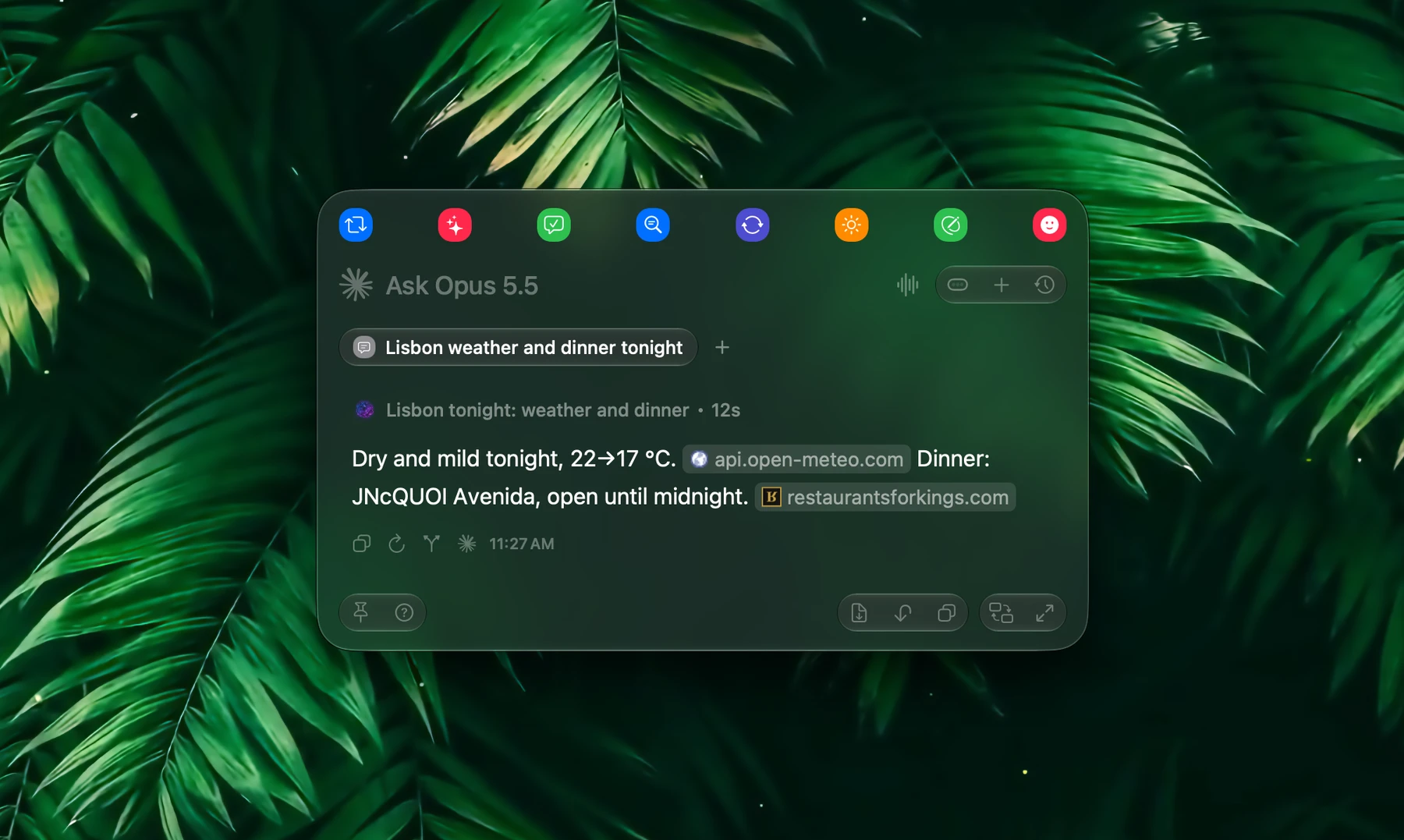
The Smart Panel is Fluent's floating window. Open it over any app with one shortcut, ask a question or run an action, and put the answer back where you were working.
The shortcut is ⌥Space unless you chose another one. Change it in Settings → Shortcuts → Smart Panel shortcut.
Quick Start
- Fix a draft. Select a paragraph in Mail, open the panel and click Fix Grammar. Press ⌘↩ to paste the corrected text over your selection.
- Ask anything. With nothing selected, type "What's a polite way to decline a meeting?" and press Return.
- Skip the panel. Select text, type "Translate to German" and press ⌘↩ instead of Return. The panel closes and the translation replaces your selection.
- Ask about a page. Open the panel over a web page, press ⌘` to attach the tab, then ask "Summarize this in 5 bullets".
Return sends. ⇧Return starts a new line.
What's In The Panel
| Part | What it's for |
|---|---|
| Favorites bar | Up to 8 favorite actions. Click one or press ⌘1–⌘8; hold ⌘ to see their numbers. |
| Prompt row | The model icon on the left switches models. While an answer is coming, it turns into a ring: click it to stop. The dots before + set how much the model thinks (see Reasoning); + adds context, files and tools; the clock button opens History. |
| Tabs | One capsule per chat, showing the chat's name. |
| Footer | Pin and the shortcuts help on the left; Save, Insert and Copy in the middle; Switch to Chat UI and Expand on the right. |
Open, Pin And Move
Choose where the panel opens in Settings → Smart Panel → Position mode:
| Mode | Where it opens |
|---|---|
| Follow Mouse | Just above the pointer. |
| Spotlight | At a fixed spot, centered a little above the middle of the screen. With Remember position on (the default), it opens where you last moved it; moves made after you send a request don't count. Answers grow the panel downward, and upward once there's no room left. |
Pressing the shortcut again:
| When the panel is… | The shortcut… |
|---|---|
| Open, not pinned | Closes it |
| Pinned, while you work in another app | Focuses it again |
| Pinned and focused | Returns focus to the app you were in; the panel stays on screen |
| Minimized | Expands it |
Esc closes the panel. A click outside closes it too, unless it's pinned.
Pin keeps the panel open while you work in other apps.
- Dragging the panel pins it. Turn on Do not auto-pin on drag to stop that, or Auto pin on open to pin it every time.
- In Follow Mouse mode, a pinned panel shows Auto Minimize. With it on, clicking elsewhere shrinks the panel to a small pill at the Minimized position. Click the pill or press the shortcut to bring it back.
Move and resize
- Drag the panel by its background, its tabs or its footer.
- Near the middle of the screen it holds on the center, shown by two dashed guides. Pull sideways to let go.
- With Enable snap points on, it snaps to the nearest of eight spots along the screen's edges when you let go near one.
- Drag an edge to resize it. Remember panel width reopens it at the width you last dragged it to.
- Expand makes the panel taller for a long answer; Collapse takes it back.
Tabs
Every request opens in a tab, so several tasks can run side by side: start one, press ⌘T and start another. A tab shows the chat's name once Fluent has named it (Settings → History → Name chats automatically).
| To | Do this |
|---|---|
| Open a new tab | Click + after the tabs, or press ⌘T |
| Go to the next or previous tab | ⌃Tab / ⌃⇧Tab, follow-up tabs included |
| Jump to a chat | ⌃1–⌃9 |
| Close the current tab | ⌘W. With no tab left, ⌘W closes the panel. |
| Close all tabs | ⌘⇧W, which also resets the panel's size |
| Close a chat with its follow-ups | Hover it and click ×, or right-click it and choose Remove (when more than one chat is open) |
| Reopen your latest chat that isn't open | ⌘⇧T |
A tab still working shows a spinner. One that finished while you looked at another shows a green check until you open it.
- Keep tabs open on hide brings your tabs back the next time you open the panel. When it's off, the panel starts fresh each time; your chats stay in History.
- Keep requests running in background lets an answer finish after you close the panel. The menu bar shows it, and a notification arrives when it's done.
Follow-Ups: Tabs Or Chat Flow
Choose how follow-ups appear in Settings → Smart Panel → Conversation flow:
| Follow-up Tabs | Chat Flow | |
|---|---|---|
| A follow-up shows | In its own tab, chained after the one before | Below the answer, as chat bubbles |
| Panel height | Grows with the answer | Up to half the screen, then scrolls |
Follow-up Tabs suits step-by-step work. Run Summarize on an article, then Translate: the translation opens in a follow-up tab and translates the summary. Click any step of the chain to open it again.
- Auto create follow-up tab (on by default) opens a follow-up tab for each new request on a tab that has an answer.
- ⌘F opens a follow-up tab yourself.
Chat Flow suits back-and-forth conversations, and looks like the chat window.
Actions And Models
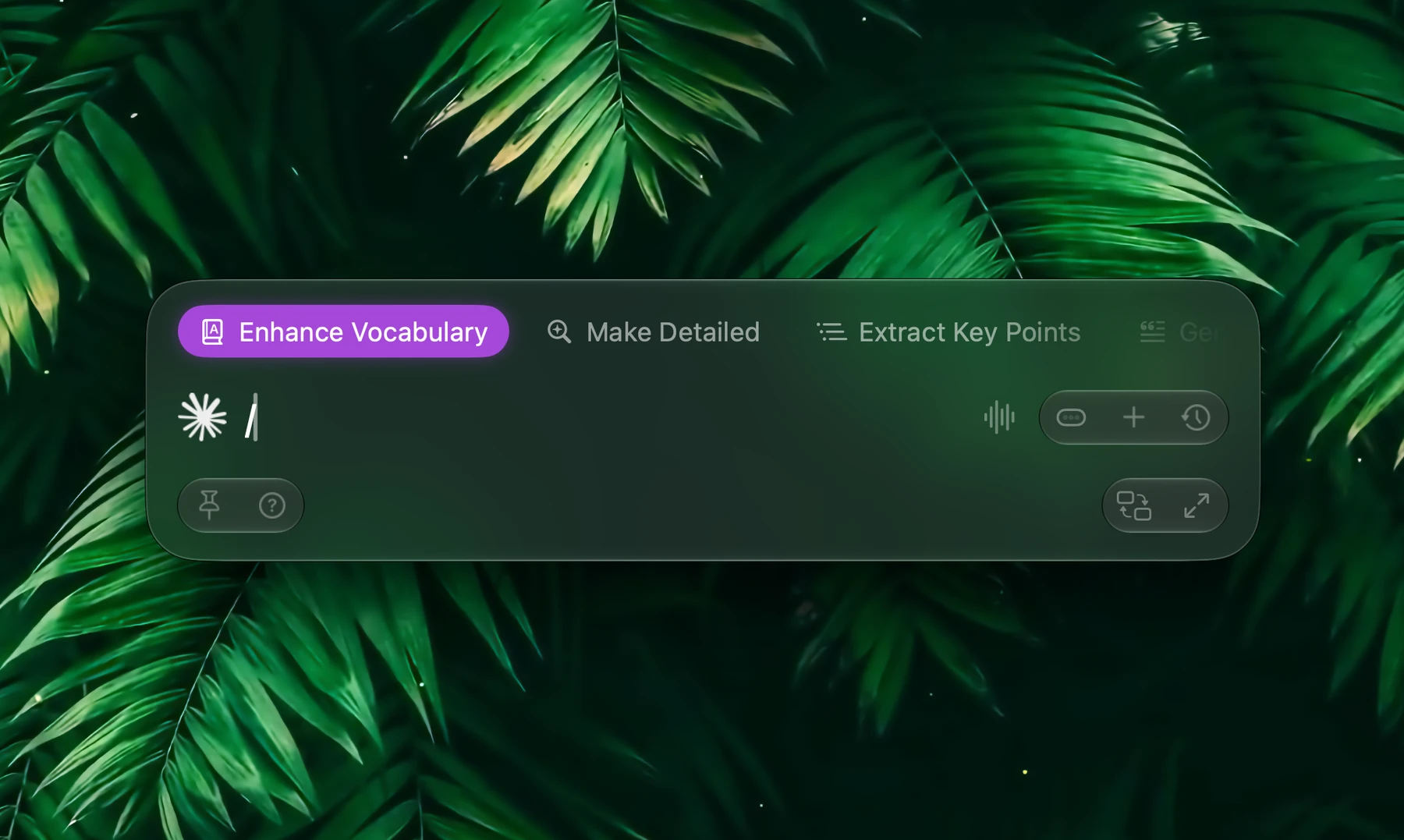
Type / in the prompt to search your actions, built-in and your own. Pick one with Return or a click: it lands in the prompt as a chip. Add words if you like, then press Return to run it. Favorites run at once with a click or ⌘1–⌘8. More in Actions.
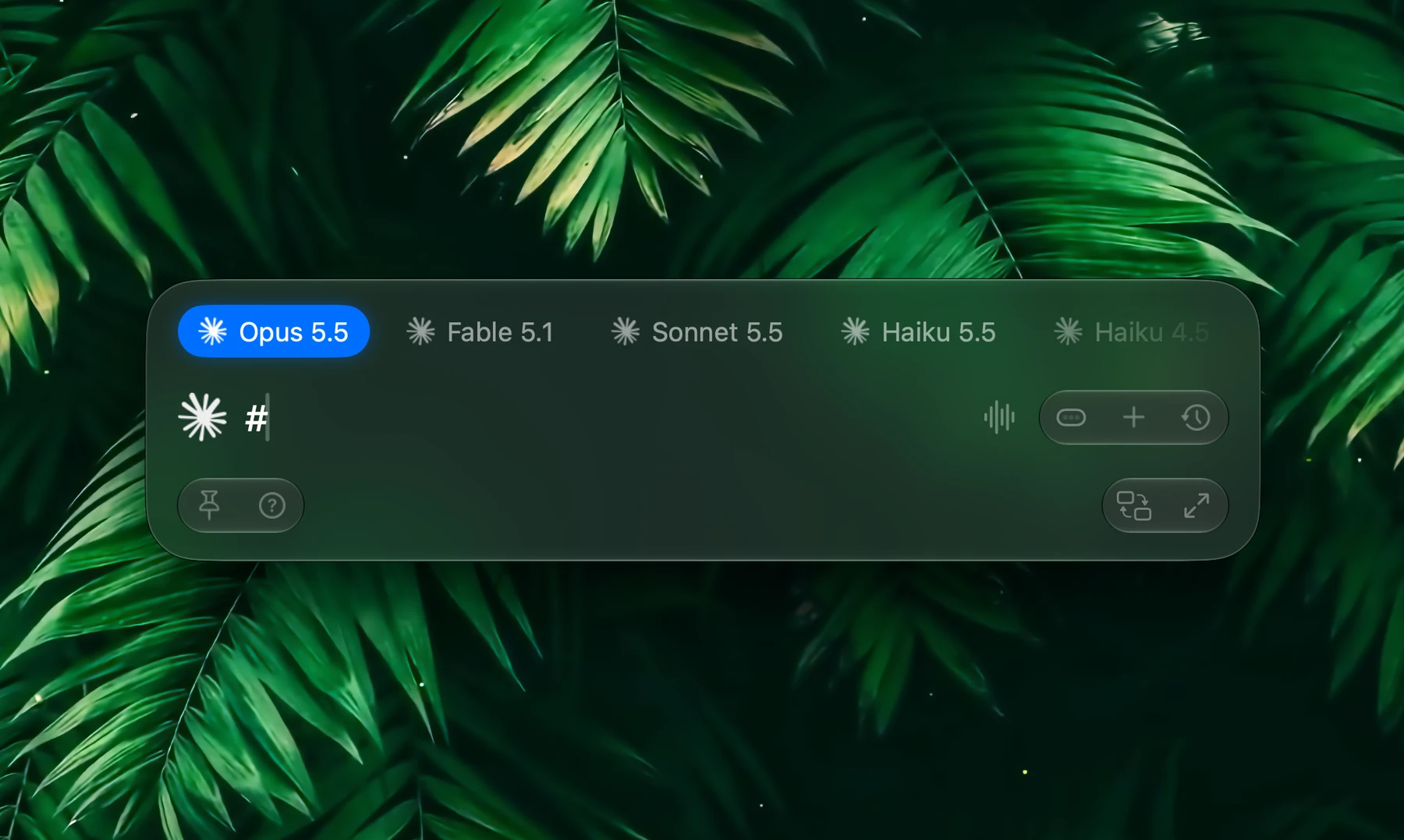
Type # to search your models and pick one, or press Tab / ⇧Tab to step through them. Click the model icon for the full list. The model you pick stays until you close the panel; then your default model is back.
Reasoning
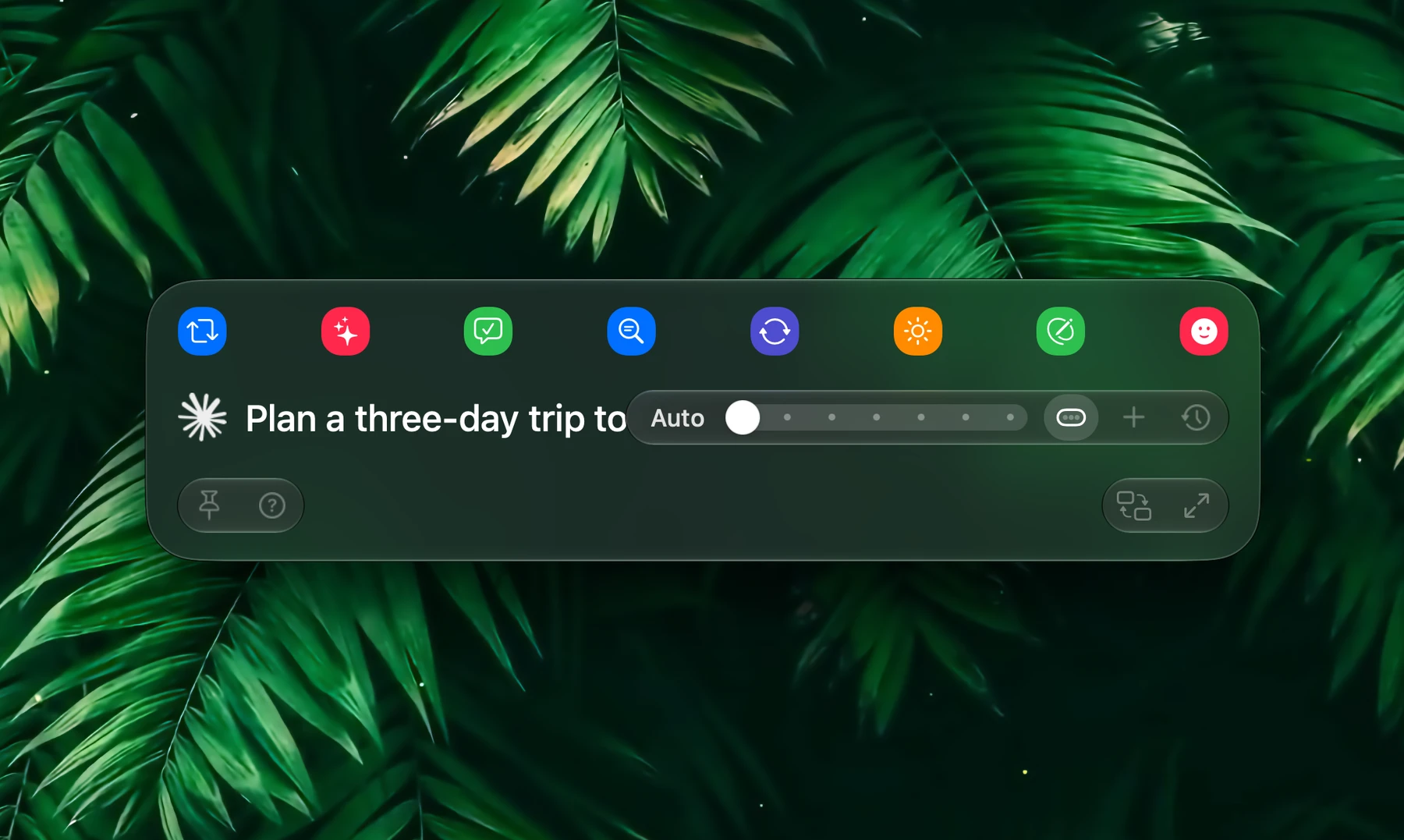
The dots before + show how much the model thinks before it answers: one lit for Low, two for Medium, three for High, and more for Extra, Max and Ultra. Hover or click them to open a slider with every level the model offers, or press ⌥Tab to step to the next one (⌥⇧Tab goes back).
| Level | When to use it |
|---|---|
| Auto | Leaves it to the model and its provider |
| Off | Quick answers: as little thinking as the model allows |
| Minimal, Low | Everyday questions and short edits |
| Medium, High | Harder questions, longer documents, plans |
| Extra, Max, Ultra | The hardest problems, when waiting longer is fine |
Each model offers only the levels it has, and a model whose thinking is a switch offers On. A model with nothing to set shows the dots dimmed.
Each chat keeps its own level. A new chat starts at the model's Reasoning setting: in Settings → Models, click the sliders button on the model's row (see Models & Providers). An action can have a level of its own (see Actions).
Add Context, Files And Tools
- + opens a searchable menu: Attach files from Mac, then browser Tabs, Apps, Actions, Integrations with their tools, and Memory.
- Type @ to get the same suggestions right in the prompt: "@safari", "@calendar", "@plan". Return or a click adds one.
- ⌘` attaches the app you're in, or the browser tab you're looking at. Press it again to remove it.
- Drop files on the panel, or paste a file or image with ⌘V.
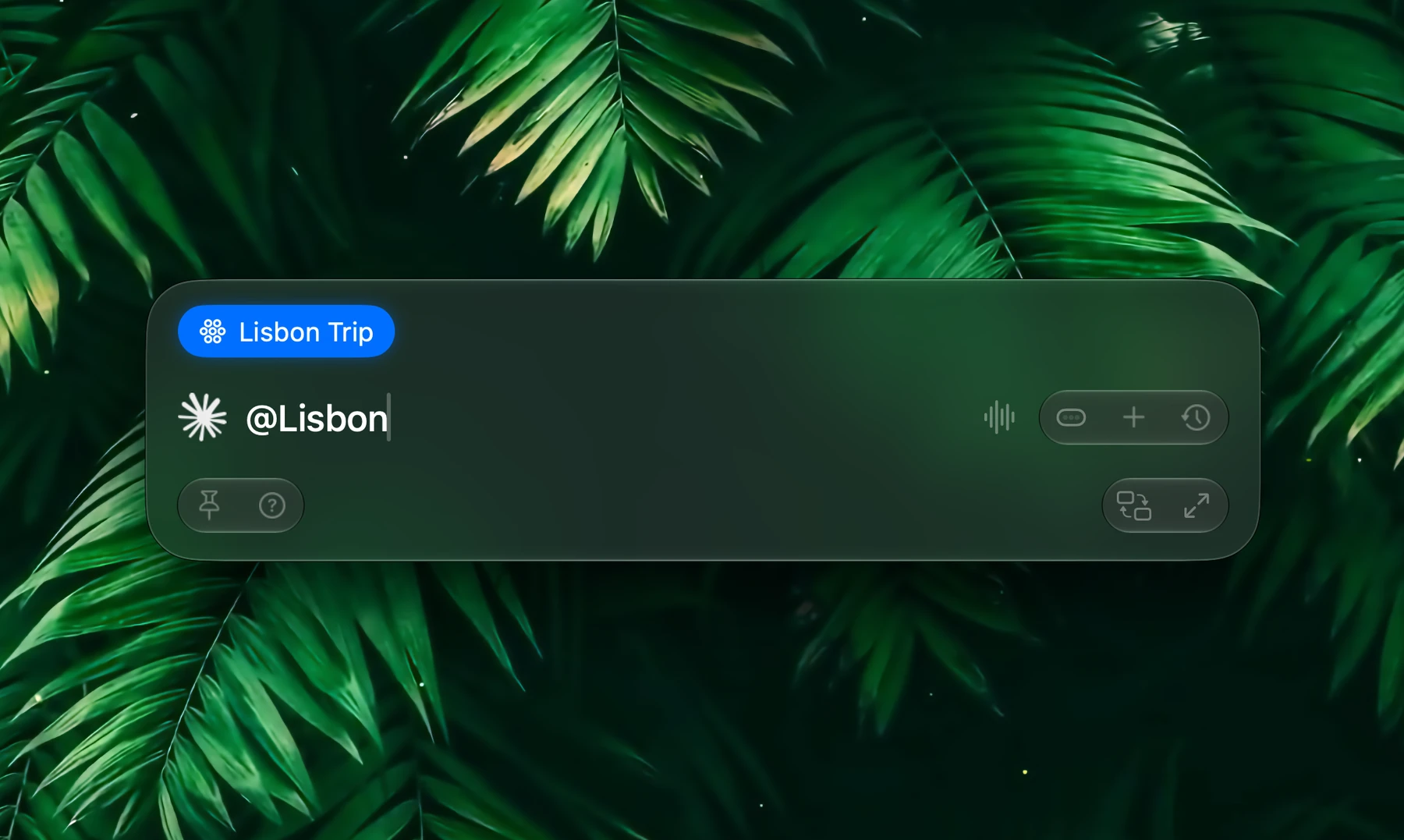
Everything you add shows as a chip in the prompt; delete the chip to remove it. Tabs, apps and files stay with the chat for follow-ups, and clicking a chip in a sent message reopens its tab, app or file.
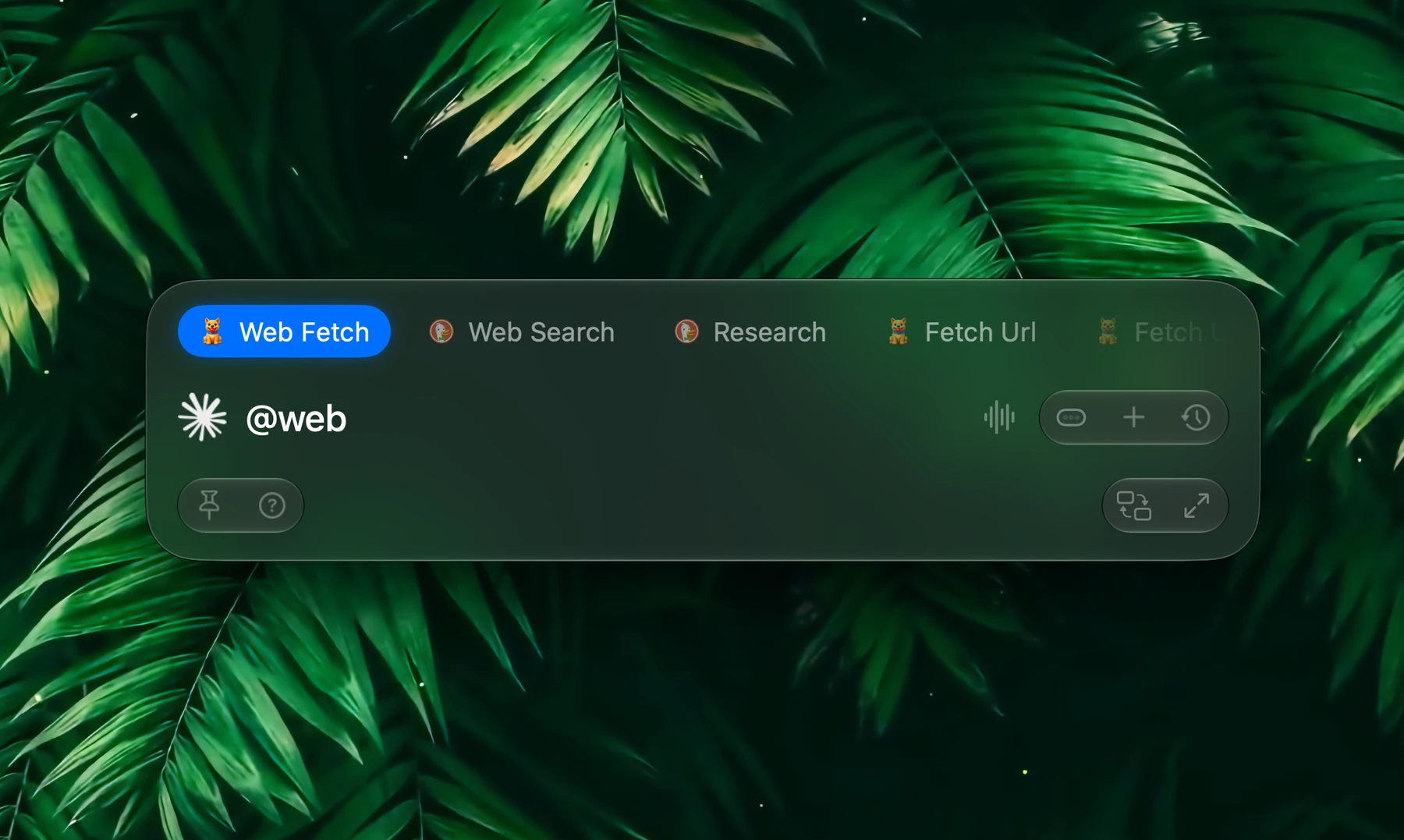
Add an integration, or one of its tools, to point Fluent at it, for example Calendar for "What's on my calendar this week?". Fluent also uses your integrations by itself when a request needs them.
What's suggested, and in which order, is set in Settings → Context. More in Context.
Answers
Formatting
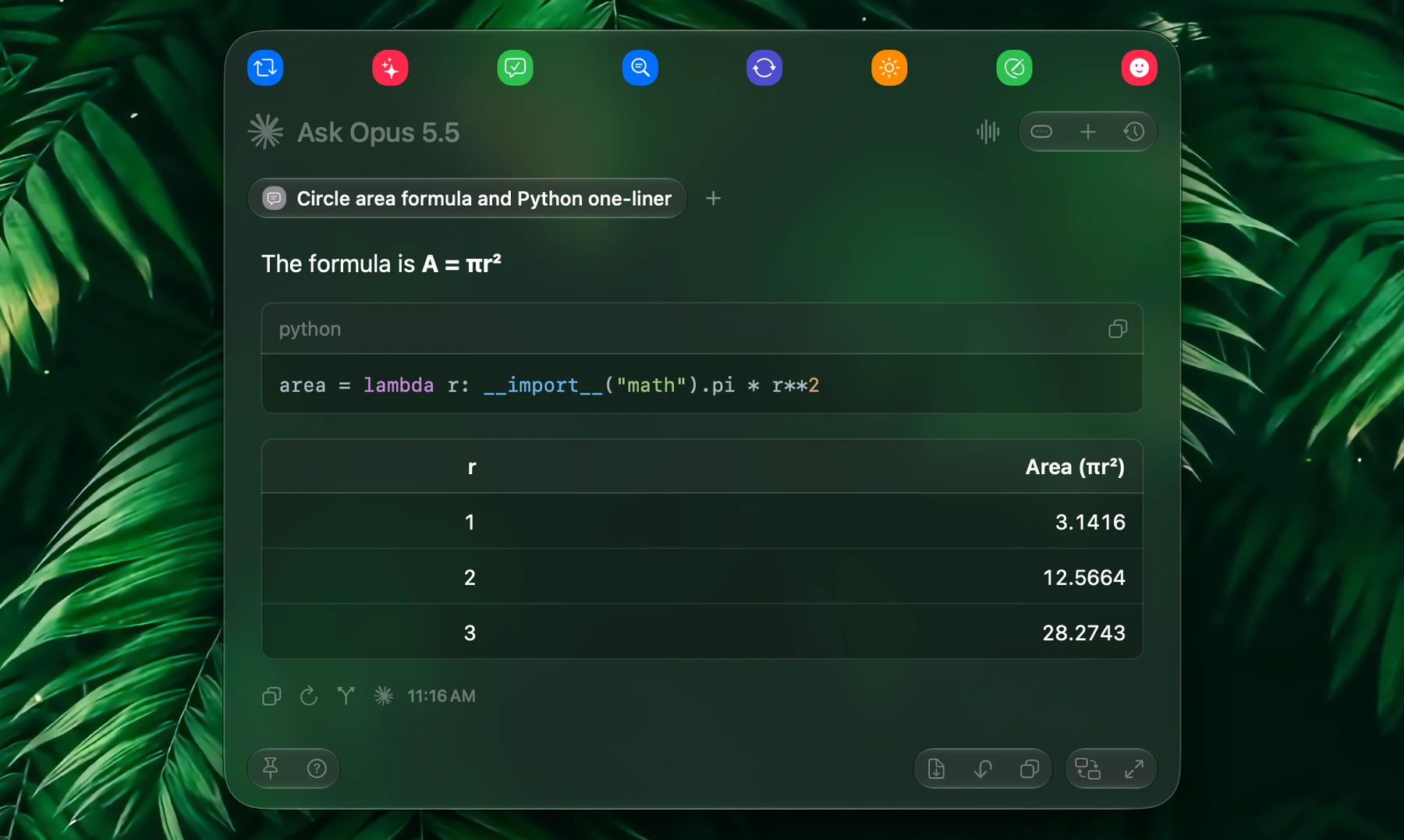
- Tables fit their columns and scroll sideways when they're wide.
- Code sits in a card with its language and a Copy button.
- Math ($…$ and $$…$$) is typeset, and its Copy button copies the LaTeX.
Use the answer
| Button | Shortcut | What it does |
|---|---|---|
| Insert | ⌘↩ | Pastes the answer into the app you were in, and closes the panel unless it's pinned |
| Copy | ⌘C | Copies the answer, or only the text you selected in it |
| Save | Saves it as PDF, HTML, Markdown or TXT |
Regenerate with ⌘R, by right-clicking a tab and choosing Regenerate, or with the Regenerate button under the last answer. Fluent asks again and replaces the answer.
Reply details: the row under an answer has Fork from here, which starts a new chat with the conversation up to that answer, and the model icon, which shows the model, duration, tokens, speed and, with NanoGPT, the cost. In Chat Flow the last answer's row is always shown; hover an earlier answer for its row. More in Chat.
Tools. Each tool Fluent uses shows as a badge in the answer; click it for the details. A tool with Ask Before Running ticked (on its integration's page in Settings → Integrations) waits with Approve and Reject: click one, or press ⌘A or ⌘R.
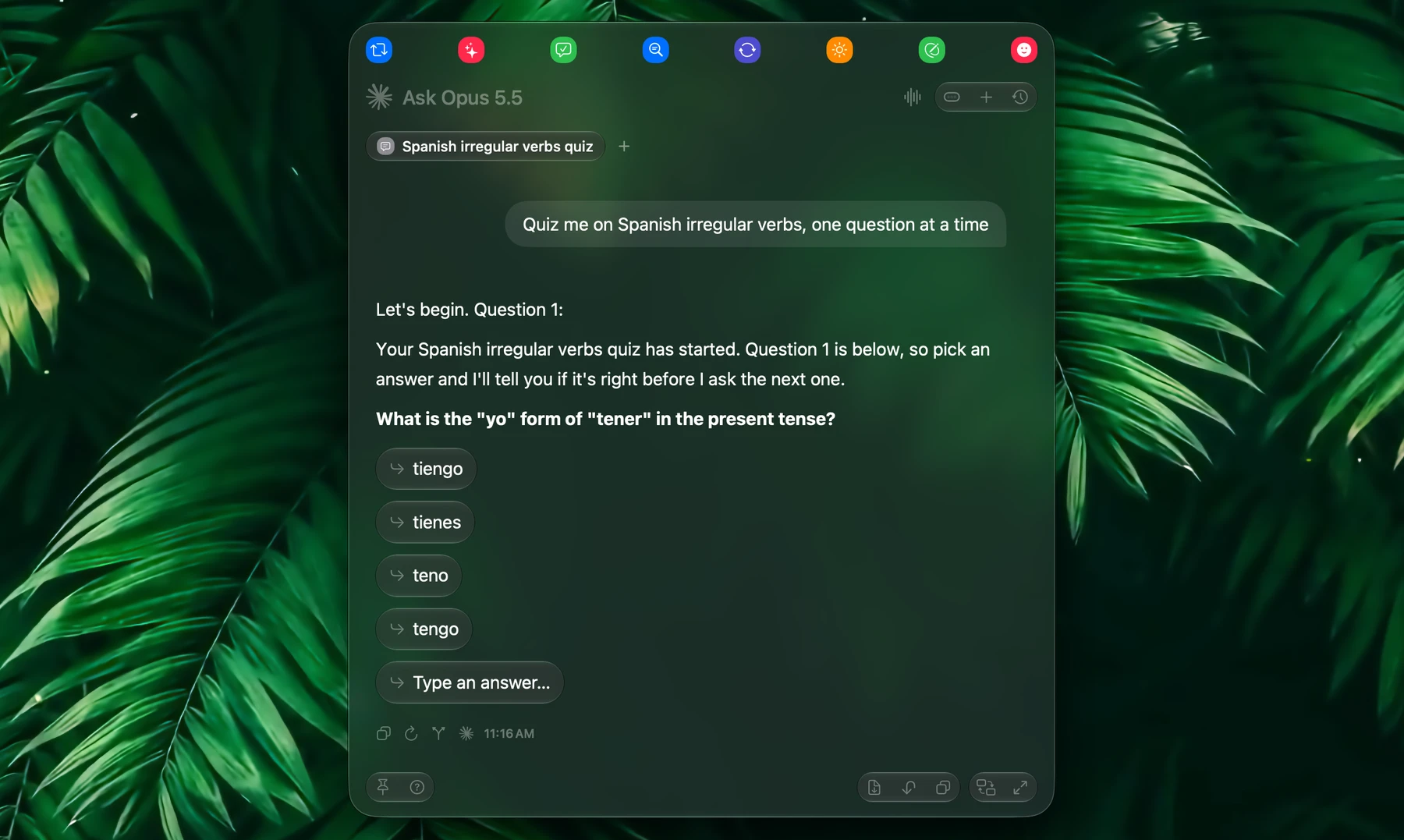
Questions. When Fluent needs a choice from you, for example in a quiz, the answer ends with a question. It comes with answer buttons and Type an answer…; your pick is sent as your reply. Questions need the Fluent integration, which is on by default.
Pictures. Ask for pictures of something, like "show me pictures of Kyoto's temples", and the answer shows the pictures: one at its own shape, several in a row you swipe or drag through. Click a picture to see it large, and step through the rest with ← and →; right-click to copy or save it. Pictures need Web Search turned on. More in Built-in Integrations.
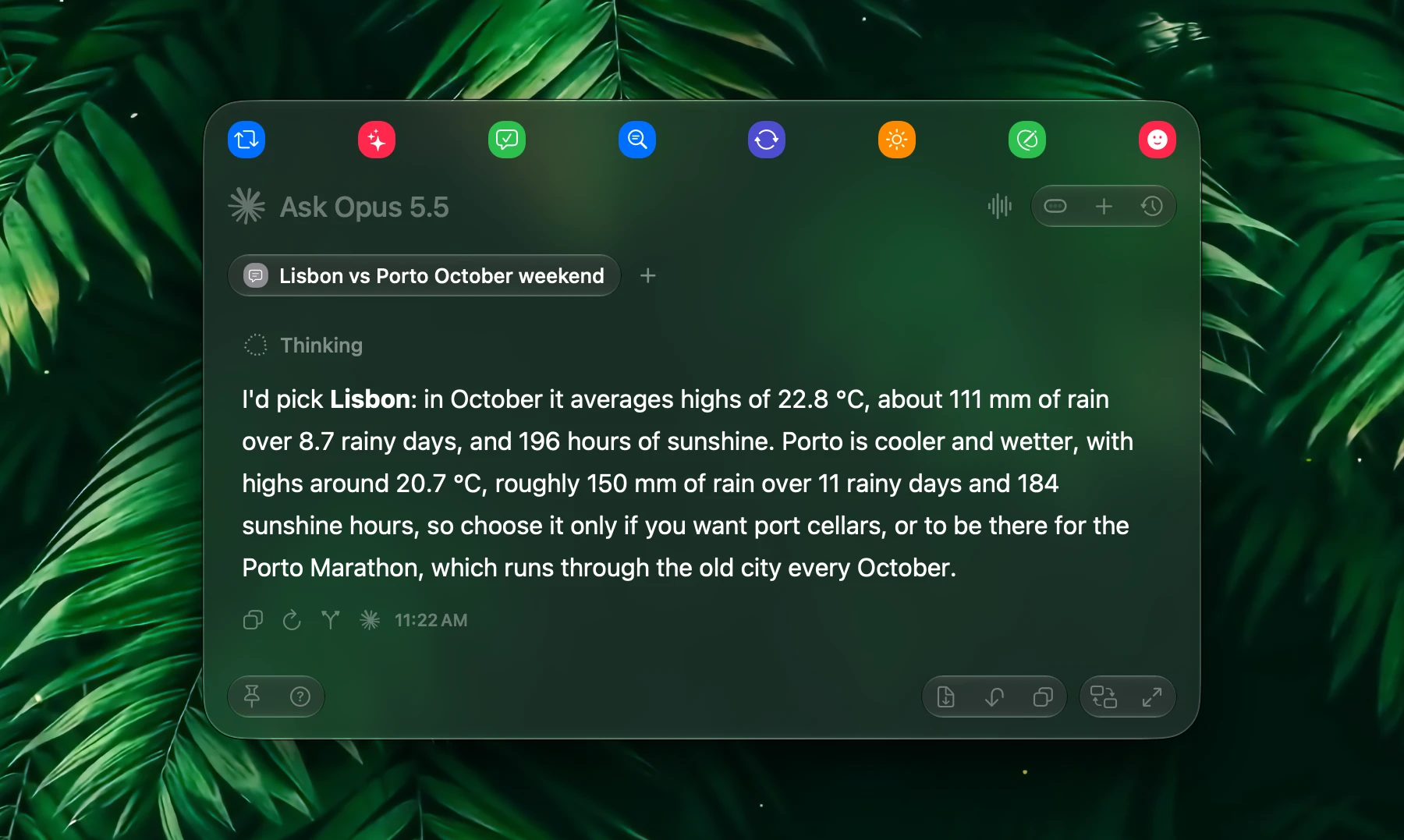
Plans. For a request with several parts, Fluent writes a plan: it splits the work into steps that run at the same time, then writes the answer from what they found. While it works, the answer shows the running steps; afterwards, one line with the plan's name and how long it took, as in the picture at the top of this page. Click that line to see every step and the tools it used. Fluent decides to plan by itself, so simple requests stay fast.
- To have a request planned, type @plan and add Plan: "@plan Plan a weekend in Lisbon: weather, three sights and a dinner spot".
- To turn planning off, switch off Plan in the Fluent integration's tools in Settings → Integrations.
History
Press ⌘Y or click the clock button to search your earlier chats, grouped by date. Pick one to reopen it in a tab and continue. Councils aren't listed here; find them in the chat window. More in History.
Switch To The Chat Window
Press ⌘E, or click Switch to Chat UI in the footer, to move to the chat window: a regular window with all your chats in a sidebar. ⌘E brings you back. See Chat.
Keyboard Shortcuts
The ? button in the footer lists them. Hide it with Hide help button.
| Shortcut | What it does |
|---|---|
| Return / ⇧Return | Send / new line |
| ⌘↩ | Insert the answer into the app you were in. With no answer yet, run the prompt and insert its answer. |
| ⌘C | Copy the answer, or the selected text |
| ⌘A | Approve a tool waiting for you; otherwise select the whole answer |
| ⌘R | Reject a tool waiting for you; otherwise regenerate |
| ⌘V | Attach a copied file or image |
| ⌘` | Attach or remove the app or browser tab in front | |
| / | Search actions |
| # | Search models |
| @ | Add context, tools or Memory |
| Tab / ⇧Tab | Next / previous model. In an open list: next / previous item. |
| ⌥Tab / ⌥⇧Tab | Next / previous reasoning level |
| ⌘1–⌘8 | Run a favorite action |
| ⌘T | New tab |
| ⌘F | New follow-up tab |
| ⌘W | Close the tab, or the panel when no tab is left |
| ⌘⇧W | Close all tabs |
| ⌘⇧T | Reopen the latest chat that isn't open |
| ⌃Tab / ⌃⇧Tab | Next / previous tab |
| ⌃1–⌃9 | Jump to a chat |
| ⌘Y | Search History |
| ⌘E | Switch to the chat window |
| ⌘, | Open Settings |
| Esc | Close the panel |
Settings
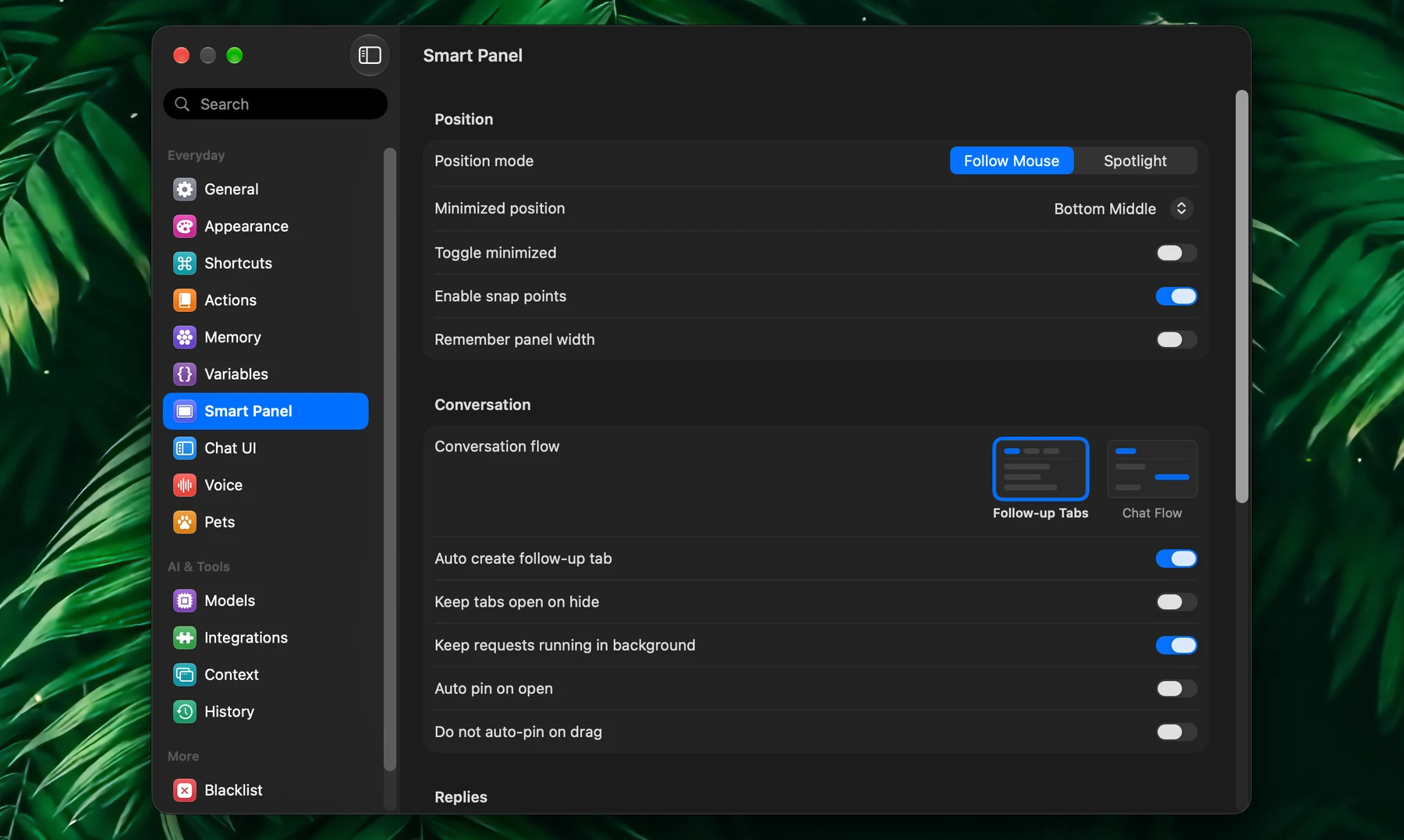
These are in Settings → Smart Panel. Its shortcut is in Settings → Shortcuts, Fluent's theme and the panel's font in Settings → Appearance, and how favorites look in Settings → Actions.
Position
| Setting | What it does |
|---|---|
| Position mode | Follow Mouse or Spotlight |
| Remember position | Spotlight: open where you last moved the panel |
| Minimized position | Follow Mouse: where the minimized pill sits |
| Toggle minimized | Follow Mouse: Toggle Smart Panel in the menu bar opens the panel minimized |
| Enable snap points | Snaps the panel to spots along the screen's edges as you drag it |
| Remember panel width | Opens the panel at the width you last dragged it to |
Conversation
| Setting | What it does |
|---|---|
| Conversation flow | Follow-up Tabs or Chat Flow |
| Auto create follow-up tab | A new request on a tab with an answer opens a follow-up tab |
| Keep tabs open on hide | Brings your tabs back the next time |
| Keep requests running in background | Closing the panel doesn't stop an answer that's still coming |
| Auto pin on open | Pins the panel every time it opens |
| Do not auto-pin on drag | Dragging no longer pins the panel |
Replies
| Setting | What it does |
|---|---|
| Auto scroll to bottom when streaming | Keeps the newest text in view (Follow-up Tabs) |
| Expand to maximum available space | Lets a long answer grow the panel to the full height of the screen |
| Streaming animation | Animates an answer's text as it comes in |
| Smooth mouse wheel scrolling | Chats glide on each turn of a mouse wheel instead of jumping. Trackpads and the Magic Mouse aren't affected. |
Selection
| Setting | What it does |
|---|---|
| Show text selection as attachment | Shows the text you selected as a chip in the prompt |
| Attach selected files automatically | Attaches the files selected in Finder when the panel opens |
| Show loading cursor (for auto insert actions) | Shows a pill by the pointer while an action pastes its result |
Buttons
| Setting | What it does |
|---|---|
| Always show footer | Shows the footer before there's an answer |
| Hide help button | Hides the keyboard shortcuts button |