
Voice
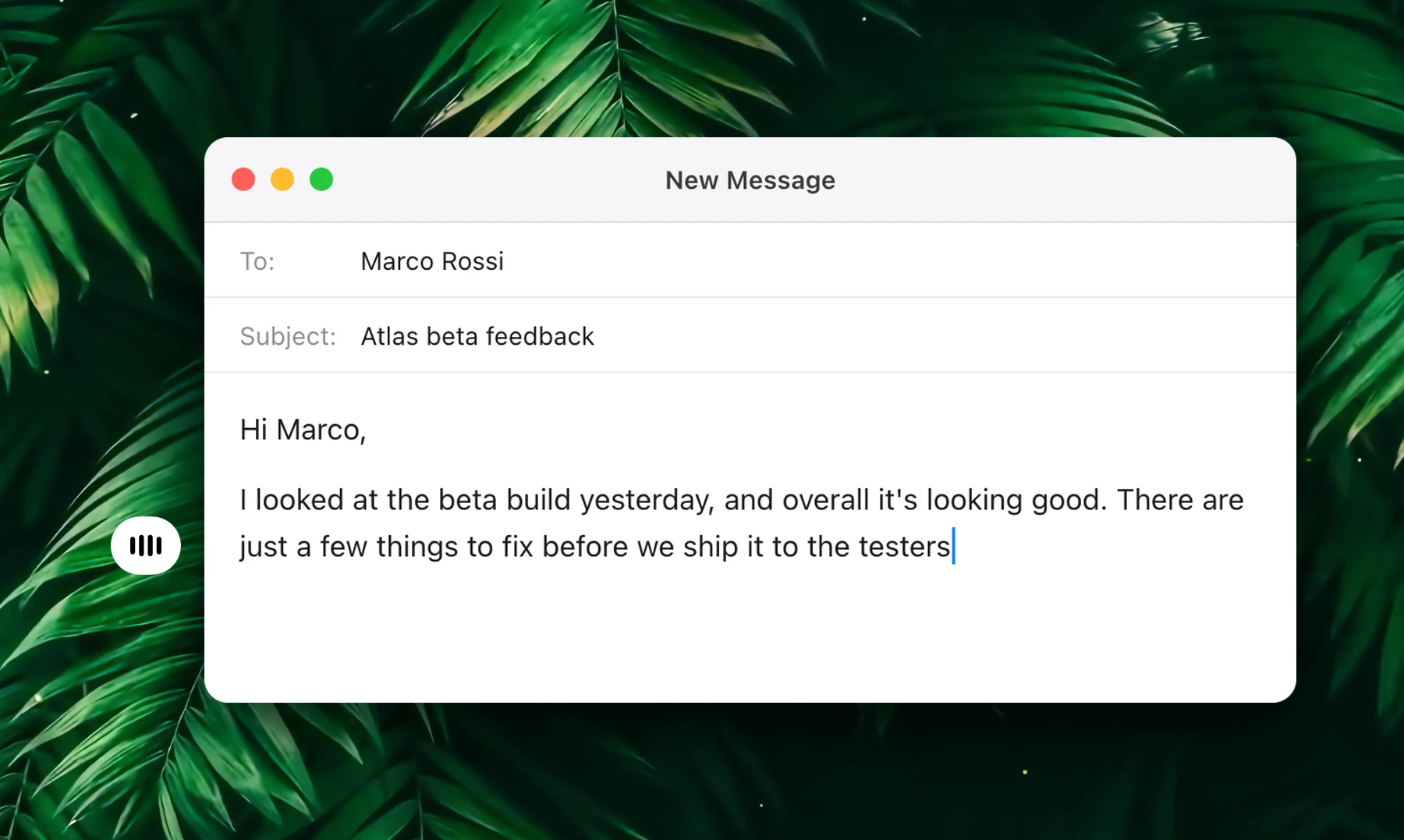
Voice lets you dictate into any app and ask Fluent by speaking. Your words appear as you talk, and a small model polishes them along the way, all on your Mac.
Set Up
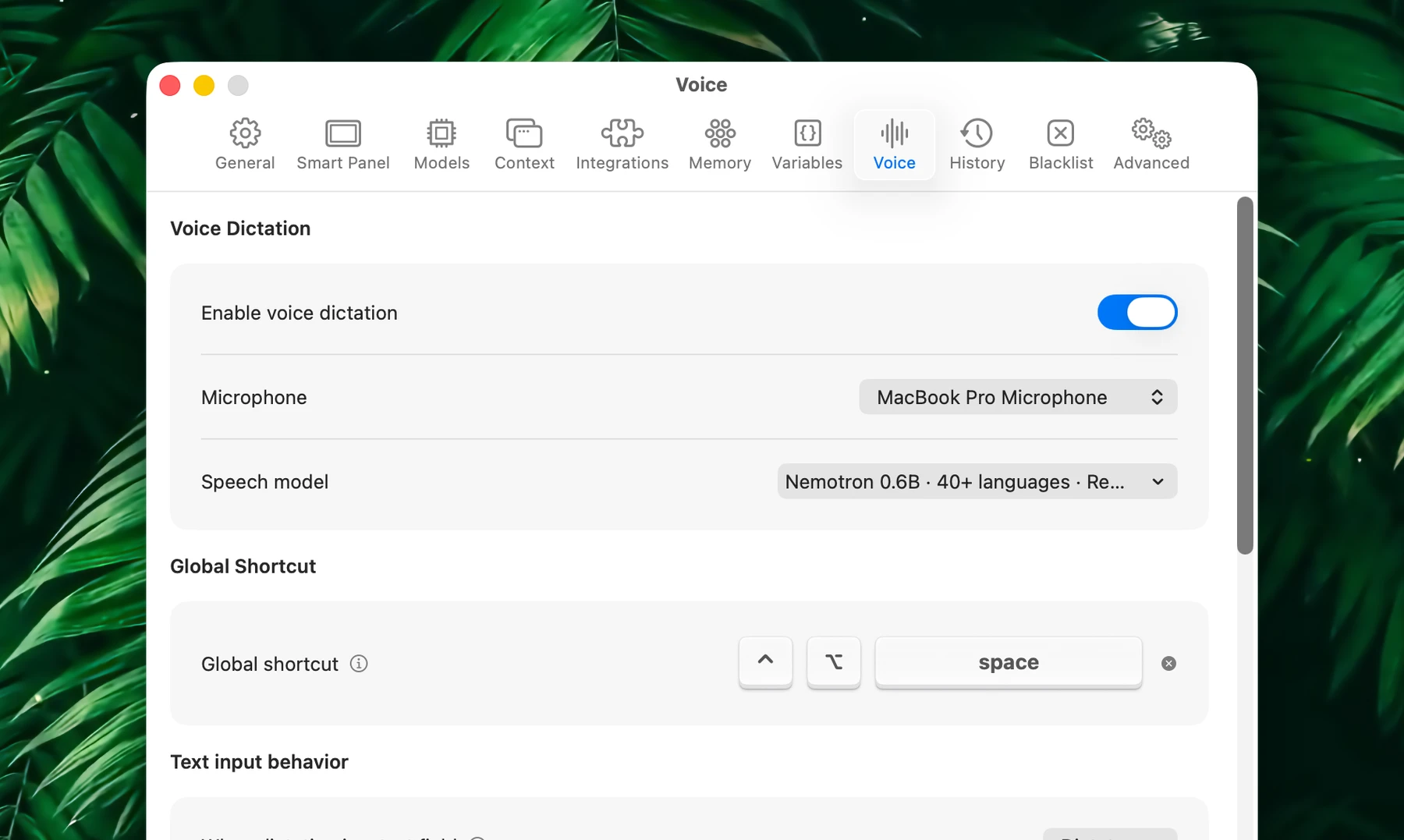
- Open Settings → Voice and turn on Enable voice dictation.
- Allow microphone access when macOS asks.
- Wait for the downloads to finish: the icon next to Speech model and Polish model shows the progress.
- Click into any text field, press ⌃⌥Space and speak. Press it again to finish.
Typing into other apps needs the Accessibility permission. If it's missing, Voice settings show Accessibility access required with an Open Settings button.
To use another shortcut, click Global shortcut and press the new one. You can also ask Fluent in a chat: "set my dictation shortcut to Control-Option-D".
Dictate Into Any App
Press the shortcut in any text field and talk. Words appear in the field as you speak, with no separate window.
- Click another field and keep talking: dictation follows you.
- Move to a place with no text field, and what you say next becomes a question for Fluent (see Ask Fluent below).
- Press the shortcut again to finish.
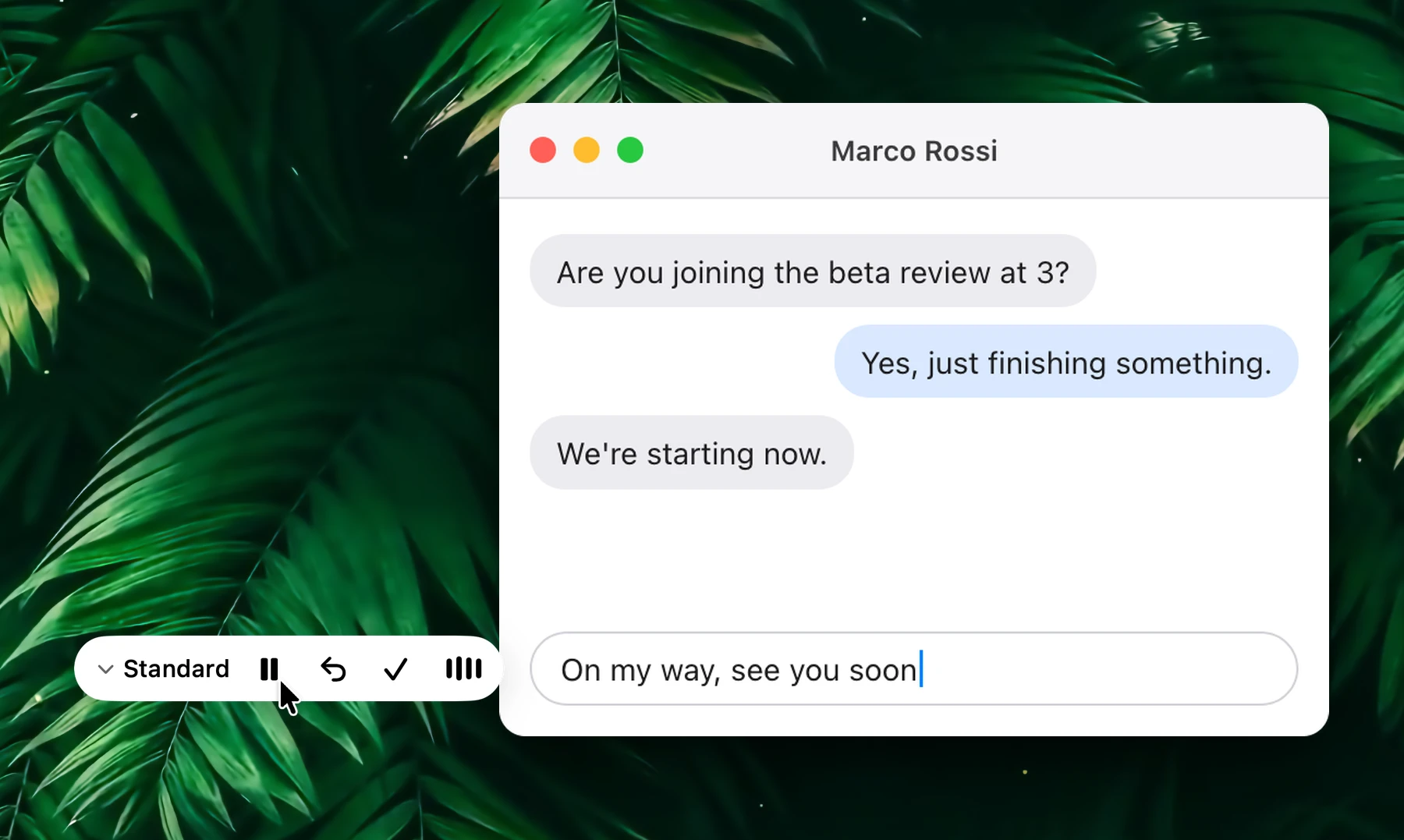
While you dictate, a floating badge with a waveform sits next to the text field, on the line you're dictating into. Hover over it for controls:
| Control | What it does |
|---|---|
| Polish preset menu | Switches the preset for what you say next |
| Pause / Resume | Stops listening without ending dictation |
| Undo last sentence | Removes the last sentence and keeps listening |
| Finish dictation | Ends dictation, like pressing the shortcut again |
Spoken Commands
| Say | Fluent types |
|---|---|
| "new line" | A line break |
| "new paragraph" | A blank line |
| "comma", "full stop", "question mark", "exclamation mark", "semicolon" | The punctuation mark |
| "press return" (or "press enter", "press send") at the end | Your text, then Return, and dictation stops. Works in other apps' fields. |
Example: in Messages, say "on my way see you soon press return". Fluent types "On my way, see you soon." and sends it.
The same commands work in your native language for 30 common languages, and the English ones always work. "Press return" is English only.
With English, German or French as your native language, spoken numbers, prices and percentages become digits: "twenty five dollars" becomes $25. As dictated leaves them spelled out.
Speech Models
Choose the model in Settings → Voice → Speech model. It runs on your Mac and downloads the first time you choose it.
| Group | Models |
|---|---|
| Recommended | Nemotron 0.6B in five versions. The default, Nemotron 0.6B · 40+ languages · Realtime, is the fastest. |
| Other | Parakeet EOU 120M · English · Fast and Parakeet Unified 0.6B · English · Highest accuracy |
| macOS Native | Apple Speech · 40+ languages · Fast, macOS's own speech model, on macOS 26 and later |
The end of each name tells you what to expect: Realtime answers fastest, Balanced and High accuracy make fewer mistakes with a short delay, and English models understand only English.
Language
Multilingual models listen for your Native language, set in Settings → General → Native language. A short phrase or a pause can't slip into another language.
- Pick a regional variant to match its spelling: English (UK) for British spelling, Chinese (Traditional) for Traditional characters.
- If you switch languages often, turn on Settings → Voice → Auto-detect spoken language. The model then detects the language each time you start dictating. It has no effect on English models.
- Apple Speech can't detect the language: it uses your native language, or your Mac's language when Auto-detect spoken language is on.
Polish While Speaking
A small model on your Mac cleans up each sentence as you finish it. Choose how much in Settings → Voice → Preset, or from the badge while you dictate.
| Preset | What it does |
|---|---|
| As dictated | Keeps every word and adds only punctuation, capitals and sentence breaks. Uses no polish model. |
| Light | Also splits run-on speech into sentences, keeping your words. |
| Standard | Also fixes grammar and drops fillers like "um". The default. |
| Strong | Also rephrases for clarity, so the result can differ from what you said. |
| Your presets | Your own instructions for wording and tone. |
Fluent gives you five presets of your own to start with: Email, Casual, Formal, Concise and List. To make another, choose New Preset…, name it and write its instructions:
Use a warm, friendly tone and short sentences.
When I say "Best regards", put a comma after it and start a new line.
A rule like the second line, a phrase in double quotes and what to add after it (a comma, full stop, new line or new paragraph), is applied exactly every time. Manage Presets… edits, duplicates and deletes presets.
The model that polishes is chosen in Settings → Voice → Polish model:
| Group | Models |
|---|---|
| Recommended | Qwen3.5 2B (the default), Qwen3.5 0.8B and LFM2.5 1.2B |
| Specialized | Punctuation (multilingual, base) and Punctuation (multilingual, large). They only add punctuation and capitals, never change a word or drop fillers, and are made for languages other than English. |
| Other | More local models, and any text model you've downloaded |
Each model shows its size: a smaller one is faster and uses less memory. As dictated keeps no polish model in memory at all.
Turn on Final polish pass to have the whole text polished once more, with all of it in view, when you finish. It takes a moment at the end.
Polishing fixes punctuation, grammar and style. A misheard word comes from the speech model: try a more accurate one.
Voice Snippets
Say a short phrase and Fluent types the exact text you saved. Add them in Settings → Voice → Voice Snippets with Add Snippet.
| Spoken phrase | Snippet |
|---|---|
| my email | [email protected] |
| sign off | "Best regards," and your name on the next line |
| weekly recap | Summarize this page in five bullet points for my weekly recap. |
- A snippet can span several lines. Bold, italic and links written in Markdown are typed as written.
- Snippets work in Ask Fluent too, so one can hold a prompt you use often.
- Fluent starts you with a few sample snippets. Edit or delete them.
Ask Fluent
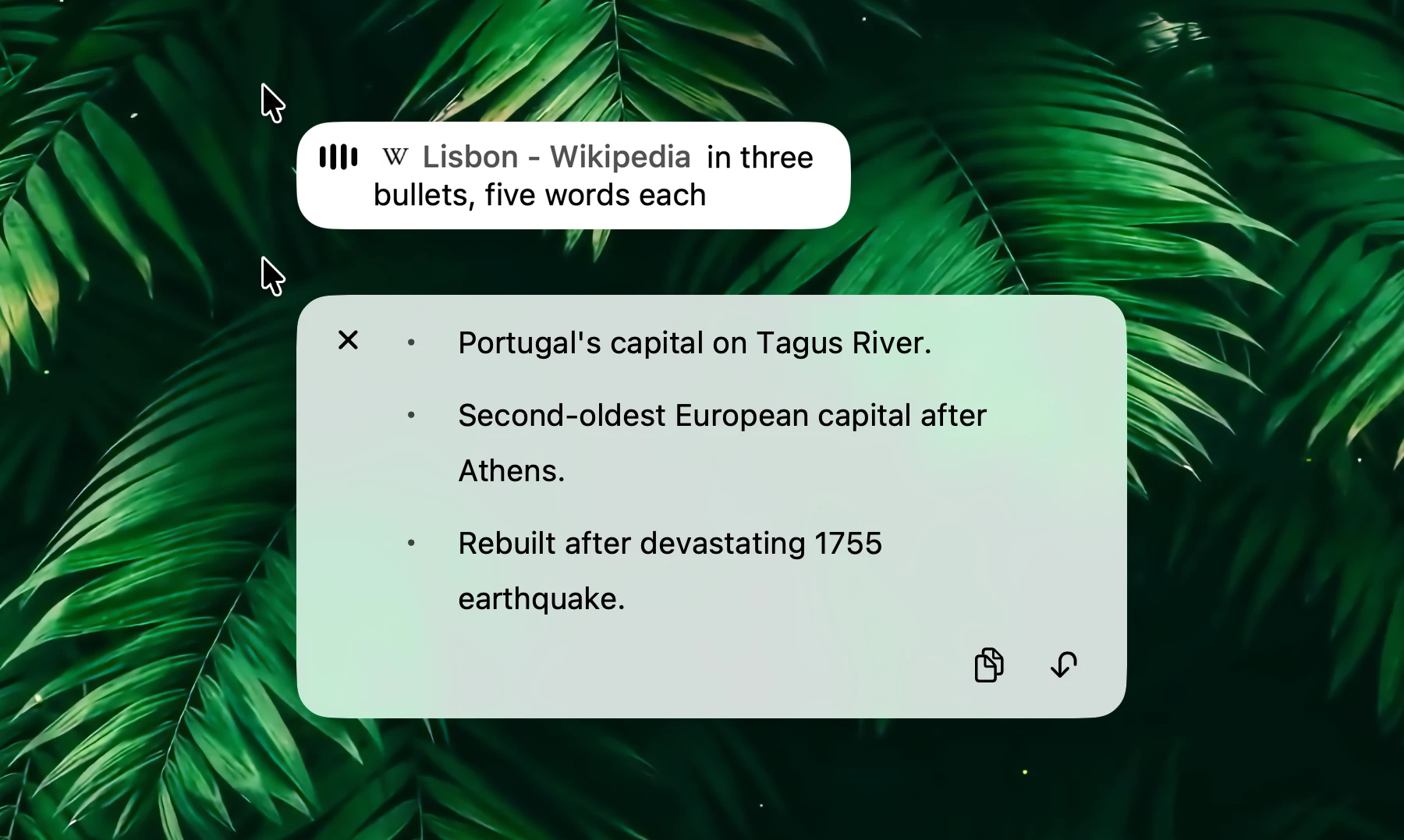
Press the shortcut where there's no text field (a web page, Finder, the desktop) and speak: your words become a question for Fluent. A capsule next to your pointer shows the prompt as you speak. Press the shortcut again to send it.
The answer streams into the capsule. Then:
| To | Do this |
|---|---|
| Ask a follow-up | Press the shortcut while the answer is shown, speak, and press it again. It continues the same conversation. |
| Copy the answer | Click Copy |
| Paste it into the app in front | Click Insert |
| Close it | Hover over it and click the ×, or press Esc |
Ask Fluent uses your default model with your integrations and Memory, like the Smart Panel, and keeps the conversation in History. Answers in the capsule are in beta: turn off Settings → Voice → Stream replies into the floating badge to get them in the Smart Panel instead.
What you say can bring in context:
- The tab or app you're in goes along on its own, when browser or app context is on in Settings → Context.
- Say "this tab" or "this page" for the browser tab in front, "this app" or "this window" for the app. A chip appears in the capsule. Say these in your native language.
- Say an integration's name, like "web search", or a Memory group's name to use it.
For example:
- On a long article: "this page in three bullets, five words each".
- "Use web search to find out when the Louvre opens tomorrow."
- With a Memory group called Recipes: "what can I cook from Recipes with chickpeas and spinach?"
Text Input Behavior
Choose what the shortcut does in a text field in Settings → Voice → When dictating in a text field:
| Option | What happens |
|---|---|
| Dictate | Your words are typed into the field. The default. |
| Ask Fluent | Your words become a prompt in the Smart Panel. The field is left as it is. |
| Ask Fluent, insert reply | Fluent answers in the background and types the answer into the field. |
With no text field focused, the shortcut always asks Fluent.
Example with Ask Fluent, insert reply: in a reply box on a web page, say "politely decline and say I'm away that week". Fluent reads the page you're on and types the reply into the box.
In Fluent's Prompt
In the Smart Panel or the chat window, click the waveform button in the prompt (Dictate (on-device)) or press the shortcut. "This tab", integration names and Memory group names become chips as you speak. Press Return to send.
Settings
All in Settings → Voice:
| Setting | What it does | Default |
|---|---|---|
| Enable voice dictation | Turns Voice on and downloads its models | Off |
| Microphone | The microphone Fluent listens to | System Default |
| Speech model | Turns speech into text | Nemotron 0.6B · 40+ languages · Realtime |
| Global shortcut | Starts and stops dictation | ⌃⌥Space |
| When dictating in a text field | Dictate, Ask Fluent, or Ask Fluent, insert reply | Dictate |
| Preset | How much polishing | Standard |
| Polish model | The model that polishes | Qwen3.5 2B |
| Final polish pass | Polishes the whole text again when you finish | Off |
| Voice Snippets | Phrases that type saved text | A few samples |
| Floating badge | A waveform next to the text field while you dictate | On |
| Menu bar | Shows in the menu bar that Fluent is listening | Off |
| Screen glow | Makes the edges of the screen glow while you dictate | Off |
| Typewriter effect | Types your words letter by letter instead of a chunk at a time | On |
| Stream replies into the floating badge | Shows Ask Fluent's answers in the capsule (beta) | On |
| Auto-detect spoken language | Detects the language each time you start dictating | Off |
Privacy
- Speech is turned into text and polished on your Mac. Your audio never leaves it.
- Fluent downloads the models once.
- Ask Fluent sends your prompt as text, with the tab or app it uses, to your default model, like any request. With a local model or Apple Intelligence, it stays on your Mac too.
- Voice needs Microphone access, asked when you turn it on, and Accessibility to type into other apps. See Permissions.
Troubleshooting
| Problem | Try |
|---|---|
| Nothing is typed | Allow Fluent in System Settings → Privacy & Security → Accessibility. |
| Nothing is heard | Check Settings → Voice → Microphone, and allow Fluent in System Settings → Privacy & Security → Microphone. |
| The shortcut does nothing in one app | The app is on your Blacklist. |
| Text comes out in the wrong language | Check Settings → General → Native language, or turn on Auto-detect spoken language. |
| Words are misheard | Choose a High accuracy speech model. |
| The first press takes a while | The models are still downloading or loading. The icon next to Speech model shows the progress. |