
History
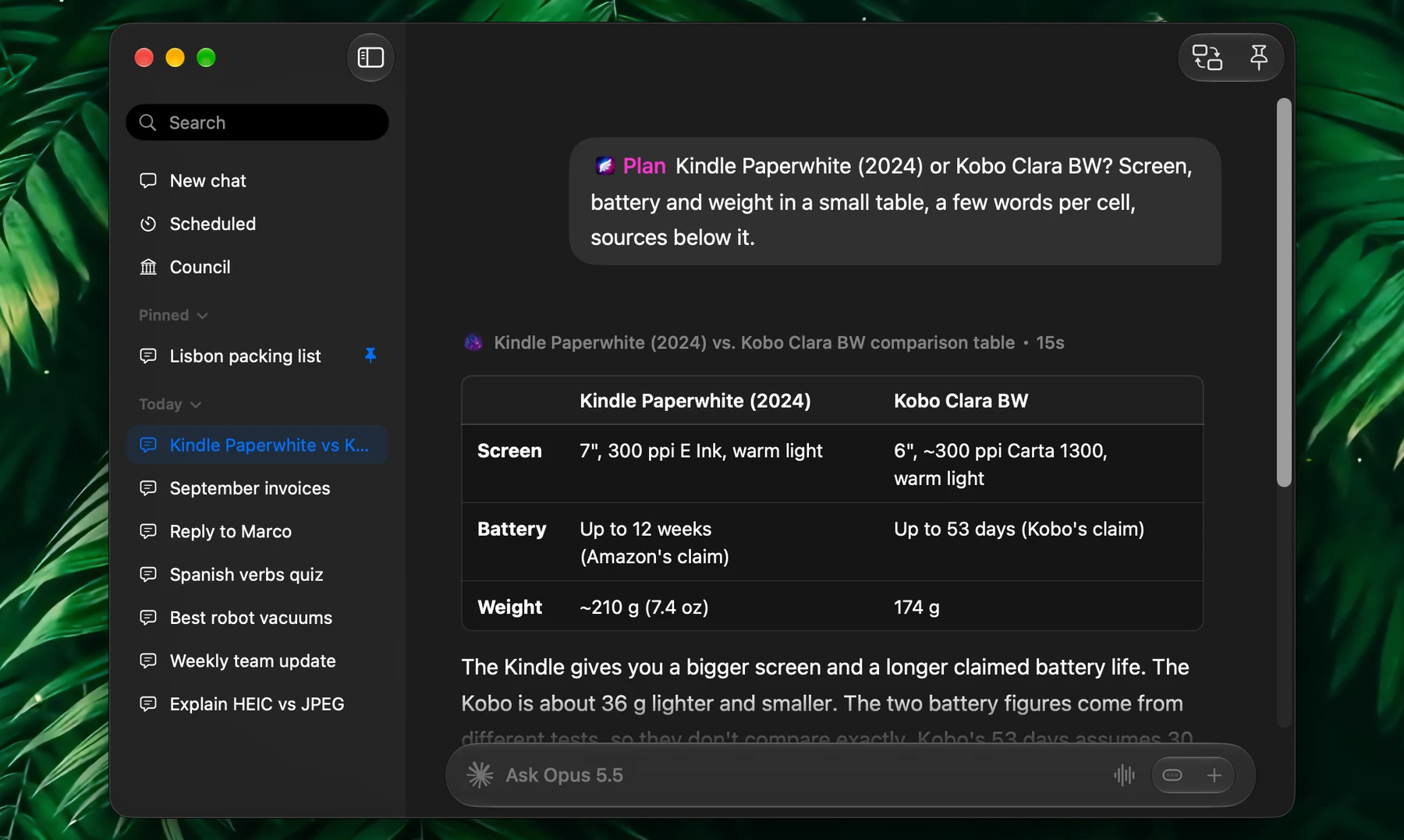
History keeps your Fluent chats on your Mac, encrypted, so you can find one later and continue where you left off.
It saves chats from the Smart Panel and the chat window, action runs, scheduled and background runs, Ask Fluent conversations, and Councils.
Find a Chat
In the Smart Panel, press ⌘Y or click the clock button next to +:
- Type to search. Search covers whole chats, your prompts and the replies, not only their names: "lease" finds the chat where you went through your rental contract, whatever it is called
- Without a search, chats are grouped into Today, Yesterday, This week, Last week, and Earlier. Each group lists its most recent chats and how many more there are. Search to reach the older ones
- Pick a chat to open it in a tab and continue it
Press ⌘⇧T to reopen the most recent chat that isn't open in a tab. Press it again for the one before.
In the chat window, every chat is in the sidebar, grouped the same way: press ⌘F to search, and right-click a chat to pin, rename, or delete it. Councils are listed only there. See Chat.
Chat Names
Fluent names each chat for you, in a few words, in the language you write in. The model you are chatting with picks the name, and renames the chat if the topic changes. Names show in the history menu, the chat window's sidebar, and the Smart Panel's tabs.
- A chat that is only greetings so far gets its name once it has a subject
- A chat started by an action keeps the action's name
- A name you give a chat yourself, with Rename chat in the chat window, is never changed
Naming sends a small extra request to that model now and then. To turn it off, open Settings → History and turn off Name chats automatically.
What It Keeps
Each chat keeps:
- Your prompts and the replies, with their follow-ups
- What you attached: the text of tabs and apps as it was sent, and where each file is. Follow-up questions can use them even after you reopen the chat
- The tools each reply used
- Reply details: the model, how long the reply took and how soon it started, speed, input and output tokens, cached input, and the cost where the provider reports it. Click the model icon under a reply to see them
Keep Actions Out
Every action has a Save to history switch in its editor, under Behavior. Turn it off for quick fixes you would never look up later, such as a grammar fix. The result still appears or is inserted as usual; it just isn't kept, and neither are follow-ups to it.
Privacy
History is stored only on your Mac, encrypted.
To stop saving chats, turn off Settings → History → Enable history. If you want the continuity but not long retention, keep History on and choose an automatic cleanup.
Deleting a chat removes it from History and from what Memory learned about your earlier chats. Details Memory saved from a conversation stay in Memory until you remove them there. See Memory.
Retention
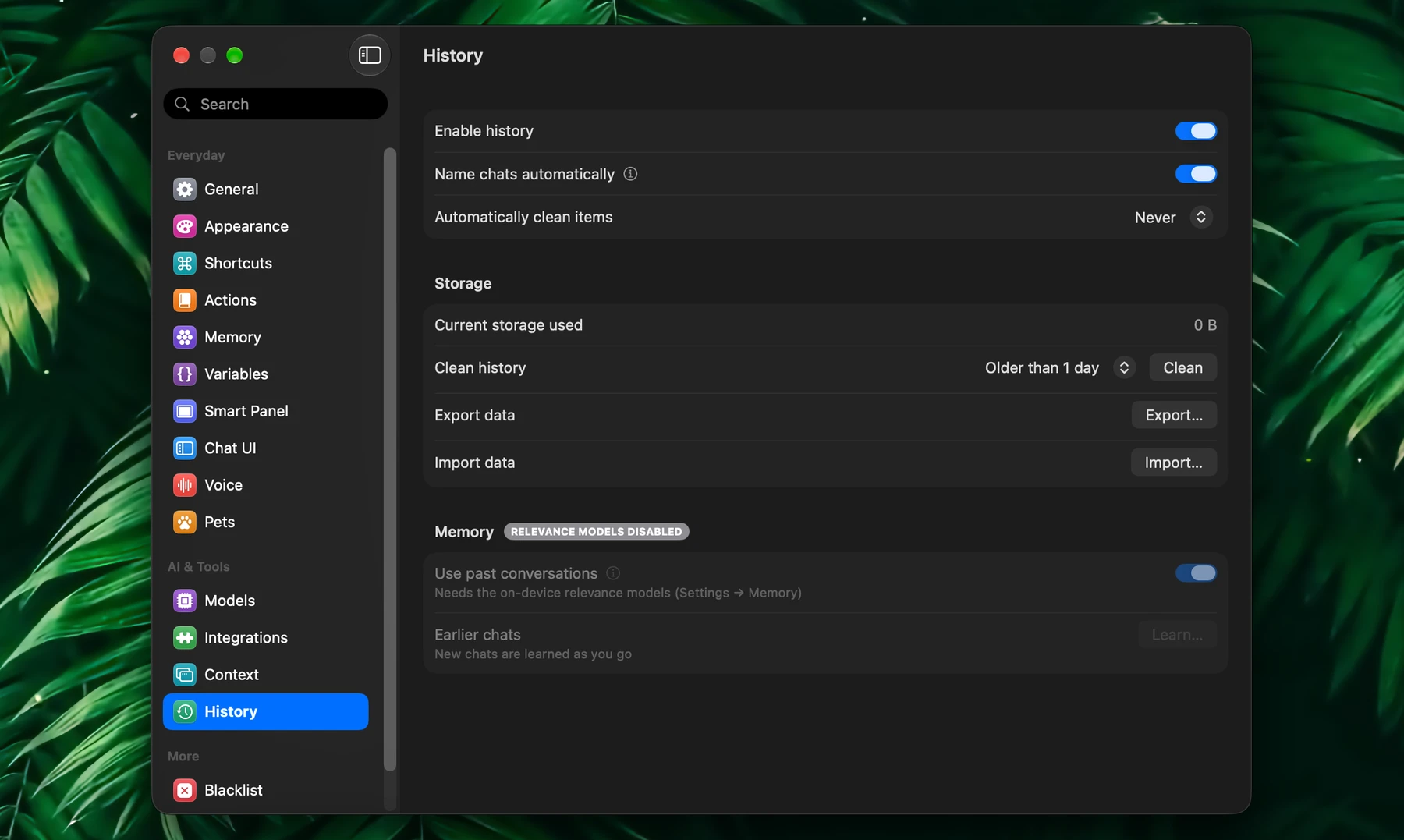
Open Settings → History:
| Setting | What it does |
|---|---|
| Enable history | Saves your chats. When off, new chats aren't saved |
| Name chats automatically | Lets the chat's model name each chat |
| Automatically clean items | Each time Fluent starts, deletes chats older than the age you choose: Never (the default), or Older than 1 day, 1 week, 1 month, 3 months, 6 months, or 1 year. A chat's age counts from its last message |
Choose a short window if you only want short-term continuity. Leave it on Never to keep a long, searchable history.
Cleanup, Export, and Import
The Storage section of the same page shows Current storage used and lets you:
- Clean history: choose a range, from Older than 1 day to All, and click Clean. Deleted chats can't be recovered
- Export data: Export… saves your whole history as one file
- Import data: Import… replaces the history on this Mac with an exported file
An exported file stays encrypted with a key that belongs to this Mac. Use it to back up and restore History on the same Mac: it can't move your chats to another Mac.
Past Conversations
The Memory section of Settings → History lets Memory use your earlier chats:
- Use past conversations: when a request relates to an earlier chat, Memory tells the model about it: when it was, what you asked, and a short summary of the answer
- Earlier chats: new chats are learned as you go. Click Learn… to learn the chats from before
Both need Memory and its on-device relevance models, on a Mac with Apple silicon. If something is missing, the caption under the switch says what. Chats are matched on your Mac, and only the messages you typed are learned.