
Setup & Usage
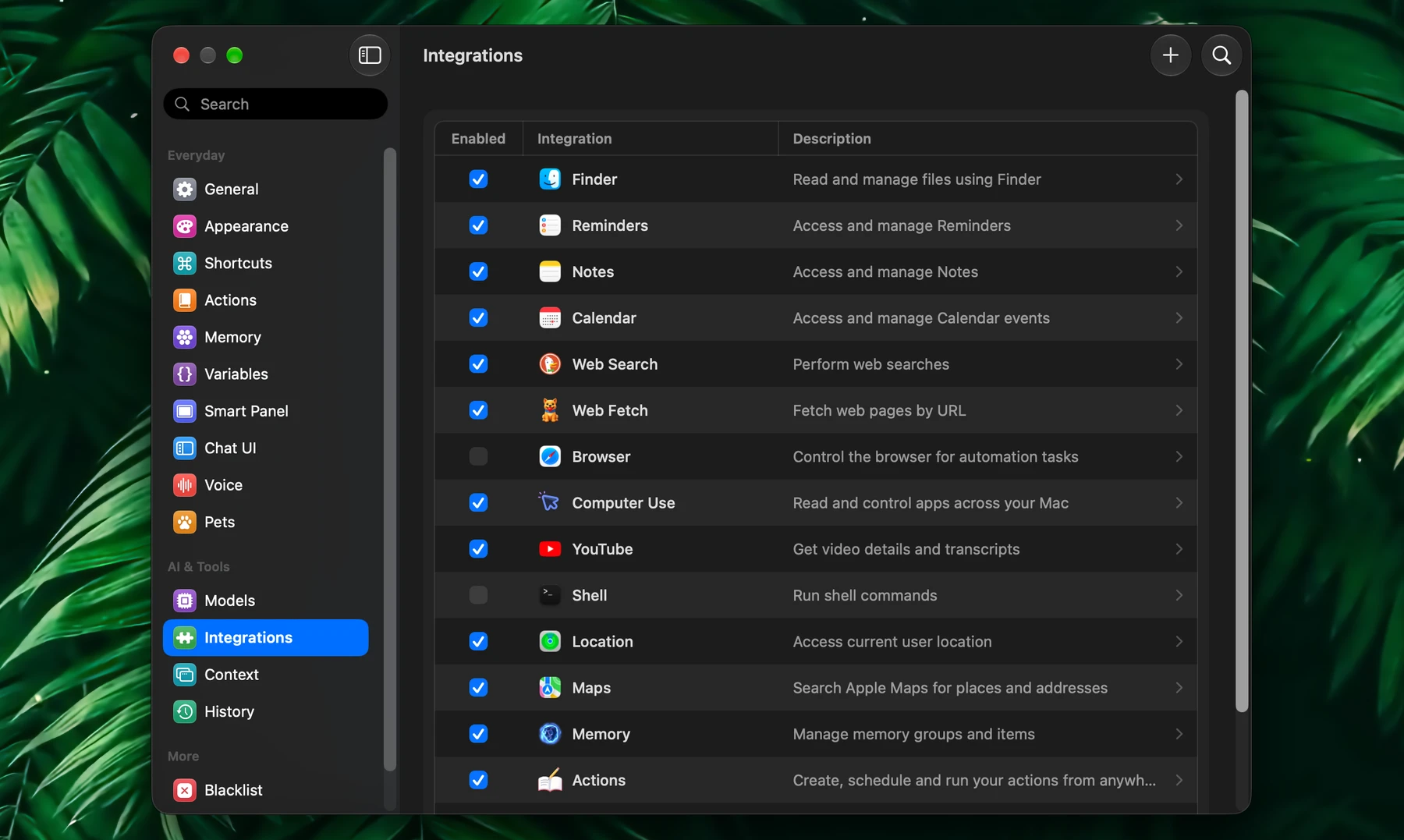
Integrations give Fluent tools: it can search the web, read and organize your files, add reminders and events, control your browser, run your actions and change its own settings. Each integration is an MCP (Model Context Protocol) server, either built into Fluent or added by you. Manage them in Settings → Integrations.
How It Works
Ask in plain words. Fluent picks the tools your request needs, runs them, and answers with what they found. You don't need any special syntax.
| You ask | What Fluent does |
|---|---|
| "Remind me to call the bank tomorrow at 10" | Reminders creates the reminder |
| "What's on my calendar on Thursday?" | Calendar reads your events |
| "Total the invoices in this folder by month" | Finder reads every file and adds them up |
| "Compare the best robot vacuums under $500" | Web Search reads reviews and cites its sources |
| "Switch to dark mode" | Fluent changes the setting, with Undo under the reply |
Each tool Fluent runs shows as a badge in the reply. Some badges open up: a web search lists the pages it found, and a shell command shows its output.
Integrations work in the Smart Panel, the chat window and your actions. Fluent keeps what its tools found earlier in the chat, so a follow-up such as "now only the ones from March" doesn't start over.
Tools need a capable model. Very small models often skip tools or call them wrongly.
Turn On
Open Settings → Integrations. Each integration has a checkbox under Enabled, its name and what it does. Click its row to open its page: a switch, its own settings and its tools, with Back in the toolbar. An integration you added also has the pencil (Edit…) and the trash (Delete…) in its page's toolbar, and both in its right-click menu.
On a fresh install every built-in integration is on except Browser, which clicks and types in your signed-in browser without asking, and Shell, which runs commands on your Mac. Turn those on when you need them.
You can also ask in any chat: "turn on the Shell integration" or "turn off YouTube". Fluent makes the change, or asks you to confirm under the reply.
macOS asks for access the first time an integration needs it, for example to your calendars, reminders or location.
Tools
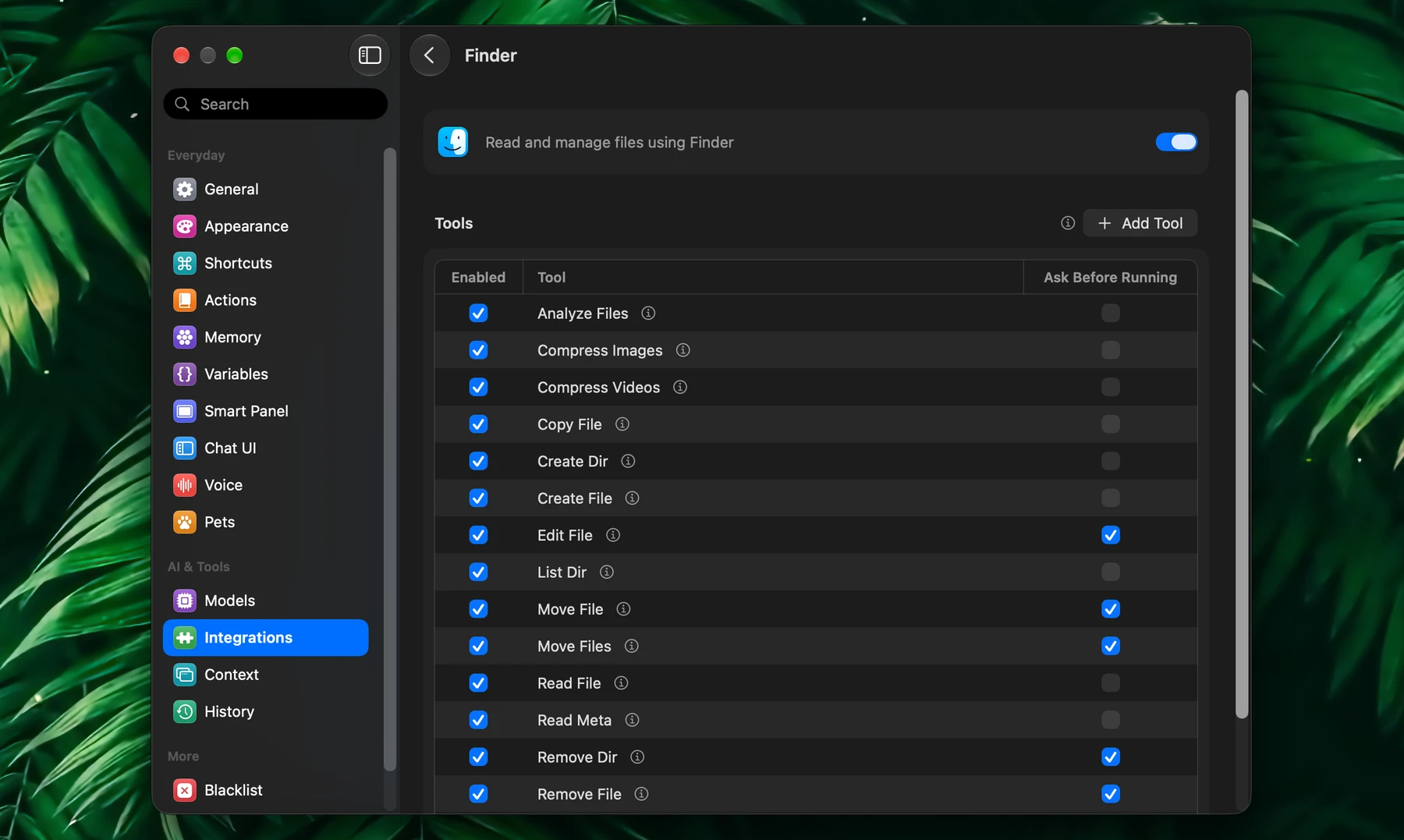
An integration's page lists its tools:
| Column | What it does |
|---|---|
| Enabled | Turns the tool on or off. Fluent never calls a tool that's off. |
| Tool | The tool's name. The info icon next to it shows what the tool does and the details it takes. |
| Ask Before Running | Ticked, Fluent stops before each use until you approve it. Unticked, the tool runs right away. |
Your changes are saved as you make them.
A smaller set of tools is easier for a model to use well. Turn off the tools you never need, and keep Ask Before Running ticked for tools that change or delete things unless you trust the workflow completely.
Approvals
When a tool asks for approval, its badge waits with Approve and Reject. Press ⌘A to approve or ⌘R to reject, in the Smart Panel and in the chat window. It works the same with every model, subscriptions such as Claude Code and Codex included.
Out of the box, these tools ask first:
| Integration | Asks before |
|---|---|
| Finder | Editing, moving or removing files |
| Calendar | Changing or deleting events |
| Reminders | Completing or deleting reminders |
| Shell | Running a command |
| Actions | Changing or deleting an action |
A few Memory changes ask too. The Fluent integration only proposes settings that delete data or hide Fluent, such as cleaning History automatically: it makes the change when you click Change under the reply.
A background or scheduled action that needs approval sends a notification, Approval Required, with Approve and Reject.
Point Fluent At A Tool
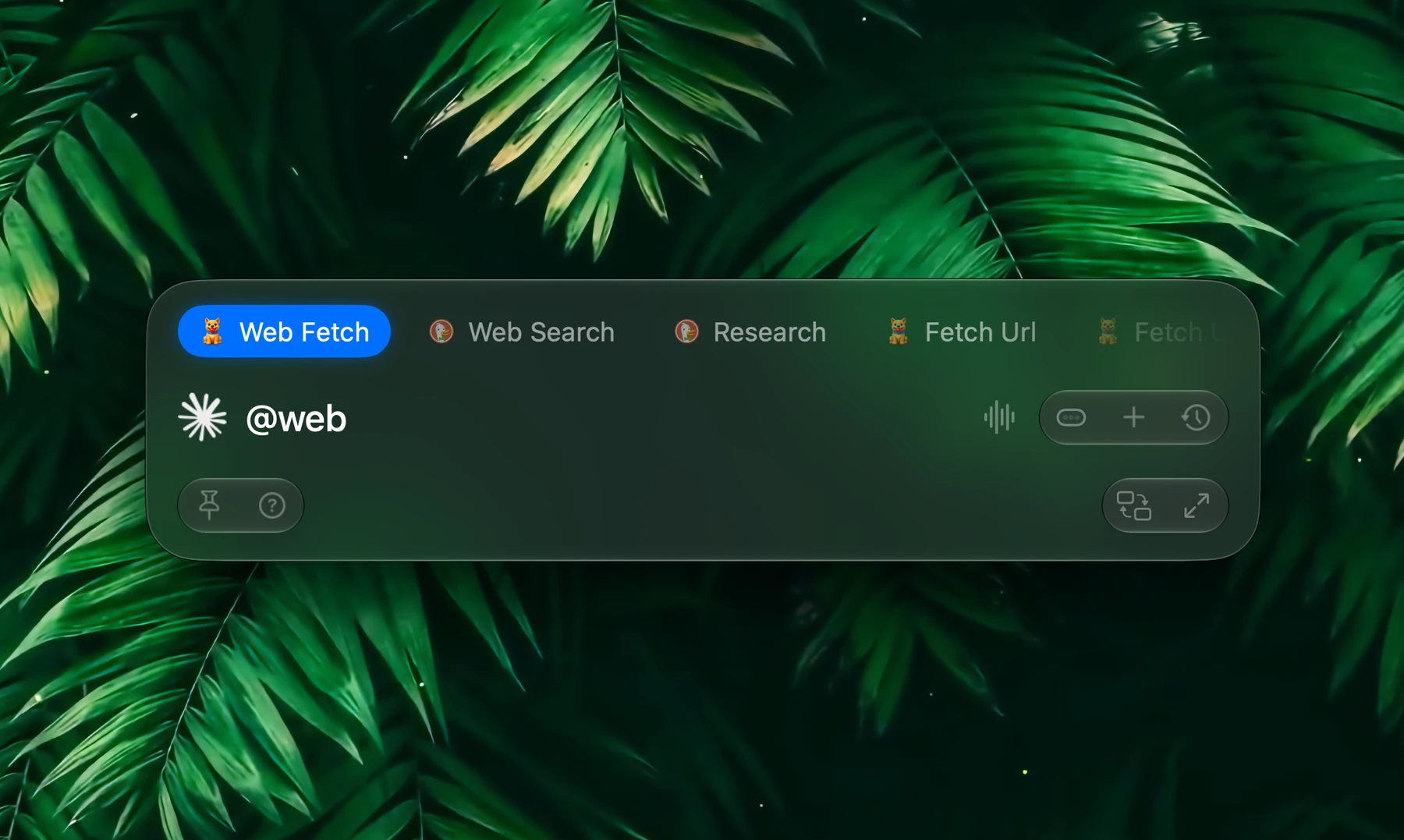
Fluent usually picks the right tool on its own. To be sure, name it ("use Reminders to…") or attach it to your prompt:
- Type @ and pick an integration or a single tool, such as Calendar or Web Search.
- Or click + and choose one under Integrations.
Choose what @ and the + menu list in Settings → Context, under Context Items.
In Actions
Actions use your integrations too. Two settings in the action editor decide which:
- Use integrations, under Integrations & Memory. Turn it off for actions that only work with the text you give them, such as a grammar fix.
- The Integrations list in the editor's sidebar. Uncheck an integration or a single tool to keep it out of that action.
See Actions.
External
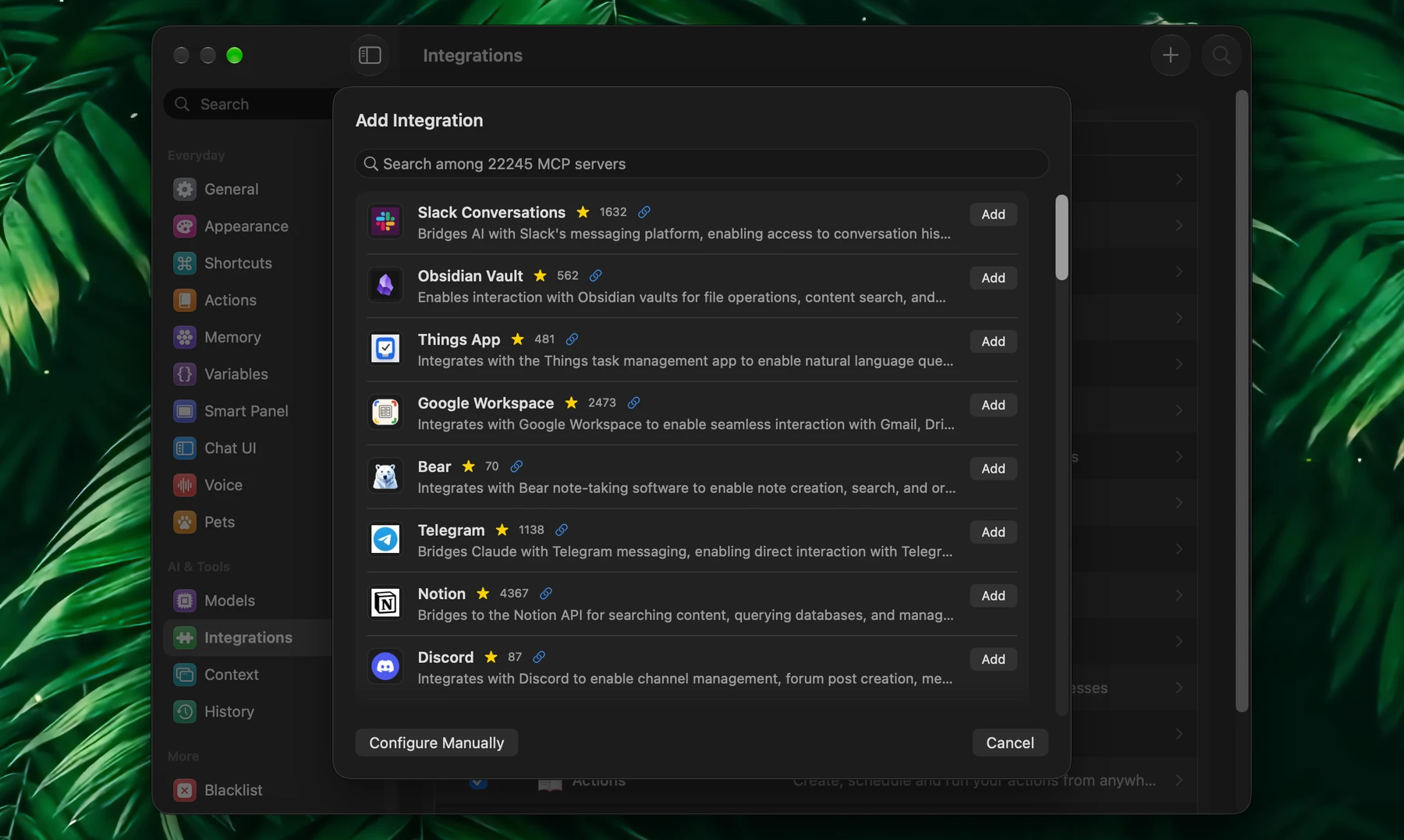
To connect another service, ask in a chat ("connect my Notion"), or click + (Add Integration) in the toolbar of Settings → Integrations and pick a server from the directory, or Configure Manually. See External Integrations.
Custom Tools
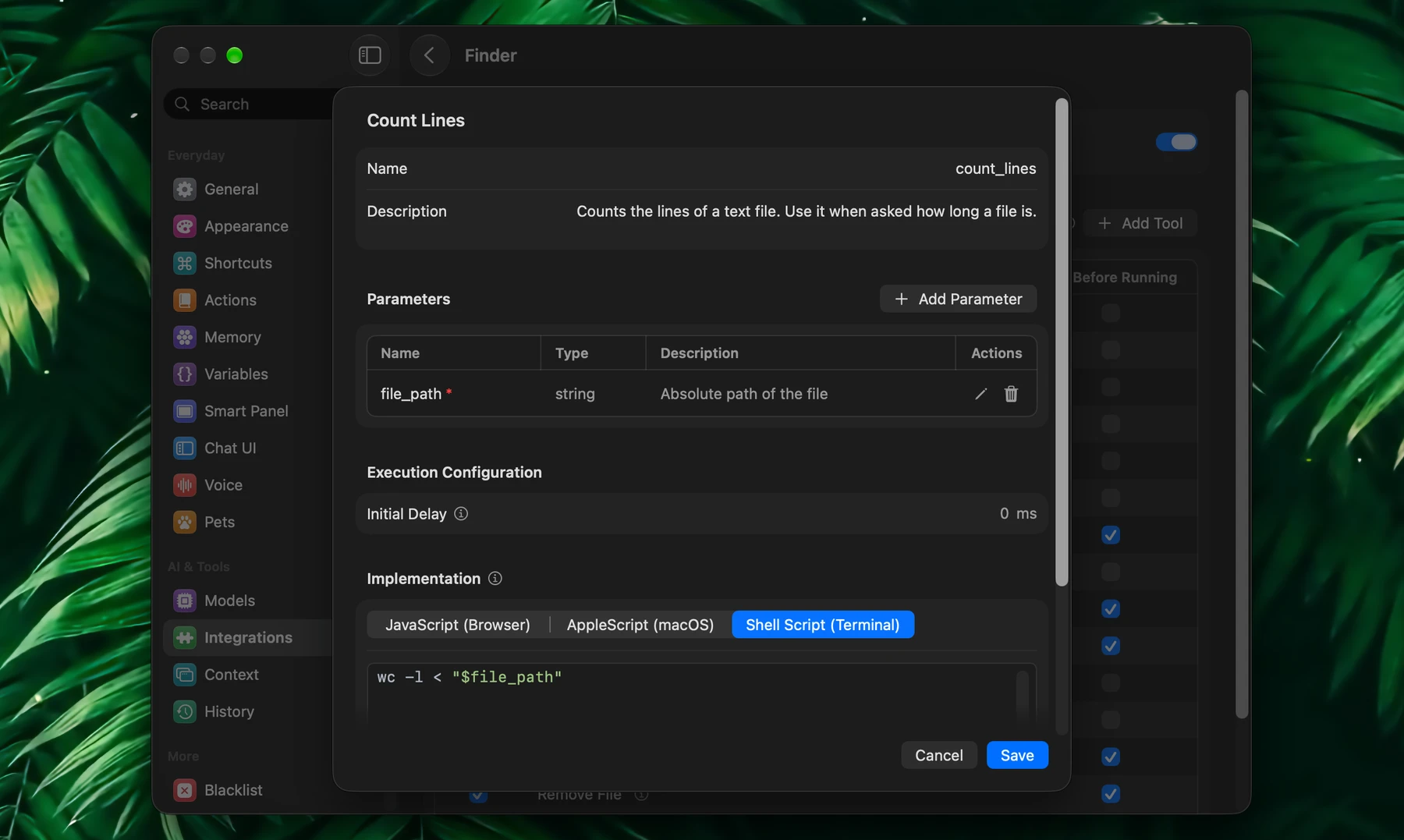
Add your own tool to a built-in integration when you want a precise, repeatable step instead of letting the model improvise. Open the integration's page and click Add Tool next to Tools.
Give it a Name, a Description (the model reads it to decide when to use the tool, so write it like a prompt) and Parameters, then choose how it runs:
| Implementation | Runs | Parameters arrive as |
|---|---|---|
| JavaScript (Browser) | In the current tab of Browser's Default browser | Global variables |
| AppleScript (macOS) | As an AppleScript | Variables set at the top |
| Shell Script (Terminal) | As a shell script | Environment variables |
Initial Delay waits before the script runs, for example to let a page finish loading.
JavaScript tools belong in Browser. AppleScript and shell tools work in Finder, Reminders, Notes, Calendar, Location, Maps, Web Search, Web Fetch, Shell and Browser.
Response Artifacts
Turn on Response artifacts in Settings → Advanced → Experimental Features to get compact chips at the end of a reply that used tools: the pages it read, files it created, edited, moved or removed, events, reminders and notes it touched, and what external integrations returned. Click a chip to see the details, open a page or show a file in Finder.