
Blacklist
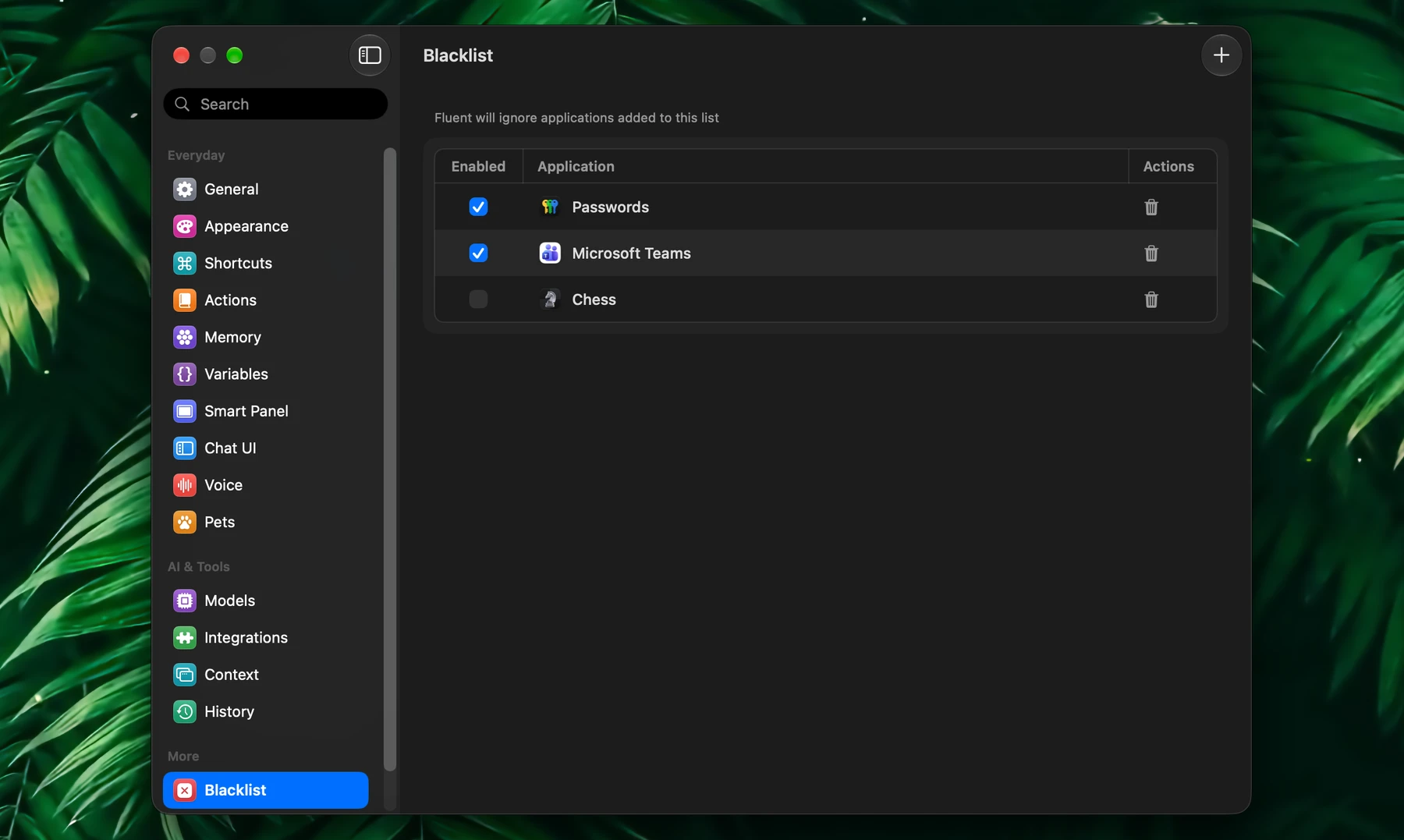
Use Blacklist to keep Fluent out of specific apps.
While a blacklisted app is in front, Fluent's shortcuts and text selection handling are off there. Changes apply right away, with no restart.
What It Does
While a blacklisted app is in front:
- Fluent's shortcuts do nothing, and the keys go to the app instead. This covers the Smart Panel and chat window shortcuts, the dictation shortcut, and action shortcuts
- Fluent doesn't react to text you select in the app
The blacklist doesn't cover Context: a blacklisted app can still be attached to a prompt from + or @. To keep an app's window out of your requests, don't attach it, and leave Automatically attach active app off in Settings → Context.
Why
Blacklist is useful for apps where Fluent should stay completely inactive:
- Password managers and banking apps: Fluent's shortcuts don't work there, so nothing you select is captured by accident
- Games and full-screen apps: no panel opening by accident in the middle of a game
- Presentations and screen sharing: no panel opening by accident while others watch your screen
- Shortcut conflicts: if an app uses the same shortcut as Fluent, blacklist the app and the shortcut works there again
If an app should never be part of a Fluent workflow, add it here.
Add
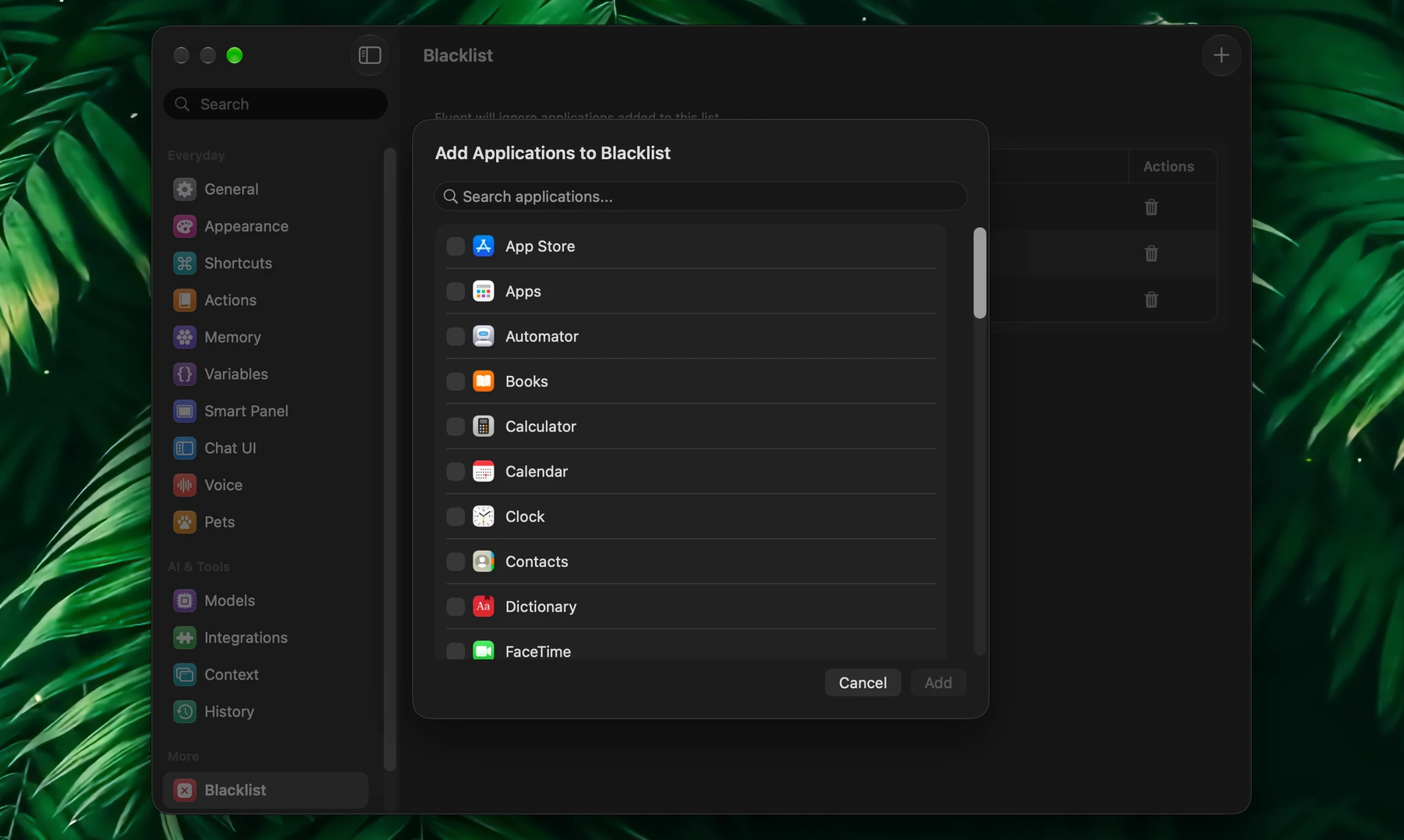
Open Settings → Blacklist and click + (Add Application) in the toolbar.
Tick one or more apps, searching for them if you like, and click Add. They then appear in the blacklist table.
The list shows the apps in your Applications folder and the apps that come with macOS. Apps in subfolders, such as Utilities, and apps in the Applications folder of your home folder aren't listed.
This is an app-level setting. You do not need to write rules or patterns.
Turn Off or Remove
Each entry has its own Enabled checkbox.
Uncheck it to allow Fluent in that app again without removing the app from the list. Check it again later if needed.
To remove an app, click its trash icon and confirm with Remove.