
Actions
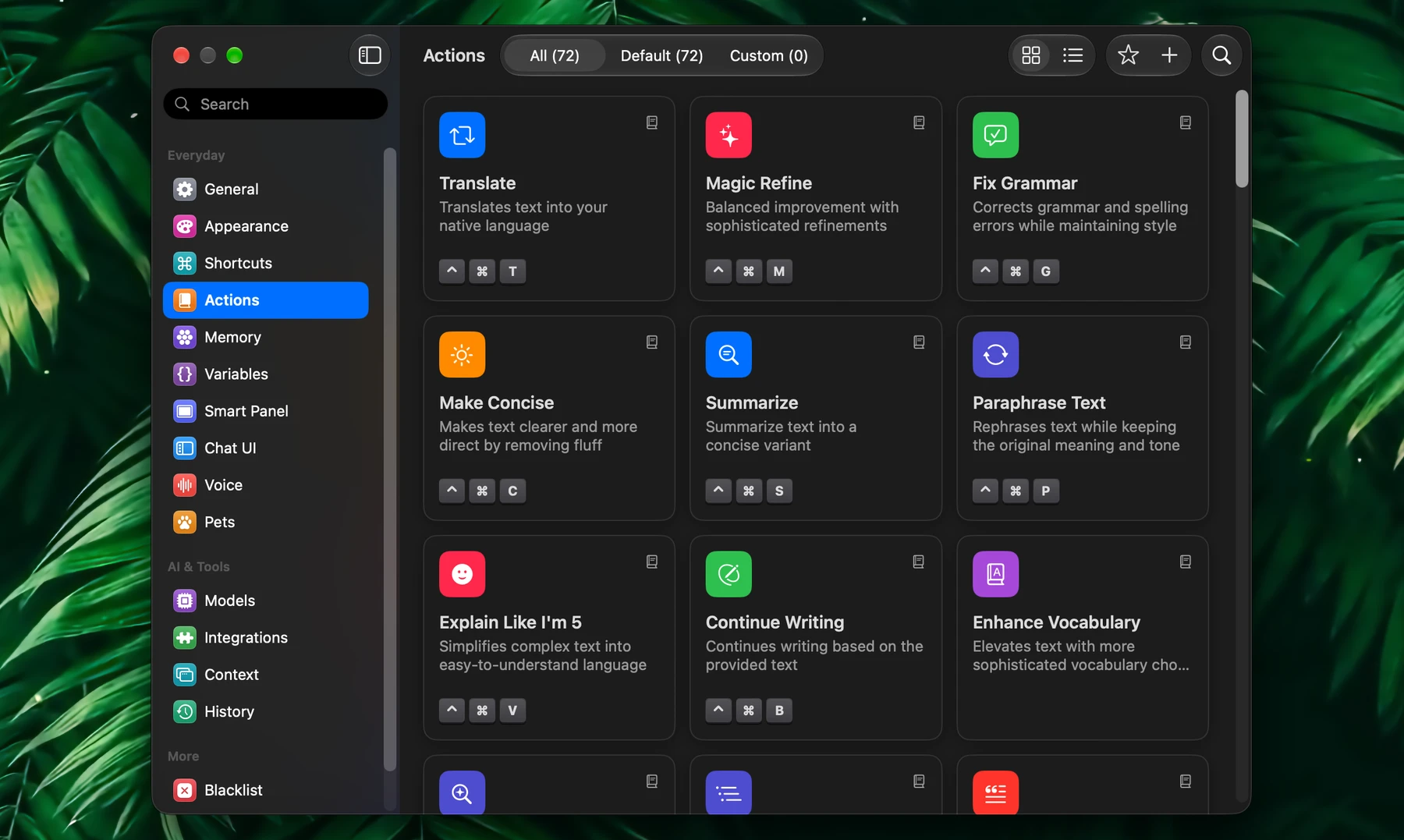
Actions are saved prompts you run in one step: on the text you select, on what you attach, or on their own on a schedule.
Fluent comes with 34 writing actions and 38 assistant actions. Use them as they are, change them, or create your own for any task you repeat.
Your Actions In Settings
Your actions live in Settings → Actions: click the Fluent icon in the menu bar and choose Actions.
- All, Default and Custom filter them. Switch between cards and a list in the toolbar.
- Search actions finds an action by its name or prompt (⌘F).
- A card shows the action's shortcut, its schedule, and its model when it has its own.
- Click a card to edit it, right there in Settings. Hover it and click the play button on its icon to run it.
Right-click a card for more:
| Item | What it does |
|---|---|
| Run | Runs it in the Smart Panel |
| Run in Background | Runs it without the Smart Panel and notifies you when it's done |
| Edit | Opens the action editor |
| Duplicate | Makes an editable copy, without the shortcut |
| Add to Favorites | Puts it in the Smart Panel's favorites |
| Copy ID | Copies the action's ID for Deep Links |
| Remove | Deletes an action you created |
Built-in actions can be edited but not removed. To keep the original, duplicate it and edit the copy.
Built-in Actions
Writing actions work on the text you select: Translate, Magic Refine, Fix Grammar, Summarize, Make Concise, Paraphrase Text, Continue Writing, tone changes such as Make Formal, and more.
Assistant actions get things done with your integrations and Memory:
| Kind | Actions such as |
|---|---|
| Research | Research Brief, Check a Claim, Compare Products, Video Takeaways |
| Planning | Today's Agenda, Find Focus Time, Add Calendar Event, Turn Tasks into Reminders |
| Your knowledge | Find Something I Saved, Catch Up on a Project, Answer from My Documents |
| Documents | Extract Meeting Actions, Extract Deadlines, Compare Document Versions |
| Files and data | Extract Receipt Details, Total Expenses, Find Recurring Charges, Check a Table |
| Everyday and learning | Plan a Route, Price Scanner, Make Study Cards, Interactive Language Tutor |
Give an assistant action what it needs: select text, attach a document or tab, or name a folder, Memory group or task. For example:
- Select a claim someone sent you and run Check a Claim: Fluent checks current sources and says whether they support it, contradict it, or can't settle it.
- Run Find Focus Time with "2 hours tomorrow": up to three open slots from your calendar, with nothing booked.
- Run Total Expenses and name a folder of receipts: totals by month and currency, plus anything it couldn't read.
Good to know:
- Actions that use integrations need them on in Settings → Integrations, and a model that supports tools. When a tool is missing, the action says so instead of guessing.
- Only Add Calendar Event, Turn Tasks into Reminders and Save to Apple Notes create anything. The others only read and report.
- Assistant actions reply in your native language.
Run
| Where | How |
|---|---|
| Smart Panel | Click a favorite, or press ⌘1–⌘8 |
| Any prompt | Type / and pick an action, in the Smart Panel or the chat window |
| Any app | Select text and press the action's shortcut |
| Settings → Actions | Hover a card and click play, or right-click it and choose Run |
| Any chat | Ask for it by name: "Run Today's Agenda" |
| Outside Fluent | Applets and deep links, below |
An action works on the selected text and on anything you attach: tabs, apps, files. Picked with /, it becomes a chip in your prompt, and you can add a few words next to it to steer that one run, for example "focus on pricing" after Summarize.
Actions don't wait for each other. Start several, and each runs in its own tab, even while the Smart Panel is open.
Favorites
Up to 8 favorites sit in a row at the top of the Smart Panel, and ⌘1–⌘8 runs them in order. Fluent starts you with Translate, Magic Refine, Fix Grammar, Summarize, Paraphrase Text, Make Concise, Continue Writing and Explain Like I'm 5.
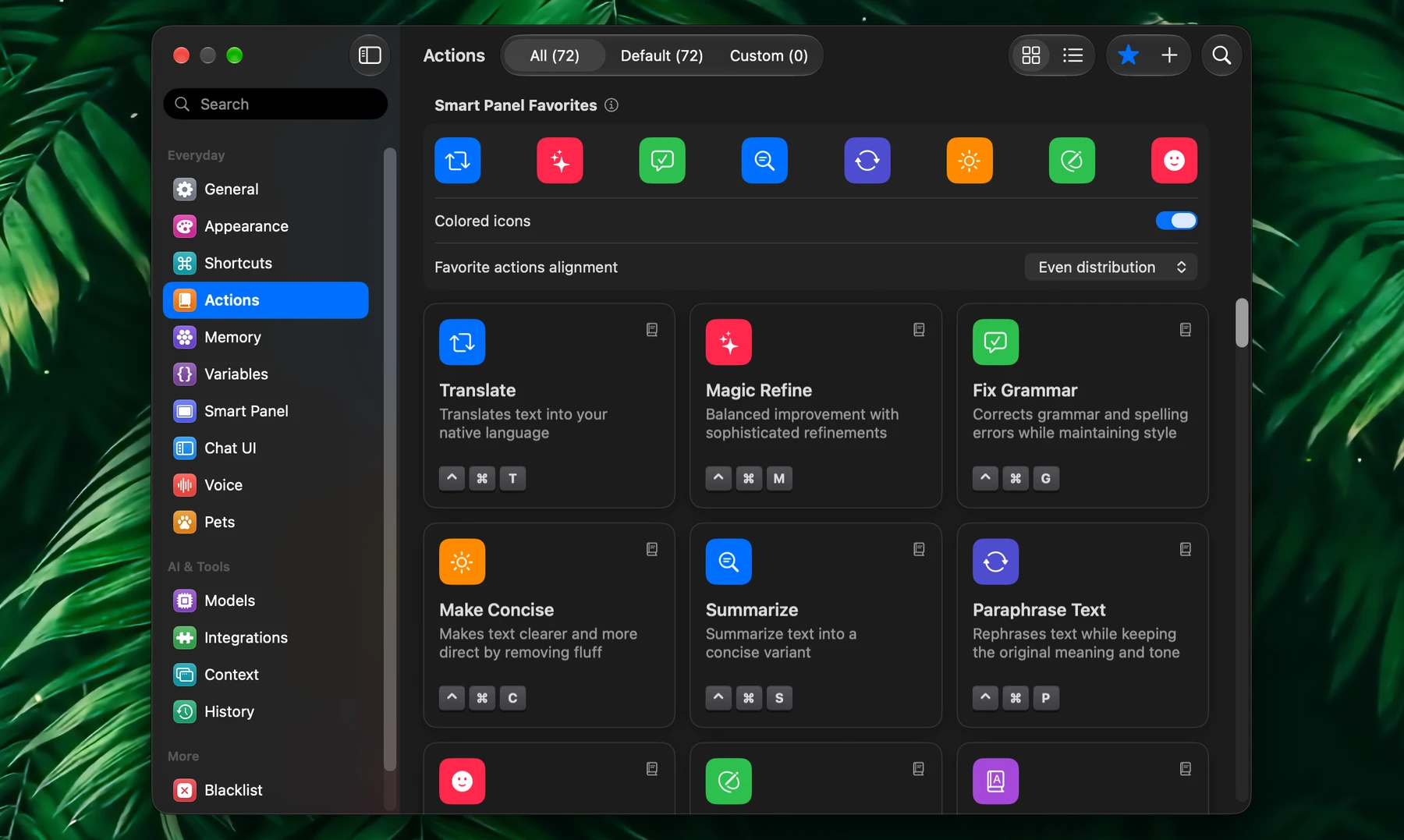
To change them, open Settings → Actions and click the star in the toolbar. Smart Panel Favorites opens above your actions:
- Drag action cards into the row to add them, or right-click one and choose Add to Favorites
- Drag within the row to rearrange
- Drag one out of the row to remove it
Colored icons and Favorite actions alignment under the row set how they look in the panel. You can also ask in a chat: "make Find Focus Time a favorite".
Shortcuts
Select text in any app and press an action's shortcut: the Smart Panel opens with the result, or, with Auto insert on, the result replaces your selection. To set a shortcut, open the action, click Record next to Shortcut, and press the keys. Settings → Shortcuts lists every action that has one.
These come preset:
| Action | Shortcut |
|---|---|
| Translate | ⌃⌘T |
| Magic Refine | ⌃⌘M |
| Fix Grammar | ⌃⌘G |
| Summarize | ⌃⌘S |
| Paraphrase Text | ⌃⌘P |
| Make Concise | ⌃⌘C |
| Continue Writing | ⌃⌘B |
| Explain Like I'm 5 | ⌃⌘V |
A shortcut another action already uses shows Duplicate hotkey, and the action can't be saved until you change it. Esc, Tab, Delete and Caps Lock can't be used.
Keep the set small: a few shortcuts for what you run daily are easier to remember than many.
Create
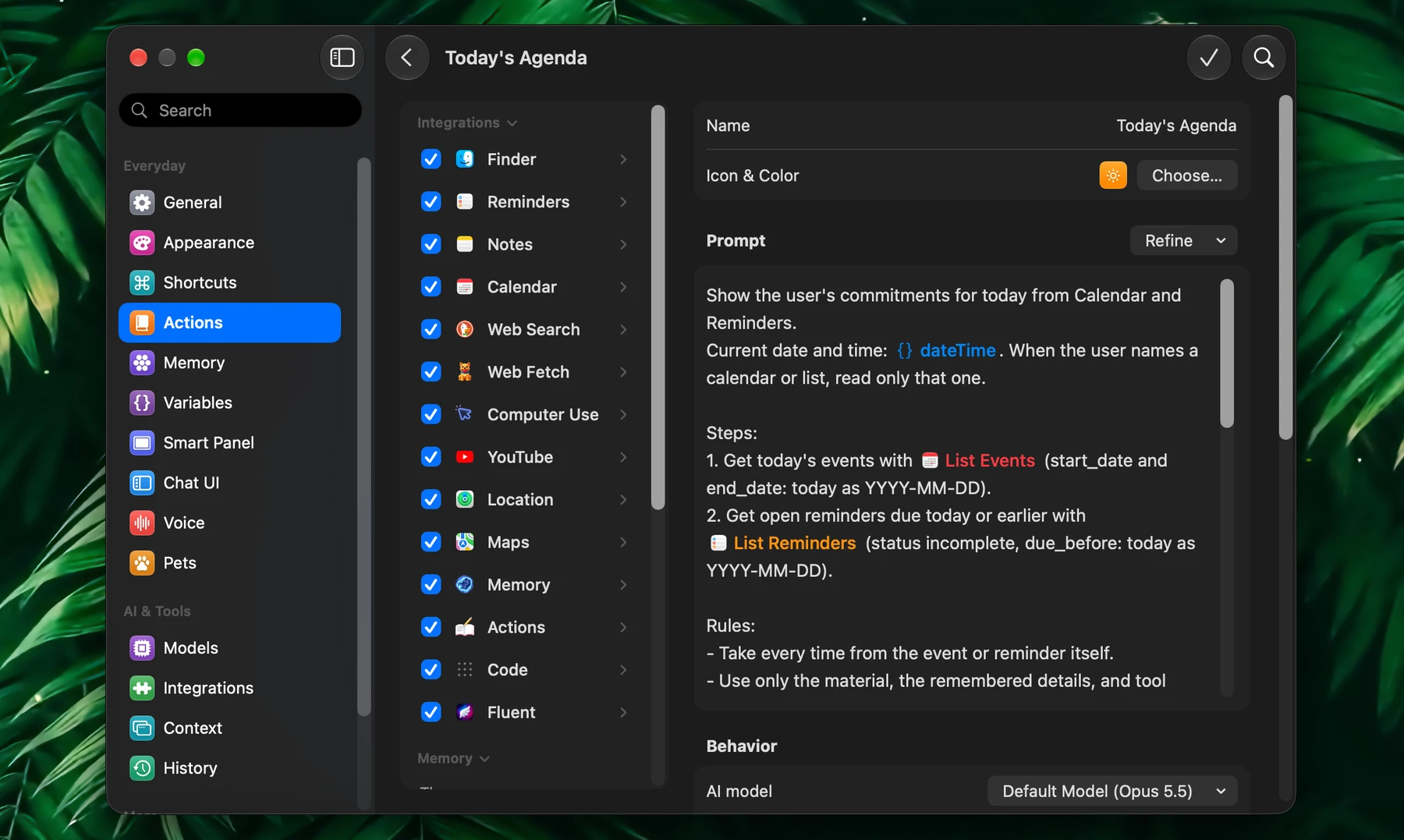
In Settings → Actions, click + (Create Action) in the toolbar. Or right-click an action and choose Duplicate to start from it: the copy appears among your actions, and a click opens it. The editor opens in place of the cards, and Back (‹) in its toolbar returns to them.
Give the action a name and a prompt, then set it up:
| Section | Option | What it does |
|---|---|---|
| Behavior | AI model | Your default model, or one just for this action |
| Reasoning | How much the model thinks when the action runs. Same as Settings (High) keeps the level its model has in Settings, named in brackets; pick another level for this action alone, for example Low for a quick fix or High for research | |
| Shortcut | Runs it from any app | |
| Auto insert | Puts the result straight into the app you're in | |
| Grammar mode | Shows the result as highlighted corrections | |
| Save to history | Off keeps quick fixes out of History. The result still appears and is inserted as usual | |
| Integrations & Memory | Use integrations, Use automatic memory | What the action may use, see below |
| Automation | Schedule this action | Runs it on its own, see Schedule |
| Wake Mac to run | Wakes a sleeping Mac for each scheduled run, see Wake Mac to Run | |
| Notify on run, Notification sound | Notifies you when a background run finishes | |
| Show as finished in menu bar | Shows finished scheduled runs in the menu bar |
Click Save or press ⌘↩.
Start from a prompt that already worked for you, keep it to one job, and use variables instead of fixed details: {{ nativeLanguage }} instead of a language, {{ currentApp }} to adapt to the app you're in. See Variables.
Icon & Color is under the action's name: click the icon to choose a new one from every SF Symbol and emoji on your Mac. Search by name or by what it shows, browse by category, and right-click an emoji for its skin tones. The two sliders next to it set the color and its tone.
An action with its own model shows that model on its card. If that model's provider is removed, the action stops with a message until you pick another model.
Sidebar and Tags
The editor's sidebar lists your Integrations with their tools, your Memory groups and your Variables; Search in the toolbar narrows them. Click an item, or drag it into the prompt, and it shows as a tag. Drag tags within the prompt to move them.
A tag names exactly what to use: a Web Search tag points the AI at web search, a Memory group tag at that group, and a variable tag is filled in when the action runs.
Each integration and tool has a checkbox. Uncheck one, and the AI never tries it in this action. For example, leave only Calendar on for a scheduling action, or uncheck Shell for one that should never run commands. A tool's info button shows what it does and its parameters, so you can also type tags yourself.
Refine
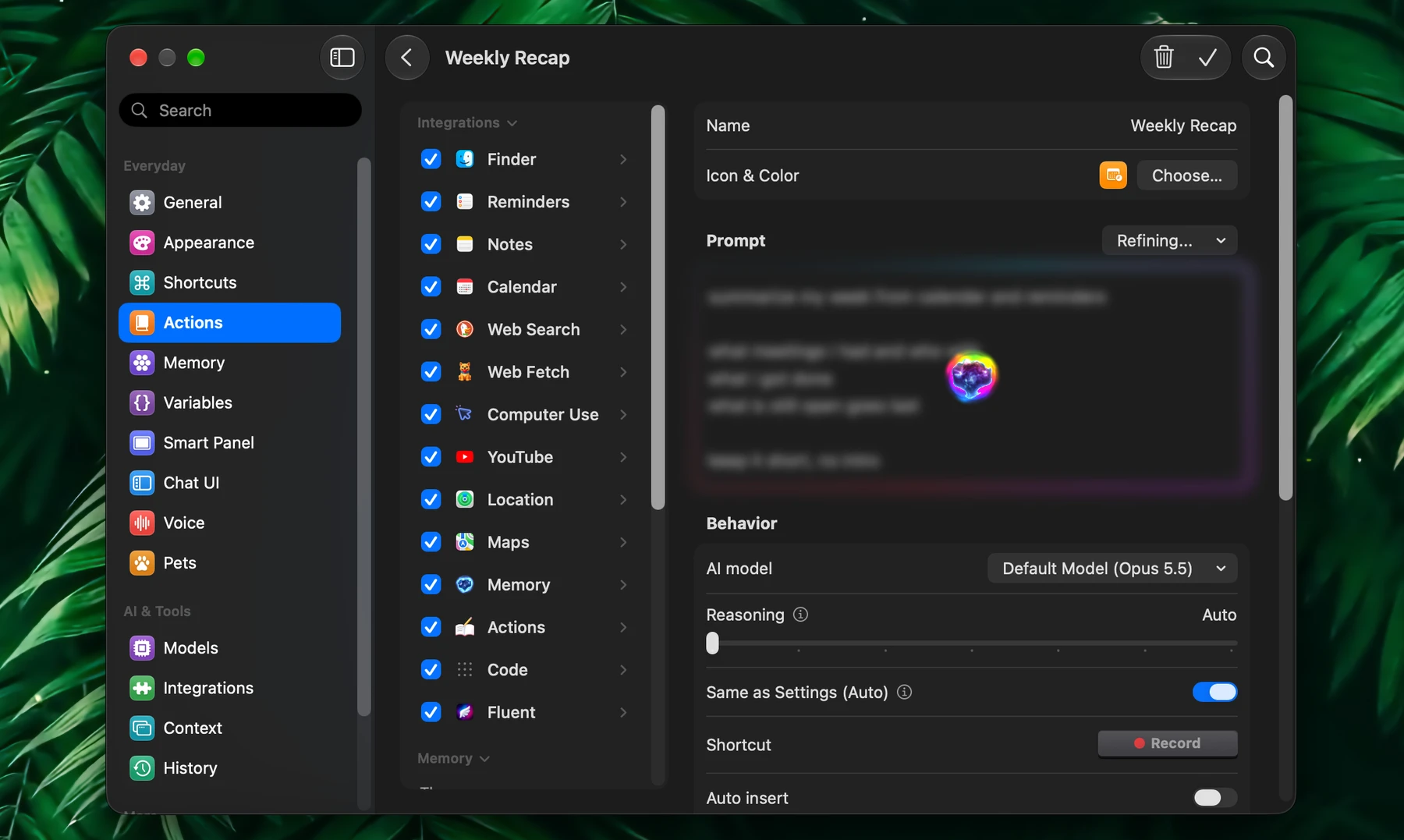
Not sure how to word a prompt? Use Refine above the prompt:
- Refine Prompt polishes what you wrote and keeps your intent
- I'm Feeling Lucky turns a short request such as "clean my desktop" into a complete, structured prompt that uses your integrations, Memory groups and variables
The prompt glows while the model writes, then the new prompt takes its place. Pick the model that writes it under Model: in the same menu. Revert brings back your prompt as it was.
Integrations & Memory
Two switches decide what an action may use:
| Use integrations | Use automatic memory | The action gets |
|---|---|---|
| On | On | The integrations checked in the sidebar, and remembered details when they're relevant |
| On | Off | The integrations checked in the sidebar. Memory only when the prompt names a group or the AI uses Memory's tools |
| Off | On | No integrations, only Memory |
| Off | Off | Only the text you give it |
New actions start with both on. The built-in writing actions only rewrite what you give them, so their integrations are off. Writing ones such as Continue Writing keep automatic memory, so they can sound like you. Summaries, grammar fixes and translations have both off.
With Use integrations off, the sidebar hides what the action can't use and keeps your checkboxes for when you turn it back on.
Auto Insert
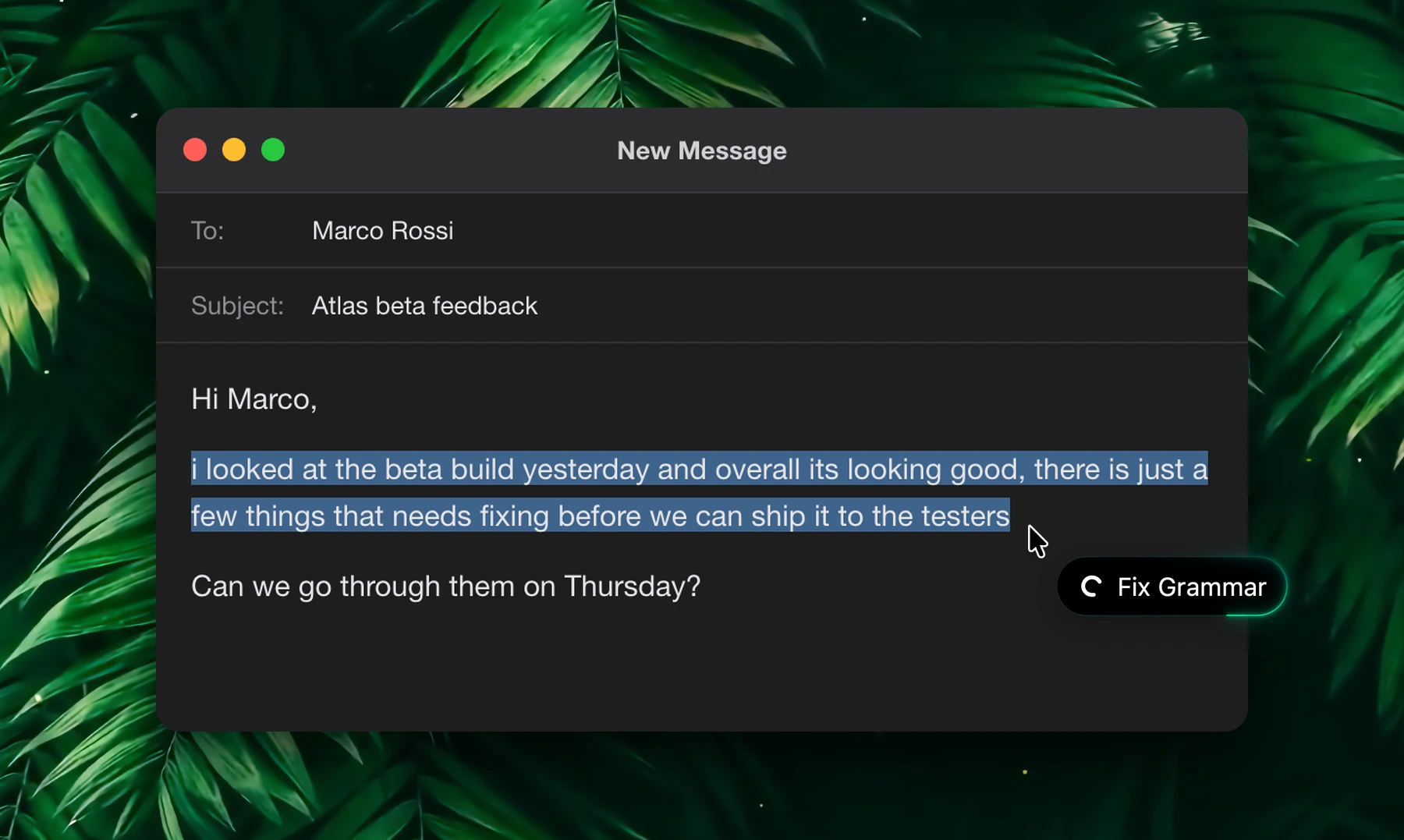
Turn on Auto insert when the result should replace your selection right away, without stopping in the Smart Panel. It suits predictable actions: grammar fixes, translation, simple rewrites.
While the action runs, a small pill with its name follows your pointer. To hide it, turn off Settings → Smart Panel → Show loading cursor (for auto insert actions).
Leave Auto insert off for actions whose result you want to review first.
Grammar Mode
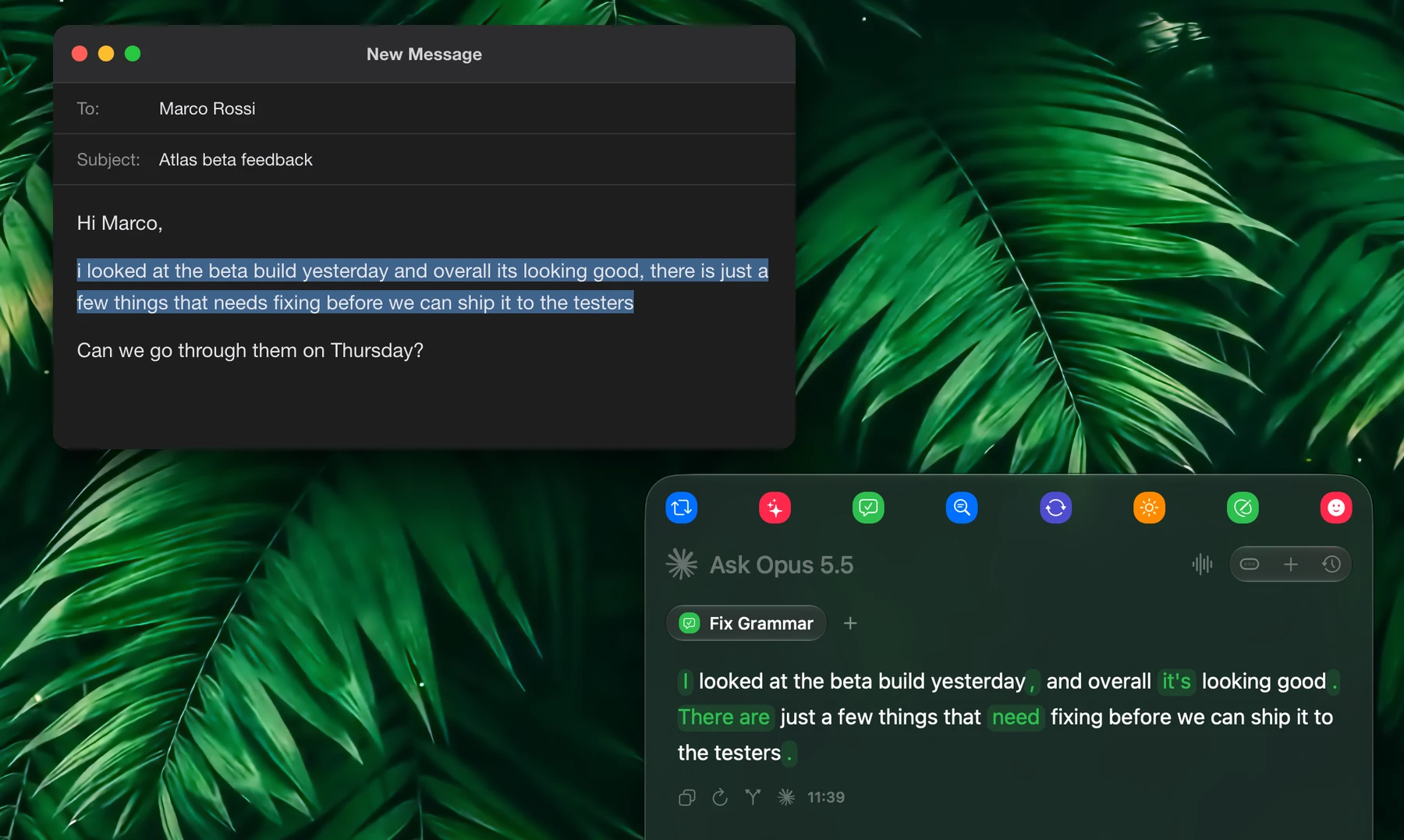
Grammar mode shows the result as your text with the corrections highlighted. Use it for grammar fixes, spelling corrections and similar edits.
Fluent also switches to this view when an action or a prompt you type mentions grammar or spelling. Turn on Grammar mode when an action should always work this way.
Schedule
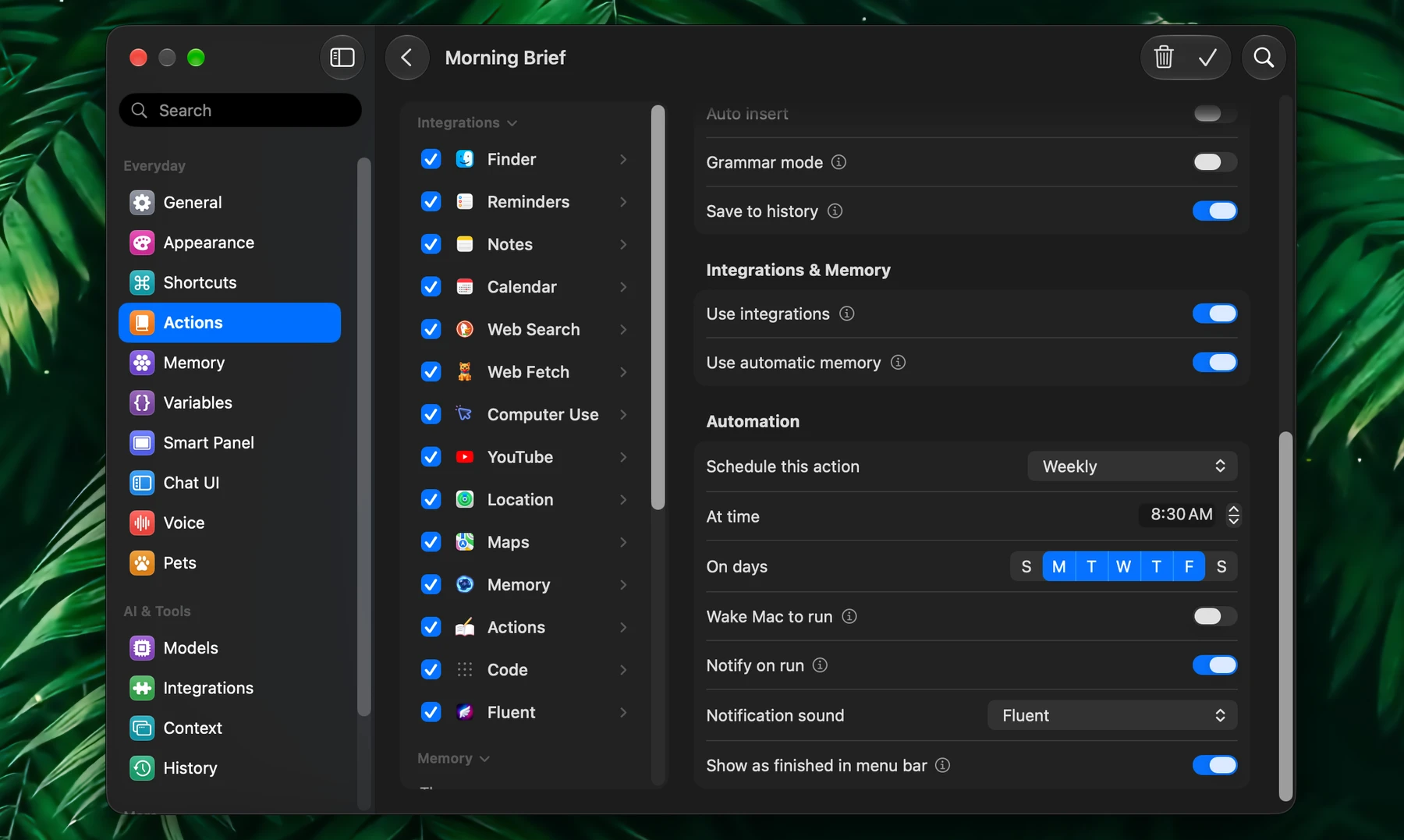
Under Automation, choose how often under Schedule this action:
| Option | Runs |
|---|---|
| Minutely | Every 1 to 59 minutes |
| Hourly | At a chosen minute past every hour |
| Daily | Every day at a chosen time |
| Weekly | On the days you pick, at a chosen time. Pick Monday to Friday for workdays |
| Monthly | On a chosen day of the month, at a chosen time |
| Custom (Advanced) | On a cron expression, such as 30 8 * * 1-5 for 8:30 on weekdays |
A scheduled action runs in the background with its own model and settings, without selected text. Write its prompt so it gathers what it needs, such as "List today's events from Calendar and what's due in Reminders". The result goes to History, and Notify on run tells you when it's ready.
Pick its Notification sound: Fluent, System Default, or your own .caf, .wav, .aiff or .mp3 file with Import.... Hover a sound in the menu to hear it.
Fluent needs to be running at the scheduled time. A run missed while your Mac sleeps or Fluent is quit is skipped, not made up later, unless the action wakes the Mac.
Wake Mac to Run
Turn on Wake Mac to run under an action's schedule, and Fluent wakes your Mac shortly before each run and lets it sleep again afterwards. A morning briefing scheduled for 8:30 is waiting in the chat window when you open the lid.
| Allow it once | The first time, the editor shows Allow Fluent to wake your Mac. Click Open Login Items and turn on Fluent in System Settings → General → Login Items. Until you do, the action runs once your Mac is awake |
| Lid closed | The Mac needs its power adapter. A closed MacBook on battery runs the action when you next open it or plug it in |
| A run it couldn't start | Is made up as soon as the Mac is awake, while it's still closer to its own time than to the next run: an 8:30 briefing still comes at 11:30, not at 23:00 |
The switch appears once the action has a schedule. Fluent still has to be running: it wakes the Mac, not itself.
Background Runs and the Menu Bar
Actions keep running when you look away:
- Keep requests running in background (Settings → Smart Panel, on by default): hide the Smart Panel, and the answer keeps coming. A notification arrives when it's done.
- Run in Background: right-click an action in Settings → Actions. It runs without the Smart Panel, with its own model and settings and no selected text, saves the result to History and notifies you. Use it for actions that gather their own information, such as Today's Agenda.
While actions run in the background, the Fluent icon in the menu bar shows a green badge with a spinner and how many are running. When they finish, a checkmark shows how many results are waiting. Click the icon to see them:
| Section | Shows | What you can do |
|---|---|---|
| Running | Actions running now | Click ✕ to stop one |
| Finished | Results you haven't opened yet | Click Open to see the result |
| Scheduled | Scheduled actions still due today, with their time | Hover one and click Run to run it now |
Show as finished in menu bar (on by default) marks an action's finished scheduled runs on the menu bar icon and lists them under Finished. Turn it off for frequent or low-priority actions.
To see every scheduled action, open the chat window and click Scheduled in its sidebar: they're listed by Today, Tomorrow and Later.
Ask in Any Chat
With the Actions integration, on by default in Settings → Integrations, you can manage actions from any chat in the Smart Panel or the chat window:
| Ask | What Fluent does |
|---|---|
| "Make me an action that turns meeting notes into a follow-up email" | Creates it, with a name, icon, color and prompt |
| "Use only Web Search for it", "give it the shortcut ⌃⌥W", "insert the result automatically" | Sets any option the editor has |
| "Run Today's Agenda" | Runs it with its own prompt, model and tools |
| "Run it without Web Search this time" | Changes that one run; the action keeps its settings |
| "Run it every weekday at 8:30" | Schedules it. Say only "every morning", and it picks a time and tells you. Say no time at all, and it offers a few to click |
| "Rename it to Daily Digest", "delete that action" | Asks for your approval first |
Good to know:
- Schedules repeat: every few minutes (5 at the most often), hourly, daily, on chosen weekdays, or monthly. There's no one-time run.
- A shortcut set from a chat uses at least two of ⌃ ⌥ ⌘. Set any other shortcut in the editor.
- A scheduled run can't create, schedule, change or delete actions.
- To change which steps ask for approval, or to turn this off, open Settings → Integrations → Actions.
Deep Links
Any action can also run from outside Fluent. Right-click an action, choose Copy ID, and use it in a link such as fluent://v1/actions/run?id=fixGrammar. See Deep Links.
Applets
Drag an action card out of Settings → Actions and drop it on the Dock or into a Finder folder. Fluent turns the action into a small app with the action's icon. Opening the app runs the action through its deep link.
Examples
These prompts are short on purpose. The useful part comes from Context, Memory and integrations.
Product Reviewer
Use this on a product page, with a few comparison tabs attached.
Use the current browser page as the main product I am considering.
Use any attached tabs as comparison products.
Research the web for similar products, real reviews, repeated complaints, and strong positive signals.
Then give me a final verdict:
- Who this product is good for
- Who should avoid it
- Whether this is the one to buy or a better alternative exists
Keep it practical and decisive.
Inbox To Reminders
Use this with selected email text, meeting notes, or a messy task list.
Review the selected text and extract only real action items.
Create them in Reminders if that integration is available.
Use short and clear task titles.
Only add due dates when they are explicitly mentioned.
If something is vague, leave it without a date instead of guessing.
Then show me what was created and what was skipped.
Reply From My Docs
Use this when the answer should follow your own documentation and tone. Click the two Memory groups in the sidebar to insert them.
Draft a reply based on the current context.
Use @"Product Docs" and @"My Support Style".
If helpful, also search Memory for relevant details.
Be clear, warm, and direct.
Do not invent facts, policies, or product behavior.
If something still needs confirmation, say that plainly at the end.
Project Pulse
Use this when the current page or document should be combined with project tools.
Use the current context as the starting point.
If project integrations are available, gather the latest related issues, pull requests, or notes.
Then write a short project update in the style of @"Team Update Style".
Include:
- What changed
- What is blocked
- What needs attention next
Keep it short enough to send to a team chat.