
Context
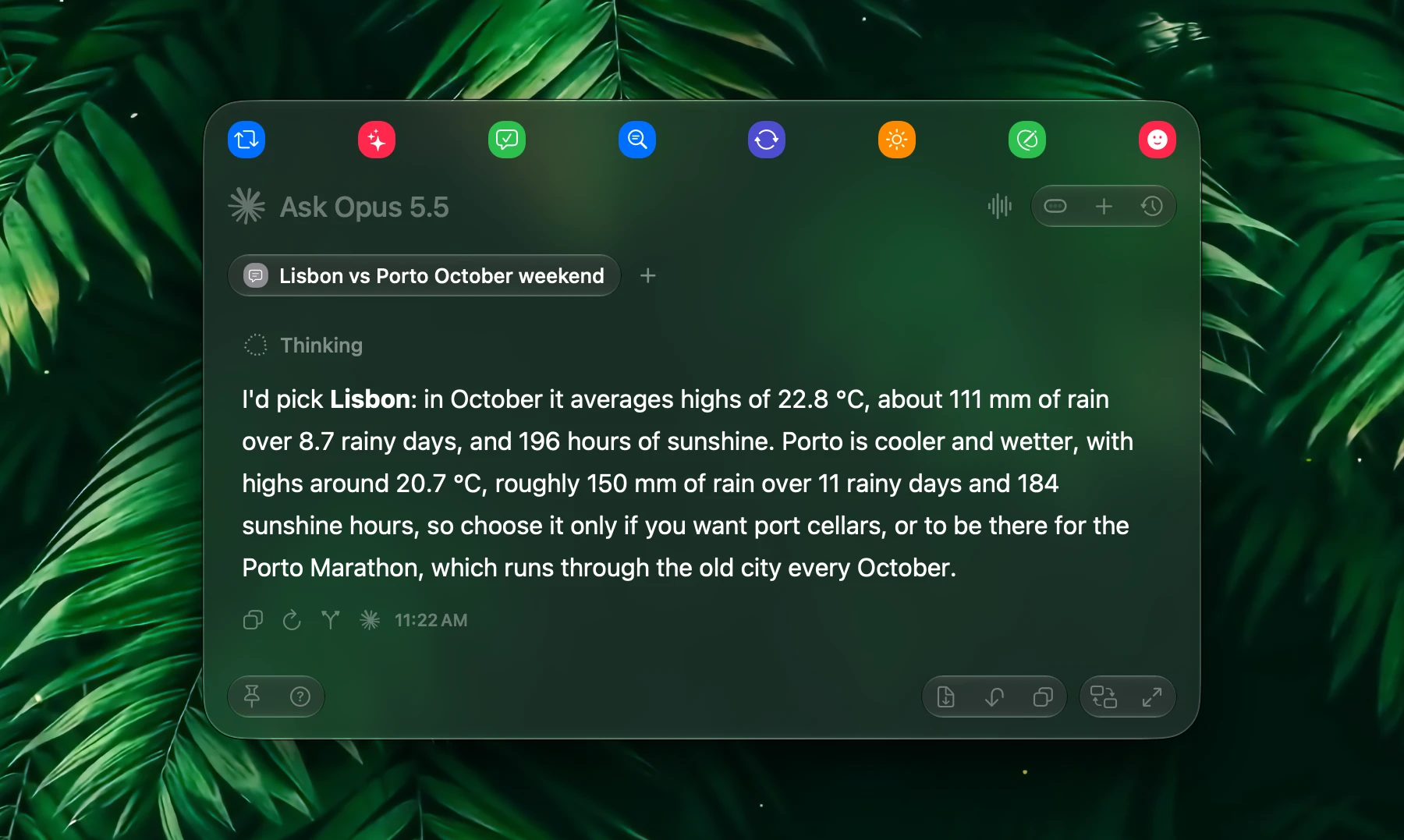
Context is what you are working on right now: a browser tab, an app's window, the text you selected. Attach it to a prompt and Fluent answers about your actual page or document, with nothing to copy and paste.
Context works the same way in the Smart Panel and the chat window. For files, see Attachments. For what Fluent should know long-term, see Memory.
Attach
Everything you attach shows as a chip in the prompt. There are three ways to add one:
| Way | How it works |
|---|---|
| @ | Type @ and a few letters of a name, such as @cal for Calendar. Press Tab to move through the suggestions and Return to pick one, or click it. |
| + | Click + next to the prompt. The menu has Files, Tabs, Apps, Actions, Integrations, Memory, and Variables, with a search field on top. |
| ⌘\` | Adds a chip for the app or browser tab you are looking at. Press it again to remove the chip. |
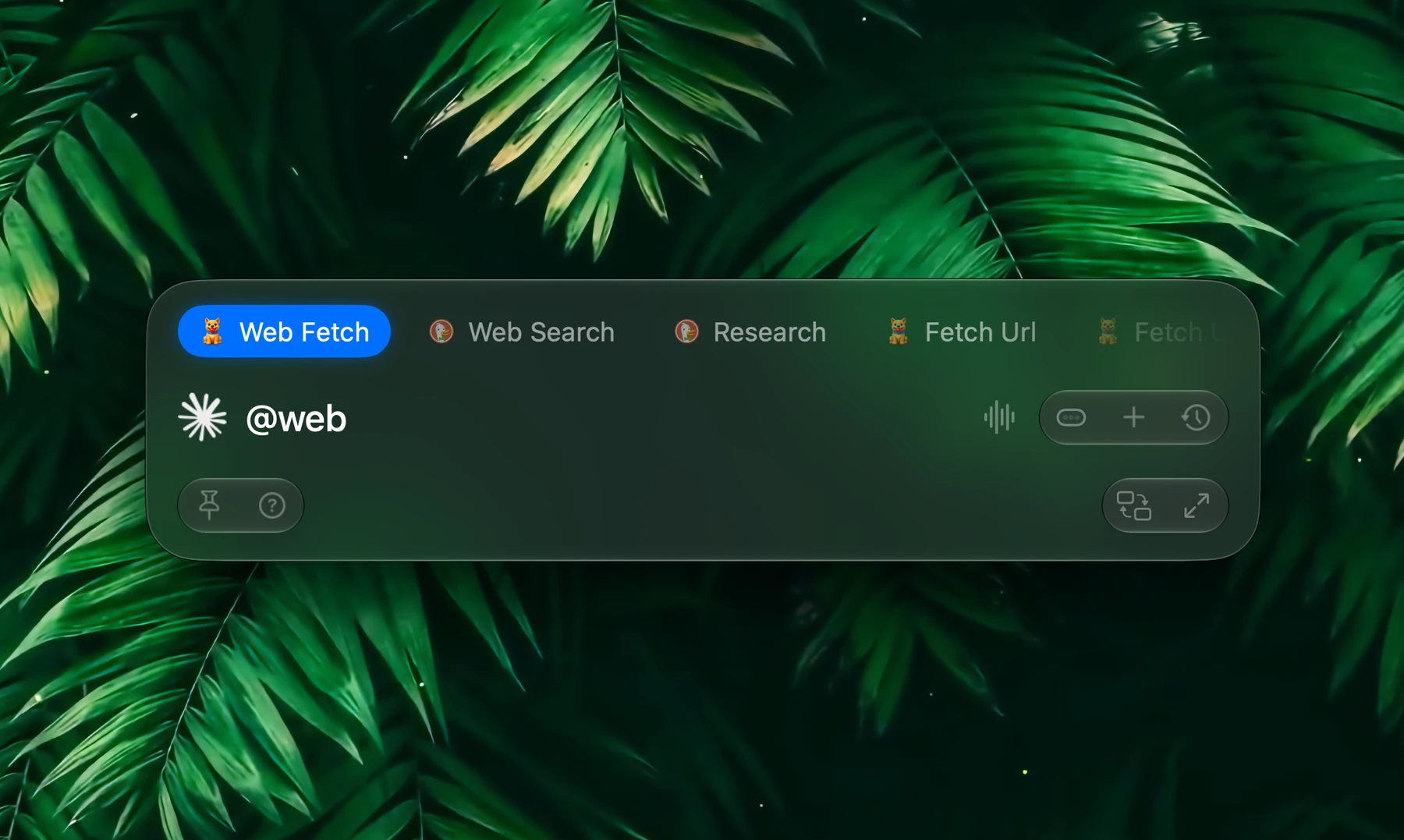
What each kind of chip adds to your request:
| Chip | What Fluent sends |
|---|---|
| Browser tab | The page's title, address, and text |
| App | The text in the app's window |
| File | The file's content, see Attachments |
| Action | The action's prompt, inside yours |
| Integration or tool | A pointer for the model to use that integration or tool |
| Memory group | What the group holds, or for a large group, the parts that match your request |
| Variable | The variable's value |
Attach as many chips as the task needs. To leave one out, delete it like a word.
Examples:
| Situation | Attach | Ask |
|---|---|---|
| Three product pages open | The three tabs | "Compare these in a table: price, weight, battery life." |
| An email to answer | Mail, with ⌘\` | "Draft a reply that accepts Tuesday at 3 and asks for the agenda." | |
| A PDF open in the browser | The tab | "List every deadline in this document with its date." |
| A talk to rehearse | Keynote | "Shorten the presenter notes so the talk fits in 15 minutes." |
| A folder open in Finder | Nothing, with the Finder integration on | "How many PDFs are in this folder?" |
Browser
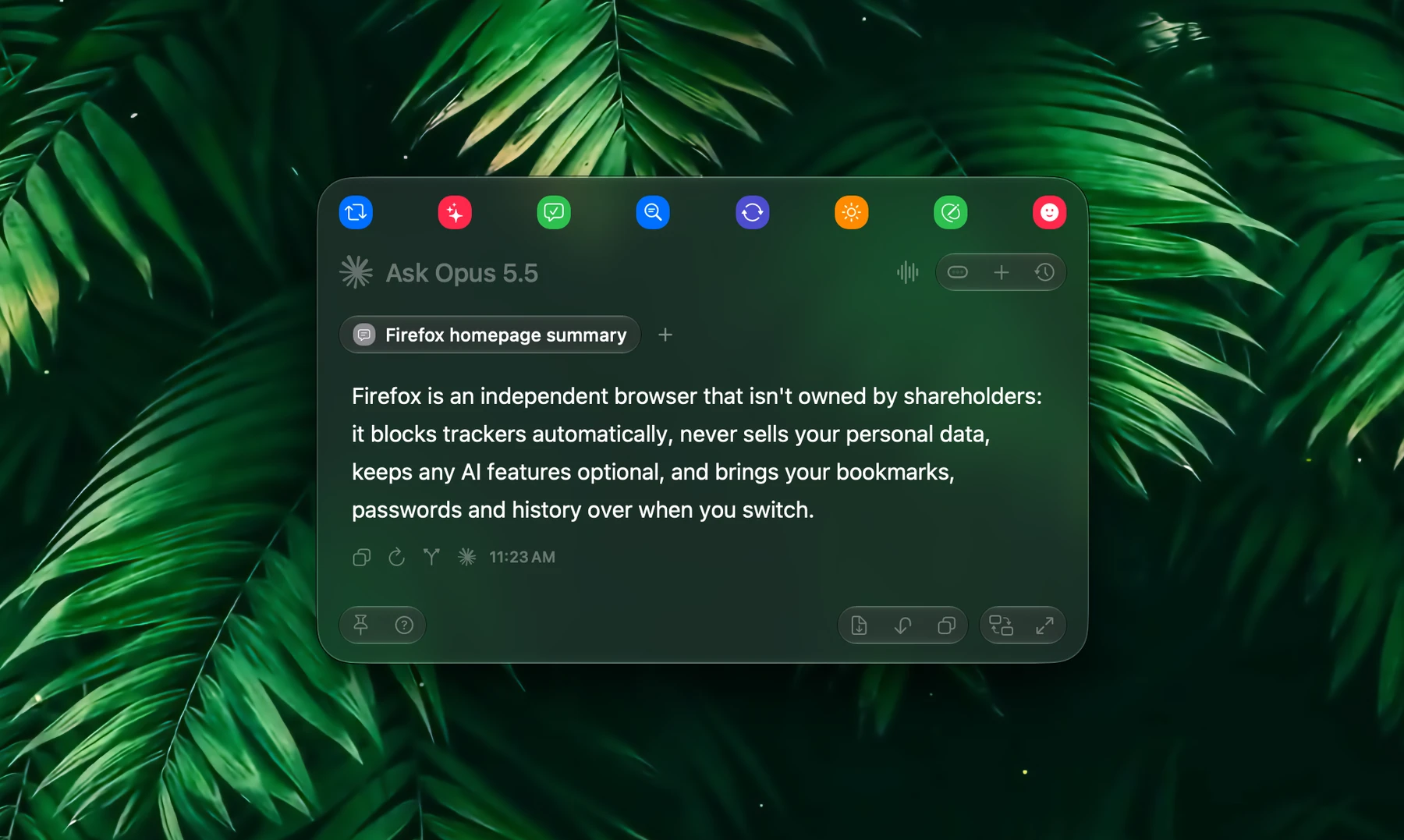
Browser context uses the page title, URL, and page content. Attach several tabs and Fluent reads them together.
Supported browsers include Safari, Chrome, Arc, Brave, Edge, Opera, Vivaldi, Chromium, Helium, Comet, and Firefox with the browsers built on it: Firefox Developer Edition and Nightly, Zen, LibreWolf, and Waterfox. Their beta, dev, canary, nightly, and snapshot builds work too, and so do Brave Origin and Opera GX.
@ and + list the tabs in the front window of the browser you are in, or of the one you used last. For Safari and Chrome-style browsers, macOS asks once whether Fluent may control the browser: allow it, or Fluent can't list that browser's tabs.
The tab you are looking at needs no setup: Fluent reads its whole page. Tabs in the background need browser scripting, which Safari and Chrome-style browsers allow once it is turned on:
- Safari: Settings → Advanced → Show features for web developers
- Safari: Settings → Developer → Allow JavaScript from Apple Events
- Chrome-style browsers: View → Developer → Allow JavaScript from Apple Events
Browser automation, where the Browser integration clicks and types for you, needs it too. The info button next to Browser Context in Settings → Context shows the same steps.
Firefox and the browsers built on it can't be scripted, so Fluent reads them through Accessibility: the tab in the front window is attached with its whole page, other tabs can't be, and the Browser integration doesn't control Firefox.
Reading the tab in front needs the Accessibility permission in every browser. When it's missing, Settings → Context says so under Enable browser context and offers Allow Accessibility.
Fluent reads a page when you send your request. In Firefox, or without browser scripting, keep the tab showing until then: a tab that has gone to the background sends only its title and address.
A PDF or another document open in the browser, such as a Word, Excel, RTF, or OpenDocument file, is read from the file itself, so Fluent gets the document's full text rather than the viewer around it.
A very long page takes a moment to read: a long article a second or two, the largest pages on the web up to a minute.
Apps
App context is the text in an app's window. Attach the app you are looking at with ⌘\`, or any open app from + or @, where apps are listed by their window title.
Some apps are read in their own way:
| App | What Fluent reads |
|---|---|
| The whole conversation of the selected message. The first time, Fluent asks for access to your Mail folder: click Grant Access | |
| Notes | The open note |
| Messages | The open conversation |
| Pages | The document's text |
| Keynote | The text of every slide, with presenter notes |
| Numbers | The selected cells, or the whole table |
| Finder | The folder the front window shows, with the Finder integration on |
For Pages, Keynote, and Numbers, macOS asks once whether Fluent may control the app. In other apps, Fluent reads the text macOS Accessibility exposes in the focused window.
With the Finder integration on, Fluent also knows which folder the front Finder window shows whenever you open it over Finder, so "this folder" works without attaching anything.
If app context comes back empty, check the Accessibility permission first.
Follow-Ups
Everything you attach stays with the chat. Ask a follow-up and Fluent sends the tabs and apps again as they were when you first asked, so the tab can be closed by then, even in a chat you reopen from History. Files stay available as long as they are still where they were on your Mac.
Chips work as links, in the prompt and in sent messages:
- A tab chip takes you back to that tab, or opens the page again if the tab is gone
- An app chip switches to the app, and opens it if it has quit
- A file chip shows a preview of the file
Automatic
Turn these on in Settings → Context if you want context without asking for it:
- Automatically attach active tab: when the Smart Panel opens over a browser, the tab you are looking at is already a chip in the prompt
- Automatically attach active app: the same for any other app
The chip is a snapshot: switching tabs or apps after the panel opens doesn't change it. Delete the chip to leave it out of that request. Requests that skip the prompt, such as an action you run by its shortcut, get the tab or app too.
Both settings are off by default.
Ask Fluent, the voice mode, always attaches the app or tab you are in while app or browser context is on. See Voice.
Which App You're In
When your message brings nothing of its own (no selection, no chip), Fluent still tells the model in one short line which app or tab you're in: the app's name, or the tab's title and site, never what's on it. So:
- "Summarize this" over a page you didn't attach gets "attach the tab with + or @" instead of "what should I summarize?"
- "How do I freeze the top row?" in Numbers gets the steps for Numbers
This is Include active app or tab in Settings → Context, on by default. Turn it off and requests carry nothing about the app you're in unless you attach it.
Selected Text Only
Text you select before opening the Smart Panel comes along as the input. To see it as a chip in the prompt, turn on Settings → Smart Panel → Show text selection as attachment.
With Use selected text only on, Fluent adds no app or browser context by itself while text is selected. Chips you put in the prompt are still sent.
Use it for actions that should see only the selection, such as grammar fixes, translation, and rewrites, especially the ones you run by shortcut. Turn it off when Fluent should also consider the page or document around the selection.
Settings
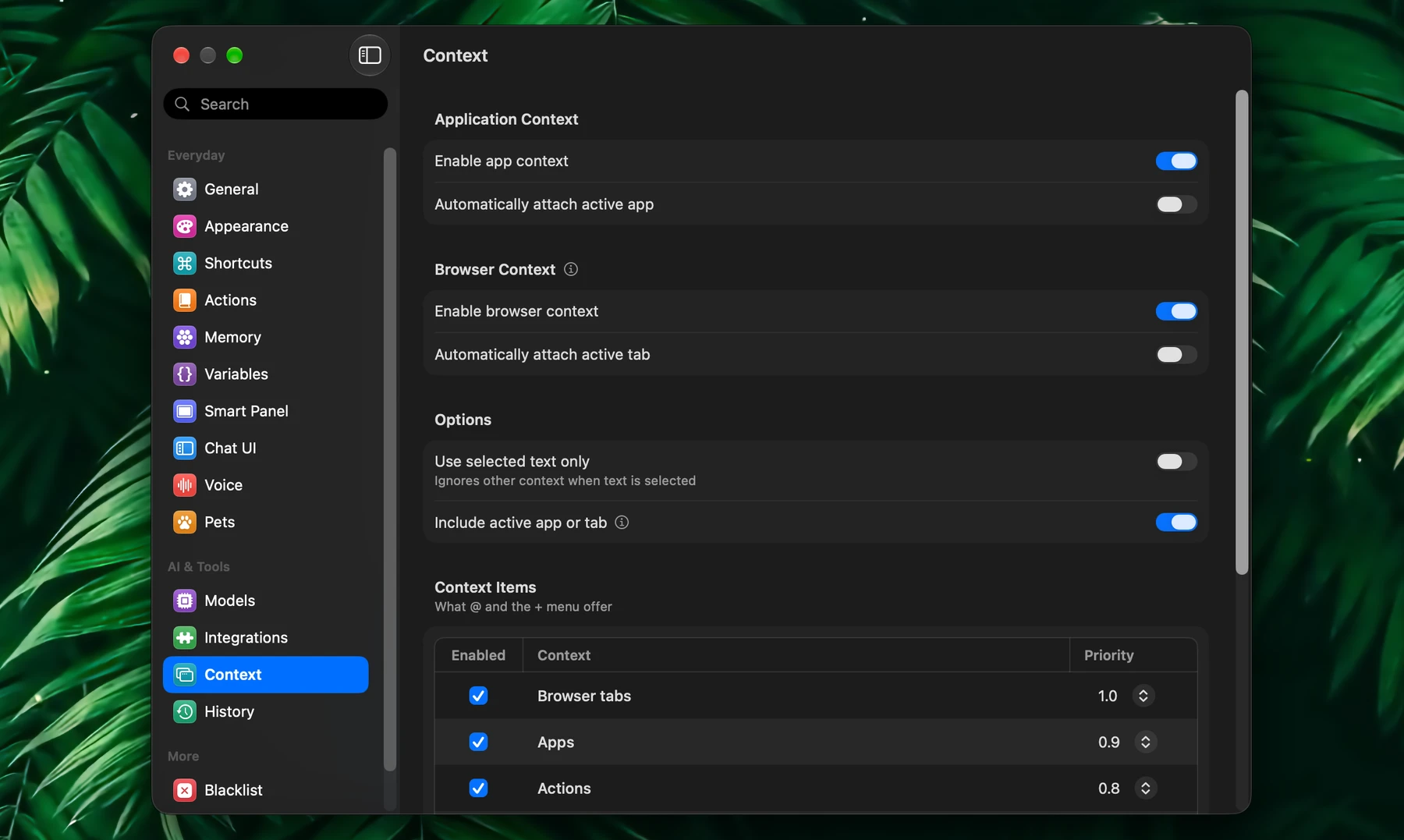
Open Settings → Context:
| Setting | What it does | Default |
|---|---|---|
| Enable app context | Lets Fluent read app windows | On |
| Automatically attach active app | Attaches the app you are in when the Smart Panel opens | Off |
| Enable browser context | Lets Fluent read browser tabs | On |
| Automatically attach active tab | Attaches the tab you are looking at when the Smart Panel opens | Off |
| Use selected text only | Adds no context by itself while text is selected | Off |
| Include active app or tab | Tells the model which app or tab you're in, without its content | On |
| Context Items | Which kinds of items @ and + offer, and in what order (Priority) | All but Variables |
| Prioritize active app | Over a browser, its tabs come first; over any other app, that app does | On |
| Show suggestions while typing | Suggests tabs, apps, and the rest as you type, without @ | Off |
| Disable suggestion animations | Turns off the animations of the @, /, and # suggestions | Off |
Recommended starting points:
- For editing text with shortcuts: turn on Use selected text only
- For research: keep browser context on and attach tabs with @
- For always working on the page in front of you: turn on Automatically attach active tab