
Settings
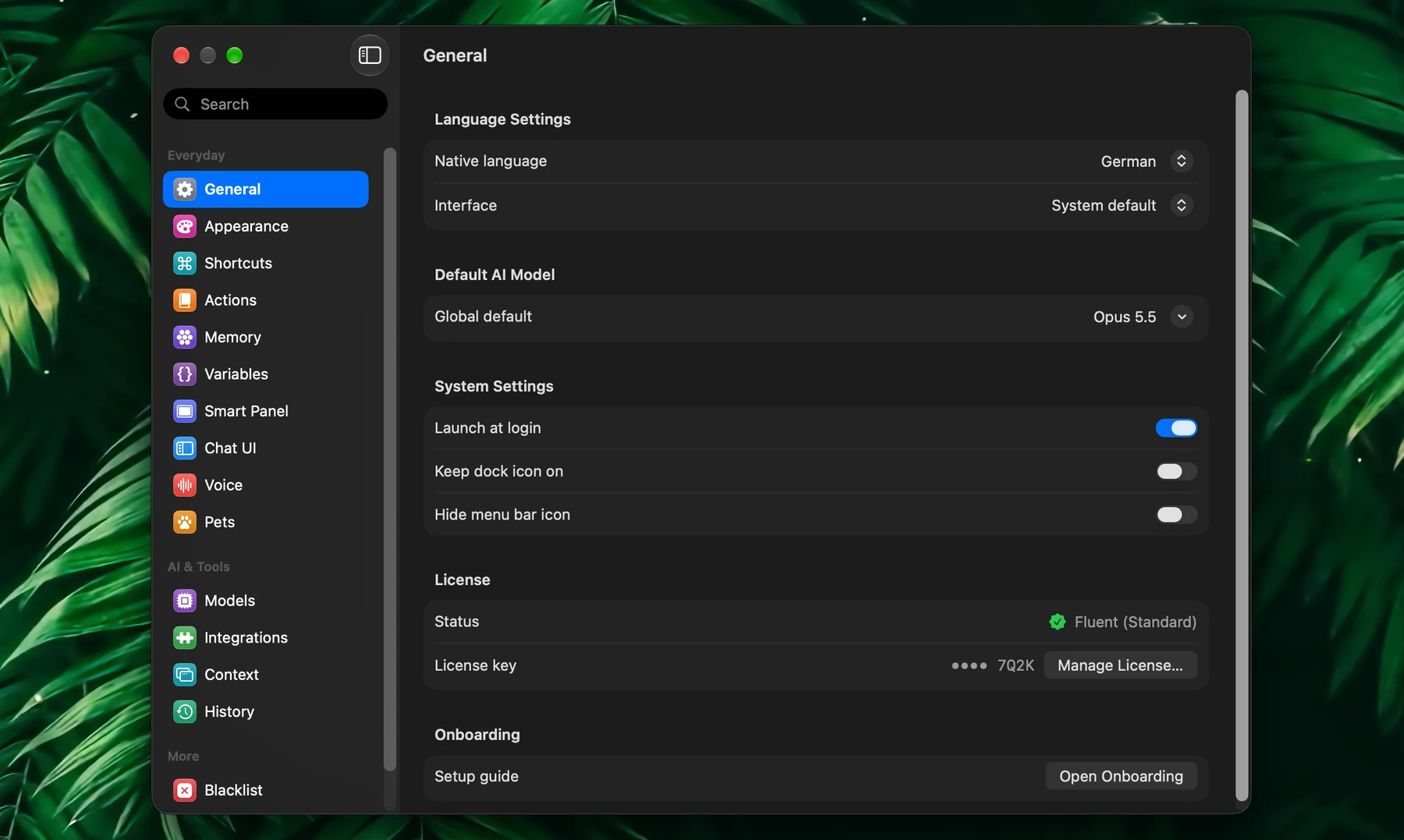
Settings is one window, laid out like System Settings: its sections in a sidebar, a search at the top that finds any setting.
Open it from the Fluent icon in the menu bar → Settings, or press ⌘, while a Fluent window is in front. Actions, Models, Integrations and Memory in the same menu open Settings at that section. When you start Fluent yourself, it opens Settings at Actions.
Find A Setting
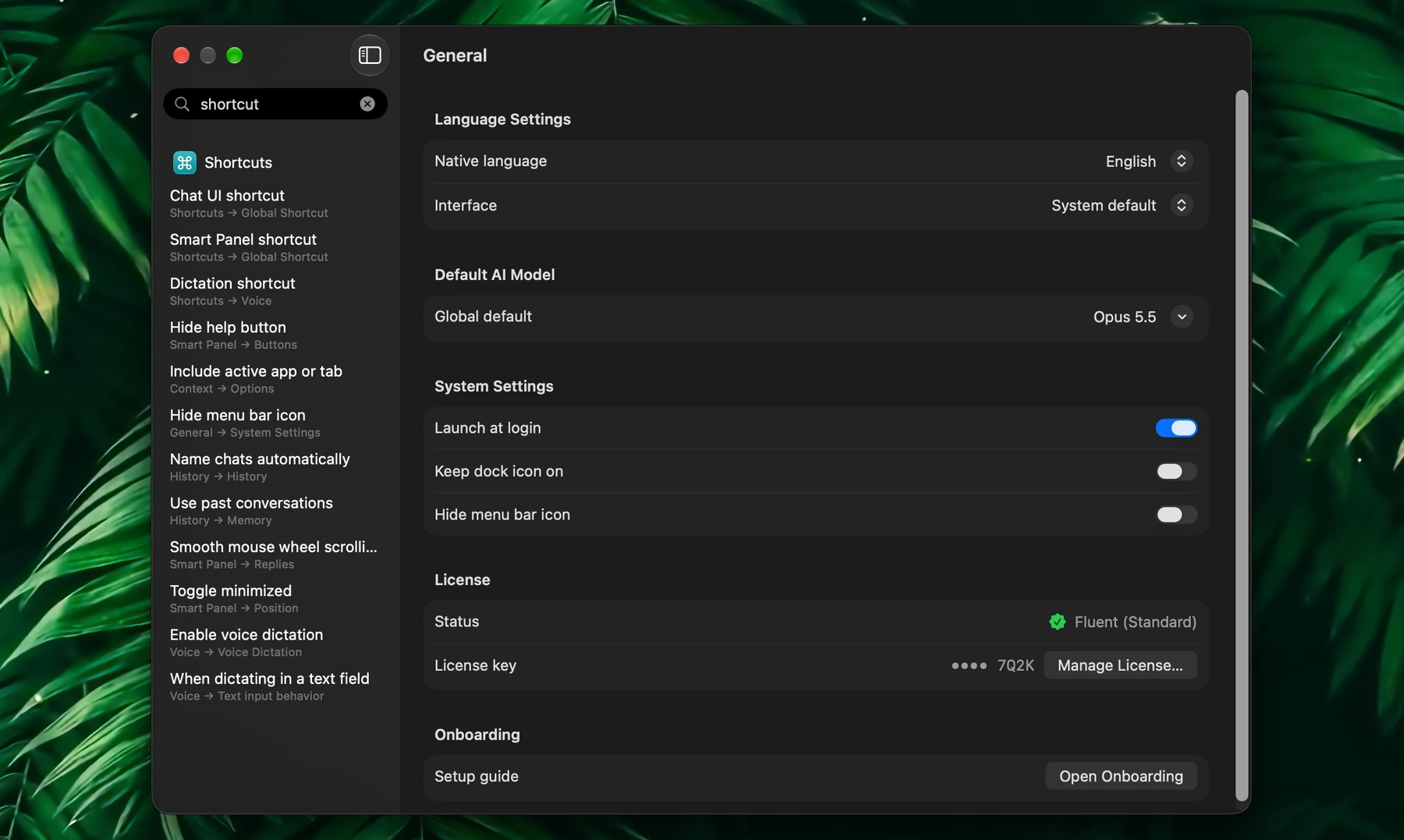
Type in Search above the sidebar (⌘F) and the sidebar lists the settings that match, each with the section it's in. Click one to go to it: Settings opens that section and highlights the row.
Sections with long lists have a search of their own in the toolbar: Actions, Shortcuts, Memory, Variables, Models and Integrations. There, ⌘F opens that search instead.
Sections At A Glance
| Section | What it's for | More |
|---|---|---|
| General | Your language, the default model, login and Dock options, your license, the setup guide | Below |
| Appearance | Light or dark theme, Liquid Glass, and the font of the Smart Panel | Below |
| Shortcuts | Every global shortcut in one place: Smart Panel, Chat UI, dictation, and your actions' | Below |
| Actions | Your actions as cards, their editor, and the Smart Panel's favorites | Actions |
| Memory | Your Memory groups as cards or a graph, and Memory's own settings | Setup & Usage |
| Variables | Reusable values for actions | Variables |
| Smart Panel | Where the panel opens, follow-ups, replies, what it attaches, its buttons | Smart Panel |
| Chat UI | A font of its own for the chat window, and its animated background | Chat |
| Voice | Dictation, Ask Fluent and its model, polish, snippets, indicators | Voice |
| Pets | The pet: character, size, suggestions, nudges and rewrites | Pet |
| Models | Providers, API keys, subscriptions, local models | Models & Providers |
| Integrations | Built-in and external integrations (MCP) and their tools | Setup & Usage |
| Context | What Fluent reads from your apps and browser tabs | Context |
| History | Saving chats, chat names, cleanup, export | History |
| Blacklist | Apps where Fluent stays out of the way | Blacklist |
| Advanced | Prompts and experimental features | Below |
Change Settings By Asking
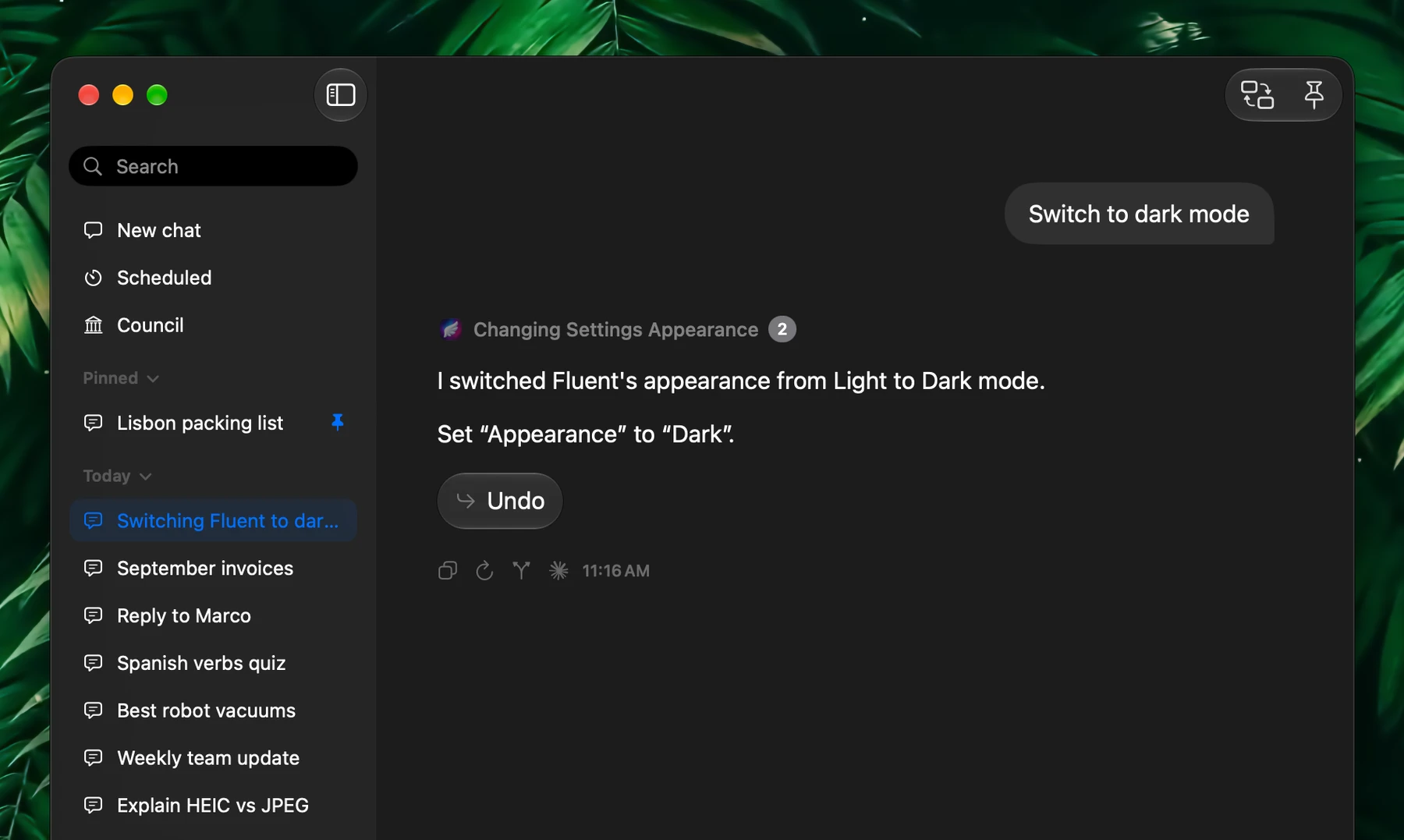
You don't have to look for a setting. Ask in any chat:
- "Switch to dark mode"
- "Set my dictation shortcut to Control-Option-D"
- "Make the panel text bigger"
- "Where do I turn off chat names?"
Fluent makes the change and puts Undo under its reply. When you ask where something is, Settings opens at that row and highlights it.
This works for most switches and choices, from General to Advanced. Fluent asks before changes that are hard to take back, such as hiding the menu bar icon or deleting old History automatically. The prompts, your license, the polish model and the Finder menu are changed only by you, in Settings, and so is everything in Pets.
Fluent can also connect providers and integrations for you: "Set up Groq", "Connect my Notion".
This works with the Fluent integration, which is on by default in Settings → Integrations.
General
| Section | Option | What it does |
|---|---|---|
| Language Settings | Native language | The language Fluent translates into, fills {{ nativeLanguage }} with, and listens for when you dictate |
| Interface | The language of Fluent's own menus and buttons. System default follows macOS; a change needs a restart. | |
| Default AI Model | Global default | The model every request uses, unless an action or a chat picks another |
| System Settings | Launch at login | Opens Fluent when you log in |
| Keep dock icon on | Keeps Fluent in the Dock even with no window open | |
| Hide menu bar icon | Hides the menu bar icon. Fluent stays reachable through its shortcuts. | |
| License | Status, License key | Your plan or trial. Activate… enters a key; Manage License… opens the license manager, where you move the license to another Mac. A license with a year of updates also shows until when, with Upgrade… for lifetime updates. |
| Onboarding | Setup guide | Open Onboarding runs the setup guide again: connect a provider, download a local model, turn on dictation or meet the pet |
Appearance
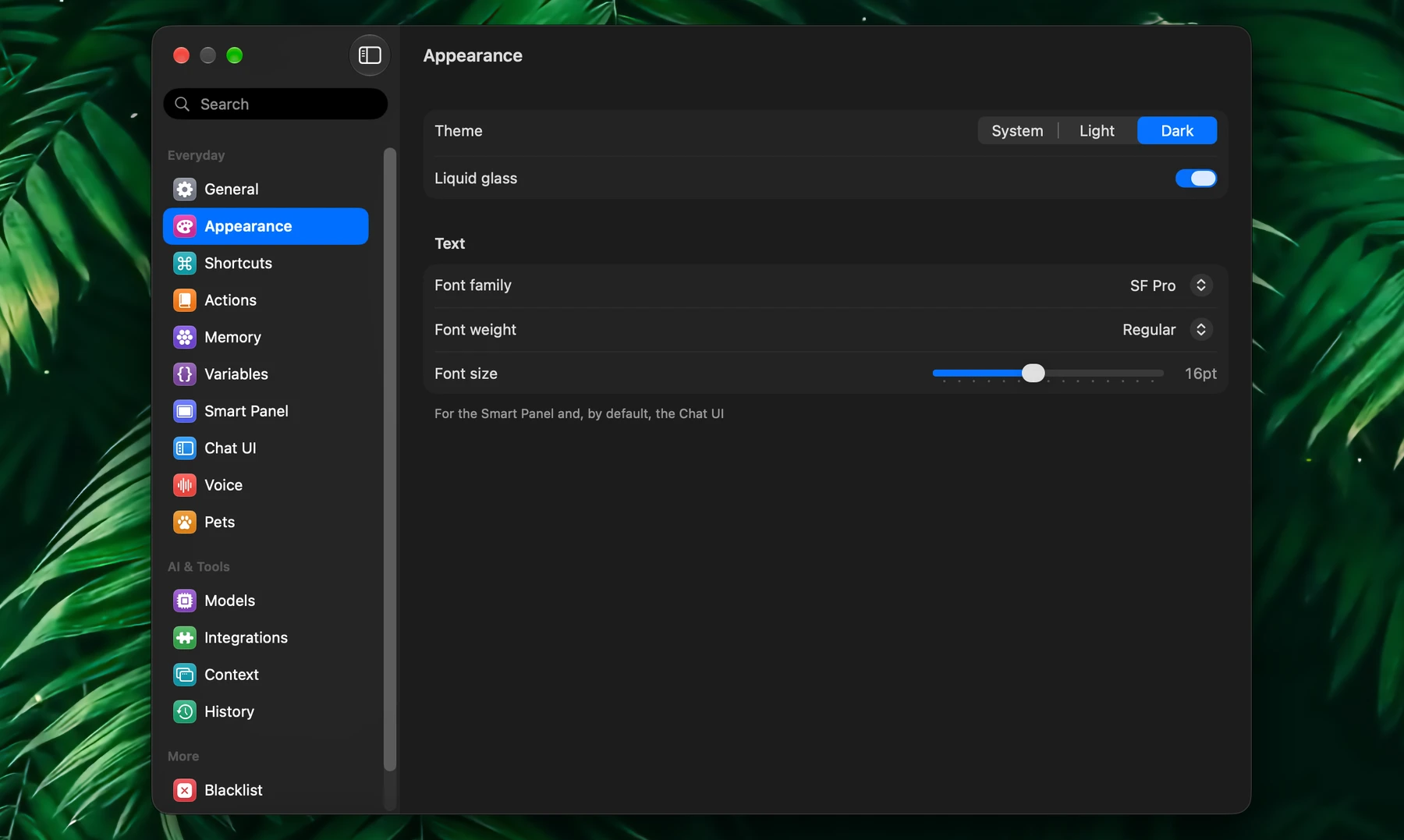
| Option | What it does |
|---|---|
| Theme | System, Light or Dark for all of Fluent: the Smart Panel, the chat window and Settings |
| Liquid glass | macOS's translucent look for the Smart Panel, the chat window and Fluent's buttons (macOS 26 and later) |
| Font family, Font weight, Font size | The text of the Smart Panel, and of the chat window unless Chat UI sets its own |
Shortcuts
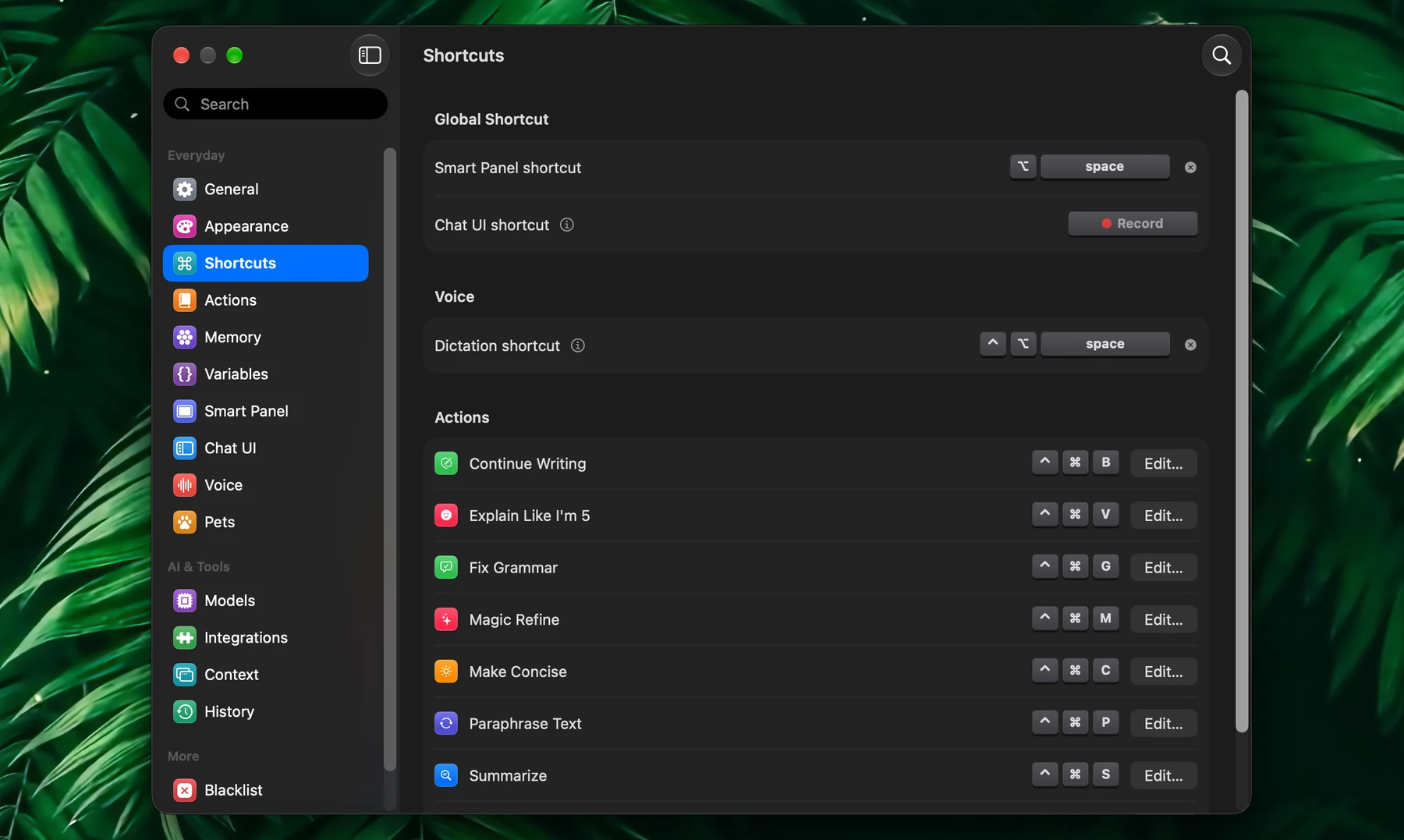
| Shortcut | Default | What it does |
|---|---|---|
| Smart Panel shortcut | ⌥Space | Opens and closes the Smart Panel from any app |
| Chat UI shortcut | none | Opens and closes the chat window. ⌘E switches between the two while either is in front. |
| Dictation shortcut | ⌃⌥Space | Dictates into the app in front (turn on dictation in Voice first) |
| Your actions' | none | Each action you gave a shortcut, with Edit… to change it in the action's editor |
Click a shortcut and press the new keys. A shortcut Fluent already uses for something else gets a warning.
Actions
Your actions as cards or a list, filtered by All, Default or Custom. Click one to open its editor in place; + creates an action. The star in the toolbar opens Smart Panel Favorites, the actions the Smart Panel shows first: drag cards in to add and arrange them, out to remove. Colored icons and Favorite actions alignment there set how they look in the panel.
See Actions.
Memory
Your Memory groups and what's in them, as Cards or a Graph: search with Search memories, create a group, and open one to add files and folders or edit what Fluent learned. The gear in the toolbar holds Memory's own settings:
| Option | What it does |
|---|---|
| Use Memory | Memory on or off: the Memory integration |
| Save new memories automatically | Remembers lasting details you mention, such as where you live or what you don't eat. On by default. |
| Automatic retrieval | Uses saved memories in requests when they're relevant. On by default. |
| Learning model | The model Memory learns your files, chats and notes with. It's Apple Intelligence by default, or your default model on a Mac without it. |
| Context budget | How much of your memory one request may use, from ~1,000 to ~16,000 tokens (~4,000 by default) |
| Finder right-click menu | Turn On… opens System Settings to add Add to Memory to Finder's right-click menu |
| On-device relevance models | Finds the memories a request needs even when you don't name them. Uses about 0.6 GB of memory; needs a Mac with Apple silicon; downloads on first use. |
See Setup & Usage.
Variables
Custom Variables are values you define once and use in any action, such as a signature or a product name. Built-in Variables fill themselves in, such as the date or the selected text.
See Variables.
Smart Panel
How the panel you open with your shortcut behaves:
- Position: Position mode (Follow Mouse or Spotlight), Remember position, where it minimizes, snap points, Remember panel width
- Conversation: Conversation flow (Follow-up Tabs or Chat Flow), follow-up tabs, Keep tabs open on hide, Keep requests running in background, pinning
- Replies: auto scroll, Expand to maximum available space, streaming animation, Smooth mouse wheel scrolling
- Selection: selected text and Finder files as attachments, the loading cursor for Auto Insert actions
- Buttons: Always show footer, Hide help button
Its theme and font are in Appearance, its shortcut in Shortcuts. See Smart Panel.
Chat UI
The chat window can have a font of its own: Font family, Font weight and Font size each start at Same as Smart Panel. Chat UI background turns the animated background of its New Chat and Scheduled views on or off.
See Chat.
Voice
Real-time, on-device dictation:
- Voice Dictation: turn it on, and pick the microphone and speech model
- Text input behavior: whether the dictation shortcut types your words, asks Fluent, or types Fluent's answer, and the Ask Fluent model that answers
- Polish While Speaking: how much Fluent cleans up what you say, the polish model, and Voice Snippets
- Recording Indicator: floating badge, menu bar indicator, screen glow
The dictation shortcut is in Shortcuts. See Voice.
Pets
The pet: Show Pet, its character and size, when its suggestions come and which model writes them, nudges, rewrites of your drafts in your voice, Hold to Talk and the lock screen.
See Pet.
Models
All your AI providers: API keys, Subscription Providers (Claude Code, Codex, Antigravity, GitHub Copilot), NanoGPT, Local (MLX) models, Apple Intelligence and Custom Providers. Each model card can be made the default, starred as a favorite, or configured.
See Models & Providers.
Integrations
Turn built-in integrations on or off, such as Finder, Calendar, Web Search, Computer Use, Memory, Actions, Code and Fluent. Open one to choose which of its tools a model may use and which ask you first. + in the toolbar connects an external MCP server from the directory or by hand.
See Setup & Usage.
Context
What Fluent may read from your screen:
- Application Context: read the active app, and optionally attach it to every request
- Browser Context: read browser tabs, and optionally attach the active tab
- Options: Use selected text only (when text is selected, ignore app and browser context) and Include active app or tab (Fluent tells the model which app or tab you're in, on by default)
- Context Items: what shows up when you type @ or open the + menu, in which order, and whether suggestions appear while you type
See Context.
History
- Enable history, Name chats automatically (each chat gets a short name from its model), and Automatically clean items older than a day to a year
- Storage: storage used, Clean history, Export data and Import data
- Memory: Use past conversations lets Memory bring up related earlier chats. Learn… learns the chats you had before turning it on. Both need On-device relevance models (Memory's settings, the gear in Memory).
See History.
Blacklist
Apps added here are ignored: Fluent doesn't activate while you use them. Changes apply right away.
See Blacklist.
Advanced
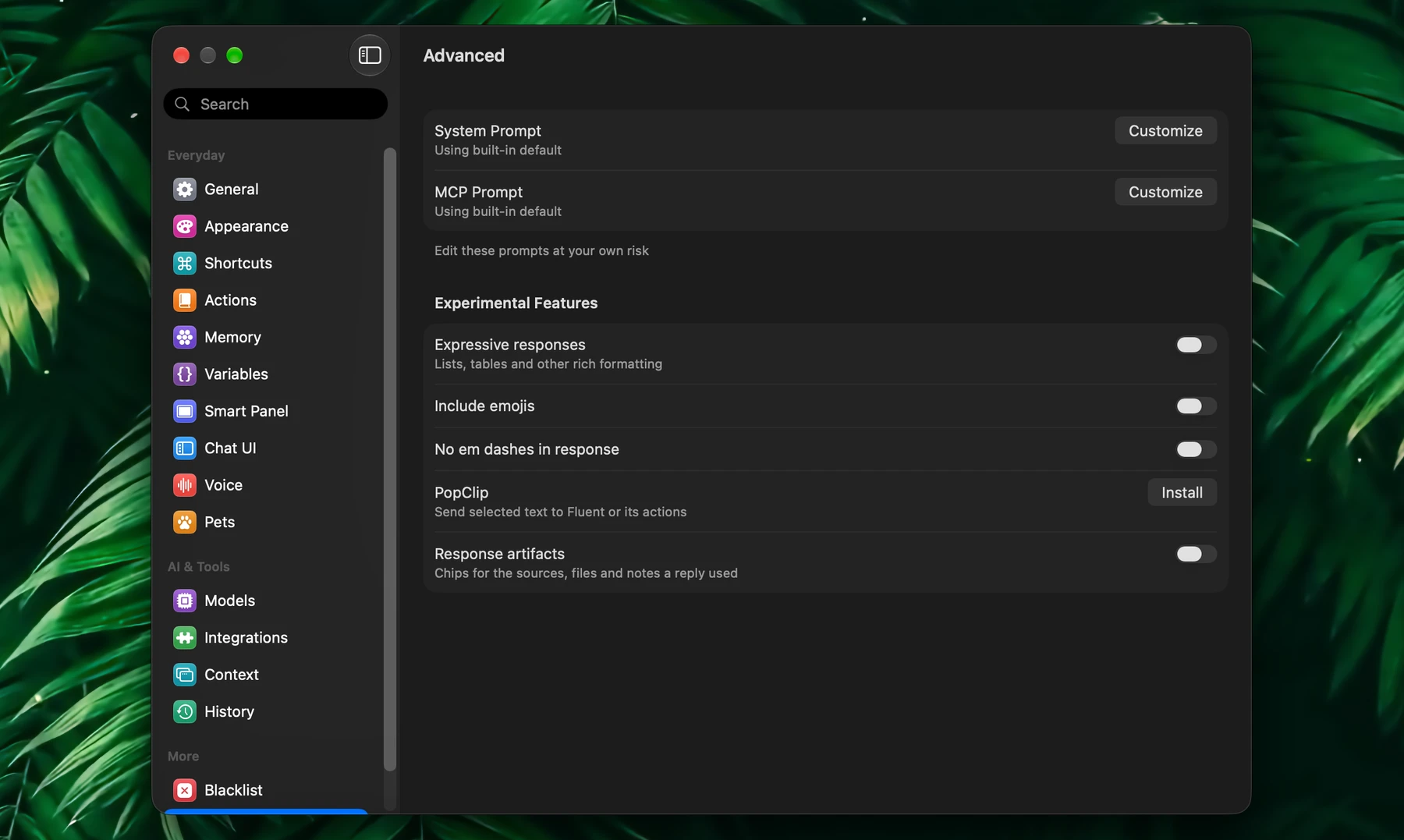
These settings change how Fluent behaves. Change them only if you know what you need.
Prompts
- System Prompt: the instructions every request starts with
- MCP Prompt: the instructions that tell models how to use integrations
Click Customize to edit one; the row then says Customized. Reset to Default, at the bottom left of the editor, brings back the default; then click Save. The defaults are carefully tuned, so customize only for a specific need.
Experimental Features
These may change or be removed in future versions.
| Option | What it does |
|---|---|
| Expressive responses | Lets models answer with richer layouts, such as lists and tables |
| Include emojis | Lets models use emojis |
| No em dashes in response | Tells models to avoid em dashes unless your text has them or you ask |
| PopClip | Install shows a PopClip extension that opens Fluent, or one of your favorite actions, with the selected text. Select the whole snippet and PopClip offers to install it. Reinstall it after changing your favorite actions. |
| Response artifacts | Compact chips at the end of an answer for the sources, files, notes and events its tools used |
Back To Defaults
- Prompts: Reset to Default in the System Prompt or MCP Prompt editor, then Save
- A model or provider: Reset in its configuration
- Most switches and choices: ask Fluent, for example "Set the panel font size back to default"