
Setup & Usage
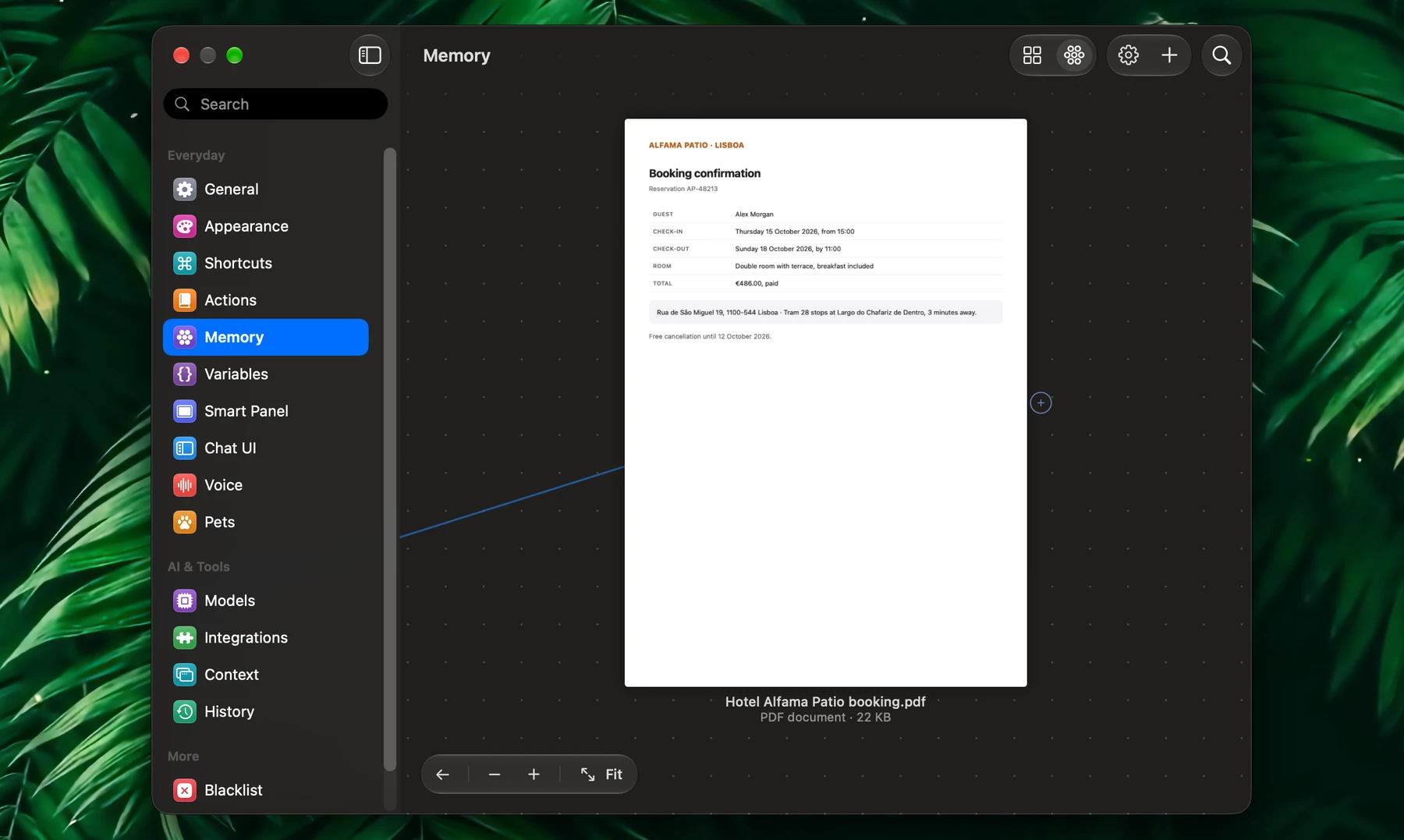
Memory is what Fluent knows about you and your work: the details you tell it, and the files and folders you add. Fluent learns them, keeps them up to date and brings in what each request needs. Everything is stored on your Mac.
Turn It On
Memory is a built-in integration. If it's off, turn on Use Memory under the gear in Settings → Memory, or Memory in Settings → Integrations. Your groups are in Settings → Memory, also one click away under Memory in Fluent's menu bar menu.
A new Memory starts with five groups:
| Group | What goes there |
|---|---|
| About Me | Your name, home, languages, work and expertise |
| Preferences | How you like answers, your tools and workflows |
| My Writing | A description of your writing style, and real samples of your writing |
| People | The people in your life, one memory each |
| Projects & Goals | Your current priorities, projects and goals |
Their starter forms, such as My profile in About Me, are blank. Open a group and click a form to fill it in, or just tell Fluent about yourself in a chat.
What Fluent Remembers
Talk to Fluent as usual. It keeps what will matter later and leaves the rest.
| You say | Fluent |
|---|---|
| "Remember that my sister Anna lives in Lyon" | Saves it |
| "From now on, use metric units" | Saves a standing preference |
| "I'm vegan, any dinner ideas?" | Answers, and saves that you're vegan |
| "I moved to Hamburg" | Updates where you live instead of adding a second home |
| "Forget my gym schedule" | Deletes that detail |
- Without being asked, Fluent saves lasting things about you: your name, home, languages and work, the people in your life, rules such as a diet, an allergy, units or tone, and commitments with a date. At most one new detail per reply.
- It doesn't save the task at hand, passing wishes, text you attached, pasted or quoted, other people's messages, or its own answers.
- Only when you ask: religion, sexual orientation, political views, criminal history and medical diagnoses.
- Never, even when you ask: passwords, PINs, API keys, tokens, card and bank account numbers, and one-time codes.
Each detail goes into the group it fits, or a new group Fluent creates. To have Fluent save only when you ask, turn off Save new memories automatically in the gear in Settings → Memory.
Under Each Reply
In the chat window, and in the Smart Panel's Chat Flow mode (Settings → Smart Panel → Conversation flow), a reply that used Memory shows a Memory icon. Memory updated appears beside it when the reply changed something. Click either to see the list:
| Section | What it lists |
|---|---|
| Automatically Included | Memories Fluent brought into your request |
| Read | Files, notes and groups Fluent read while answering |
| Found by Search | What a Memory search returned, used or not |
| Saved, Updated, Forgotten | Details the reply changed |
| Added | Files, folders, pages or documents the reply added |
| Linked, Unlinked | Links the reply made or removed |
Click an entry to read it. Earlier chats that came up are listed under Past Conversations.
The reply is also where Fluent asks about a new detail it isn't sure where to keep: Where should Fluent keep "…"? Pick a group, or choose Name another group…. When a changed detail fits another group better, the reply offers Move it there.
Use Memory in Requests
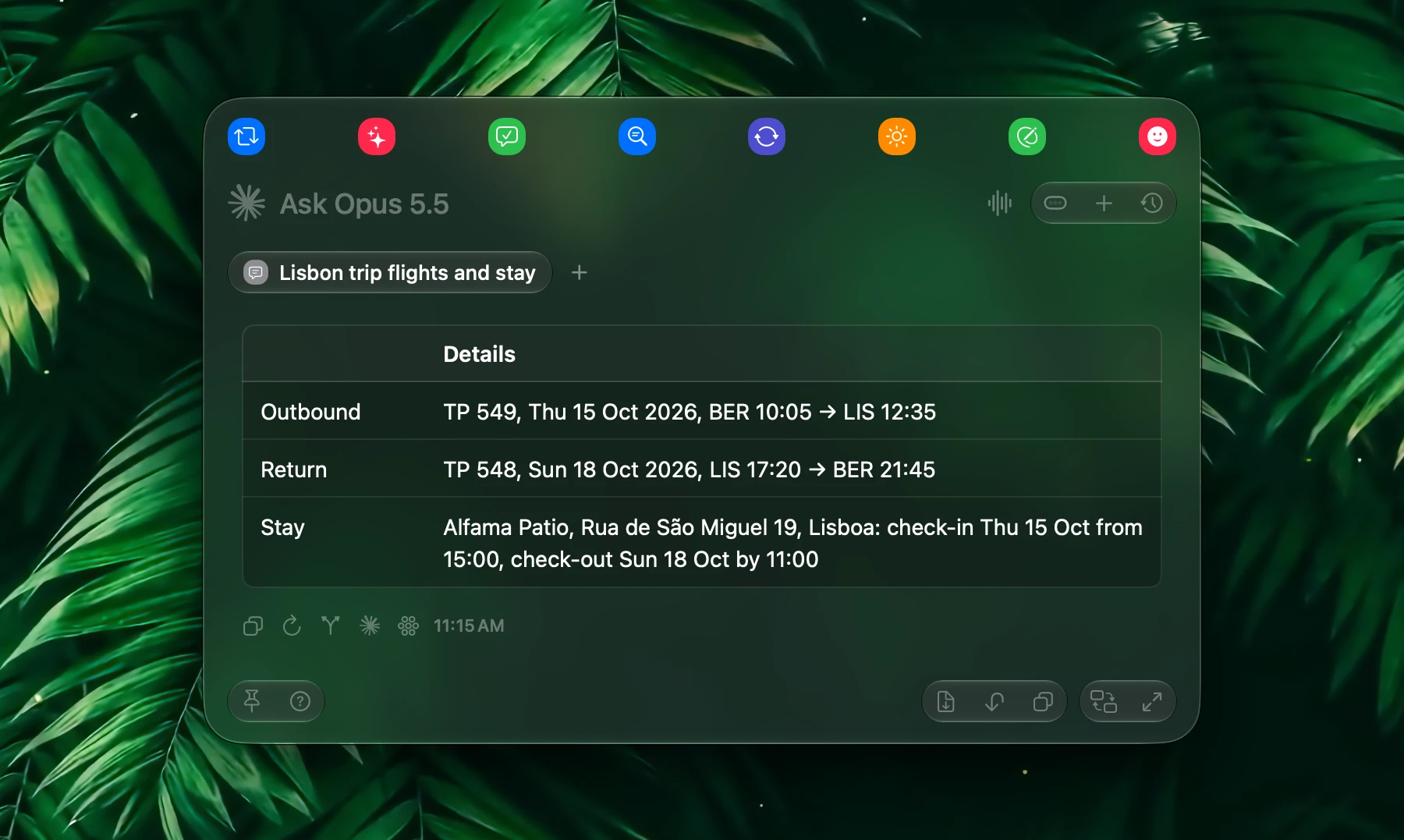
- Just ask. Fluent brings in the memories that fit, and searches Memory when it needs more: "What's my sister's address?", "Draft my out-of-office for the Lisbon trip".
- Point at a group. Type @ in the Smart Panel or the chat window and pick a group, or find it under Memory in the + menu. Fluent uses that group for the request.
- Ask about an earlier chat. "What did we decide about the logo last week?" Fluent can search your saved chats too.
In an action, add a group to the prompt from the editor's sidebar, or type its name as @"Group Name":
Reply to this message the way I would. Use @"My Writing" for tone and @"Product Docs" for facts.Prompts written with the older {{ @"Group Name" }} keep working.
Each action also has Use automatic memory under Integrations & Memory in its editor. Built-in actions that only rework your text, such as fixing grammar, translating or summarizing, have it off, so your personal details stay out of them.
Add Files and Folders
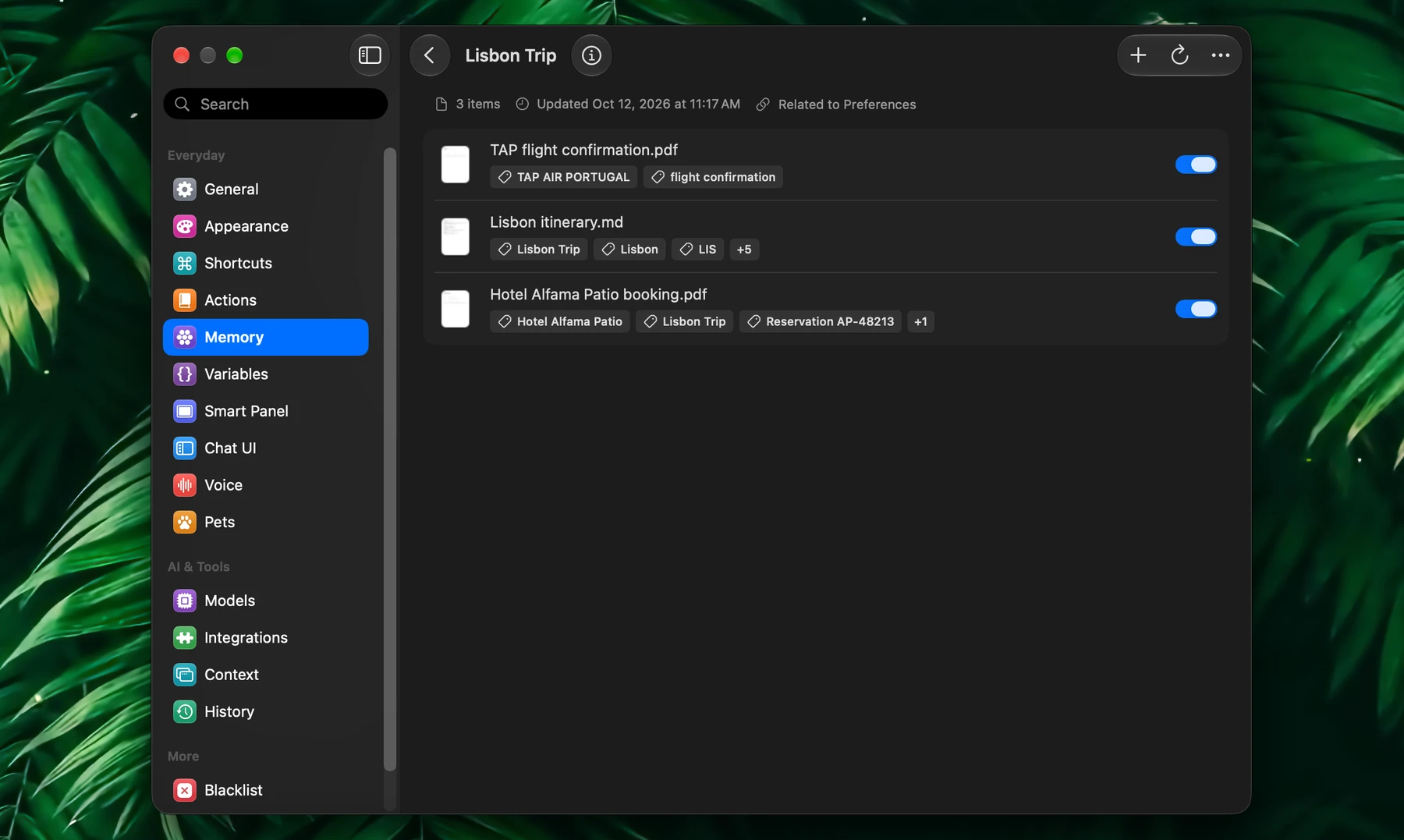
Open a group in Settings → Memory and click Add Files…, which takes files and folders, or drag them onto the group.
- Memory reads PDFs, Word and Excel documents, RTF, ODT, HTML and web archives, text, Markdown and code files, and the text in images. Files over 100 MB are skipped.
- Files stay where they are, and Fluent follows them:
- A file you change is learned again about a minute after your last edit.
- A file you move or rename in Finder keeps its place in Memory.
- A new file in a folder you added joins the group.
- A deleted file shows a warning, and comes back if the file does.
- A file you remove from the group stays out, even if its folder still has it.
- Removing an item never deletes your file.
- Progress shows in the toolbar of Settings → Memory: how many memories are learned. Click it for about how long the rest takes.
Add to Memory from Anywhere
| From | How | Where it goes |
|---|---|---|
| Finder | Right-click files or folders, choose Add to Memory | Files go to the Inbox group. A folder becomes a new group named after it, which follows the folder |
| Any app | Select text, choose Add to Memory from the right-click menu or the app menu → Services | Inbox, with a note of where the text came from |
| A chat | "Add this to Taxes" | The group you name, created if it's new |
- In Finder, Add to Memory sits in the Services submenu. To put it at the top of the right-click menu, click Turn On… next to Finder right-click menu in the gear in Settings → Memory, then switch Fluent on in the System Settings pane that opens.
- From Finder, Fluent asks before adding more than 100 files at once. A folder isn't added when a group already has its name.
- A notification says what was added; click it to open the group. Sort the Inbox later with Move to Group.
In a chat, Fluent adds whatever you point at:
- "Add this to Transactions" with files selected in Finder, a document open in Preview, or a page open in your browser
- "Keep the attached contract in Clients"
- "Save https://example.com/annual-report.pdf to Research"
- "Add my ~/Documents/Taxes folder to a new group, Taxes 2025"
Files and folders stay where they are. A web page, a downloaded document, an app's content or a pasted attachment is kept as a copy in Fluent's Memory Files folder. Ask Fluent to put files in a folder ("…and move them to ~/Documents/Banking") and it moves them there, never replacing a file.
"Add" keeps the whole source. To keep just its key facts as a detail, ask Fluent to remember what it says.
How Fluent Learns
Fluent learns each item in the background: a short description, a few tags, and whether it's your own writing. It also writes a line about what each group is for, behind the info button next to the group's name.
- Learning model in the gear in Settings → Memory decides who does the learning. It's Apple Intelligence by default, which runs on your Mac and sends nothing anywhere. On a Mac without Apple Intelligence, it's your default model. Any other model you choose receives the text it learns.
- Apple Intelligence doesn't support every language. An item in one it doesn't support says so; learn it with another model.
- Learn Again… learns a group again: right-click the group, in the cards or on the graph, or click Learn Again… in the toolbar while the group is open. Choose What changed (files whose text changed since, and new ones) or Everything, with each item's own model or one model for all.
- While Fluent learns, a bar in Memory's toolbar shows how far it has come, wherever you are in Memory.
- To relearn one item, right-click it and choose Learn Again…. You see the result first, and nothing changes until you click Save.
- A description you write yourself is kept and marked Edited. Fluent replaces it only when Learn Again finds the item changed.
Learning runs while the Memory integration and Automatic retrieval are on.
Groups and Items
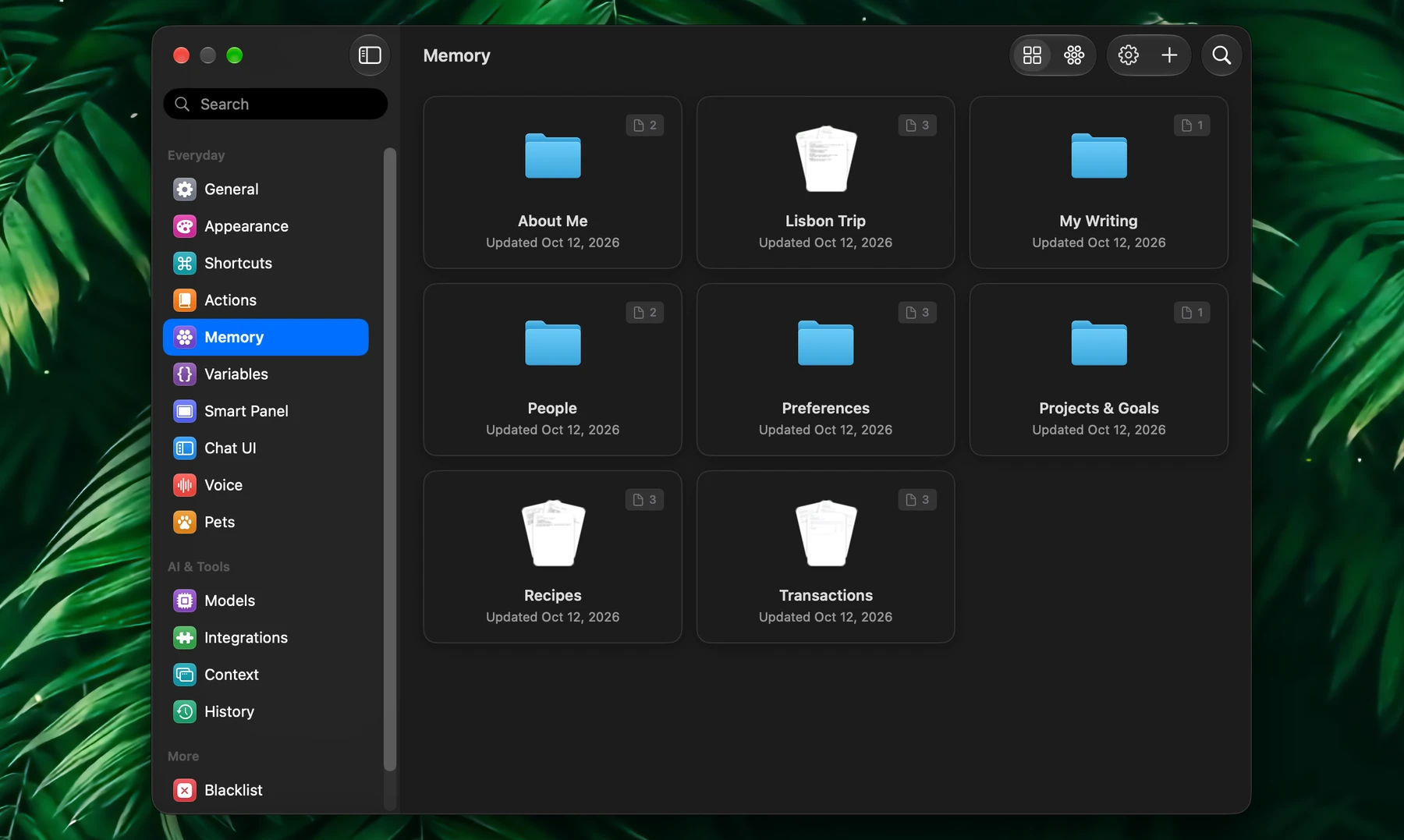
Cards in Settings → Memory shows your groups, Graph shows them as a map, and Search memories finds groups and items by name, description, tags or a saved detail's text.
- Create Group adds a group. Right-click a group for Open Group, Learn Again…, Rename…, Link to Group, Unlink Group and Remove Group…. Removing a group also deletes the details Fluent saved in it.
- In a group, saved details come first, newest first, then files and notes. Click a row to edit it: a detail's name, tags and text, or a file's tags and description, and the Group it's in, to move it to another.
- Right-click an item for Edit Description…, Learn Again…, Move to Group, Preview, Show in Finder and Remove…. A detail saved in a chat also has Open Parent Conversation.
- The switch on each row decides whether Fluent may use it. Switched off, the item stays but is never used.
- A saved detail keeps its last 10 versions: open it, pick one under History and click Save to restore it.
- Notes from older versions of Fluent stay editable with Edit Note…. New notes can't be created: add a file, or tell Fluent.
| On a row | Meaning |
|---|---|
| Green Fluent icon | Fluent saved or updated this detail in a chat |
| Signature icon | Your own writing, or a description of how you write |
| Tags | Labels from learning or from you, used by search |
| Edited | You wrote this description |
| Expires | Fluent uses this detail until that date |
| Orange triangle | Fluent couldn't learn it; hover to see why |
| Red triangle | The file is missing, or couldn't be read |
| Learning… | Being learned right now |
Answers Across a Whole Group
Ask for a total, a count, an average or a breakdown, and Fluent computes it from every item in the group, not from a few it happened to read:
- "How much did I spend on charging this year?"
- "List every invoice in Transactions over 50 € by month"
- "How many contracts in Clients end this year?"
The reply shows each step as it works, such as planning, reading and computing, and the answer can say how many items it covered. The same works for the files in a folder, your calendar and web search results.
Writing in Your Voice
Requires Apple Intelligence (macOS 26).
Ask for text that sounds like you, and Fluent adds a few short excerpts of your own writing, plus your style description if you keep one:
- "Reply to this the way I normally would"
- "Rewrite this so it sounds like me"
- "Write a post in my usual style"
As Fluent learns items, it marks your own emails, messages, posts and comments with a signature icon. If it got one wrong, click the item and check or uncheck My writing.
Without Apple Intelligence, add your samples yourself: type @ and pick My Writing, or wherever you keep them.
The Memory Graph
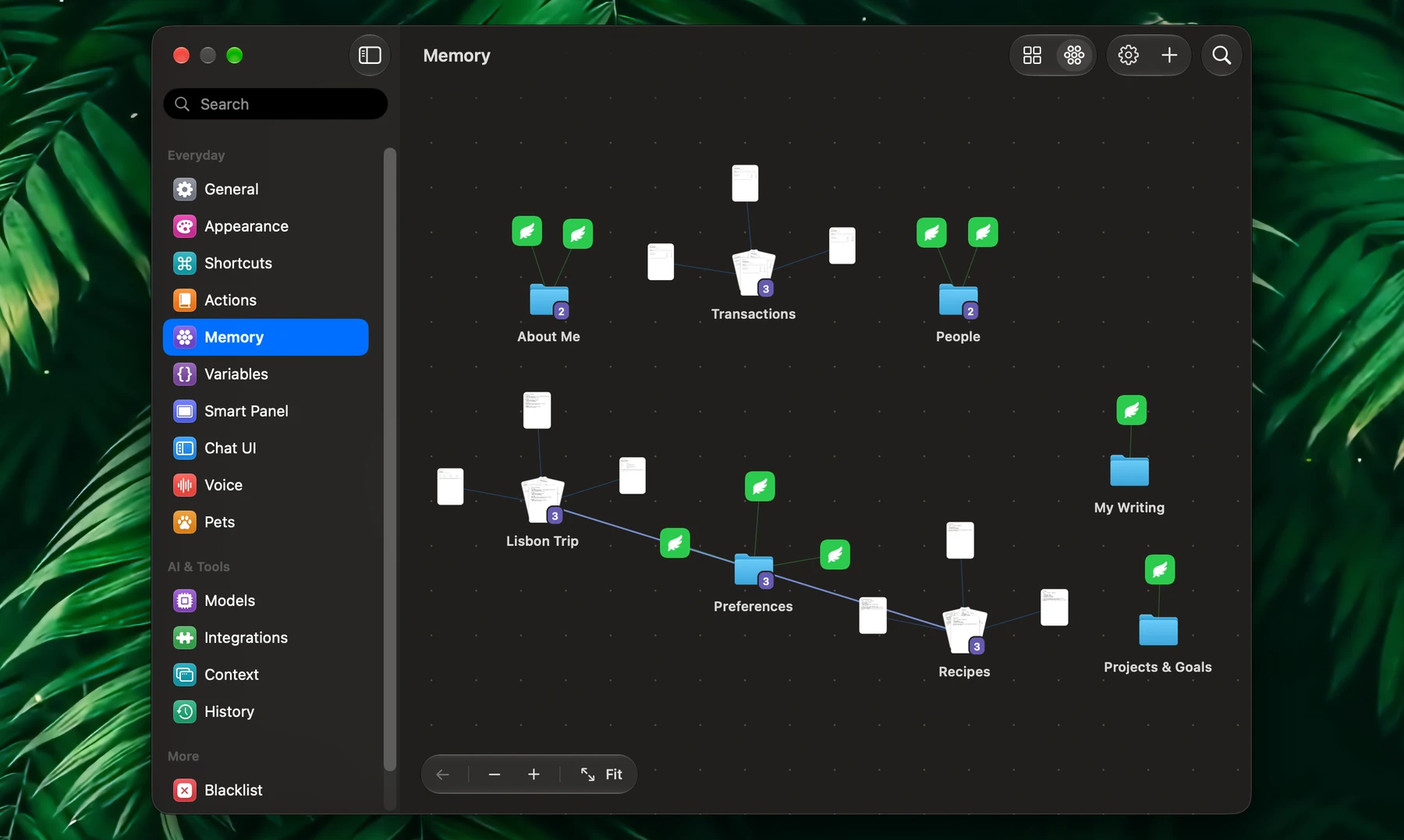
Choose Graph at the top of Settings → Memory to see each group with its items around it, and lines between what's linked. Click a group to see its items and connections in a side panel; double-click it to open it.
Link what belongs together, so that when Fluent uses one, the other can come along: a trip and your travel preferences, an invoice and its receipt, a project and the people on it.
- Hover a group or an item, click its +, then click or drag onto the other one. Or right-click it and choose Connect. Disconnect removes a link.
- Fluent links too. Ask "Link my Lisbon trip with my travel preferences". With automatic saving on, it also links related memories on its own, up to three per reply. It removes links only when you ask.
Look inside. Zoom into an item to preview it: documents scroll, and multi-page ones turn pages.
| Key | In the graph |
|---|---|
| ← → | Select the previous or next group |
| Return | Open the selected group |
| Space | Quick Look the file under the pointer |
| ↑ ↓ | Turn the pages of a document you zoomed into |
| + − | Zoom in or out |
| F | Fit everything in view |
| ⌘[ | Back to the previous view |
| Esc | Close the selection |
Drag the background or scroll with two fingers to move around, pinch or use the mouse wheel to zoom, and drag a group to move it with its items. Right-click Fit for Reset layout.
Find What You Didn't Name
By default, Fluent brings in a memory by itself when your request mentions its name (for a file, its group's name works too). Turn on On-device relevance models in the gear in Settings → Memory, and it also finds what a request needs without the name:
- "Give me a dinner idea" brings up your peanut allergy.
- A standing rule, such as metric units or a diet, applies wherever it matters.
- Requests worded differently, or in another language, still match.
The models need a Mac with Apple silicon. They download once (about 560 MB), use about 0.6 GB of memory while loaded, unload after 20 idle minutes, and run entirely on your Mac. Once they're on, open an item to see when Fluent will use it, such as "Fluent brings this up for requests like …".
Past conversations. With the relevance models on, a request that relates to an earlier chat brings a dated note about it: what you asked, and the reply or a summary of it. Only what you typed counts, and deleting a chat removes what Memory learned from it.
- New chats are learned as you go. To include older ones, click Learn… next to Earlier chats in Settings → History → Memory. Fluent first tells you how many chats that is and how long it takes.
- To stop it, turn off Use past conversations there.
Settings
Click the gear in the toolbar of Settings → Memory (all but the Finder menu need Memory on):
| Setting | What it does | Default |
|---|---|---|
| Use Memory | Memory on or off: the Memory integration | On |
| Save new memories automatically | Saves lasting details you mention without being asked | On |
| Automatic retrieval | Brings in memories when they're relevant. Learning needs it too | On |
| On-device relevance models | Finds memories a request needs without naming them | Off |
| Learning model | Learns your files, chats and notes in the background | Apple Intelligence, or your default model |
| Context budget | How much Memory one response can use, from about 1,000 to 16,000 tokens | About 4,000 tokens |
| Finder right-click menu | Puts Add to Memory at the top of Finder's right-click menu | Off |
Settings → History → Memory:
| Setting | What it does | Default |
|---|---|---|
| Use past conversations | Tells the model about related earlier chats. Needs the relevance models | On |
| Earlier chats | Learn… learns the chats from before | — |
For tips on keeping Memory useful, see Best Practices.