
Built-in Integrations
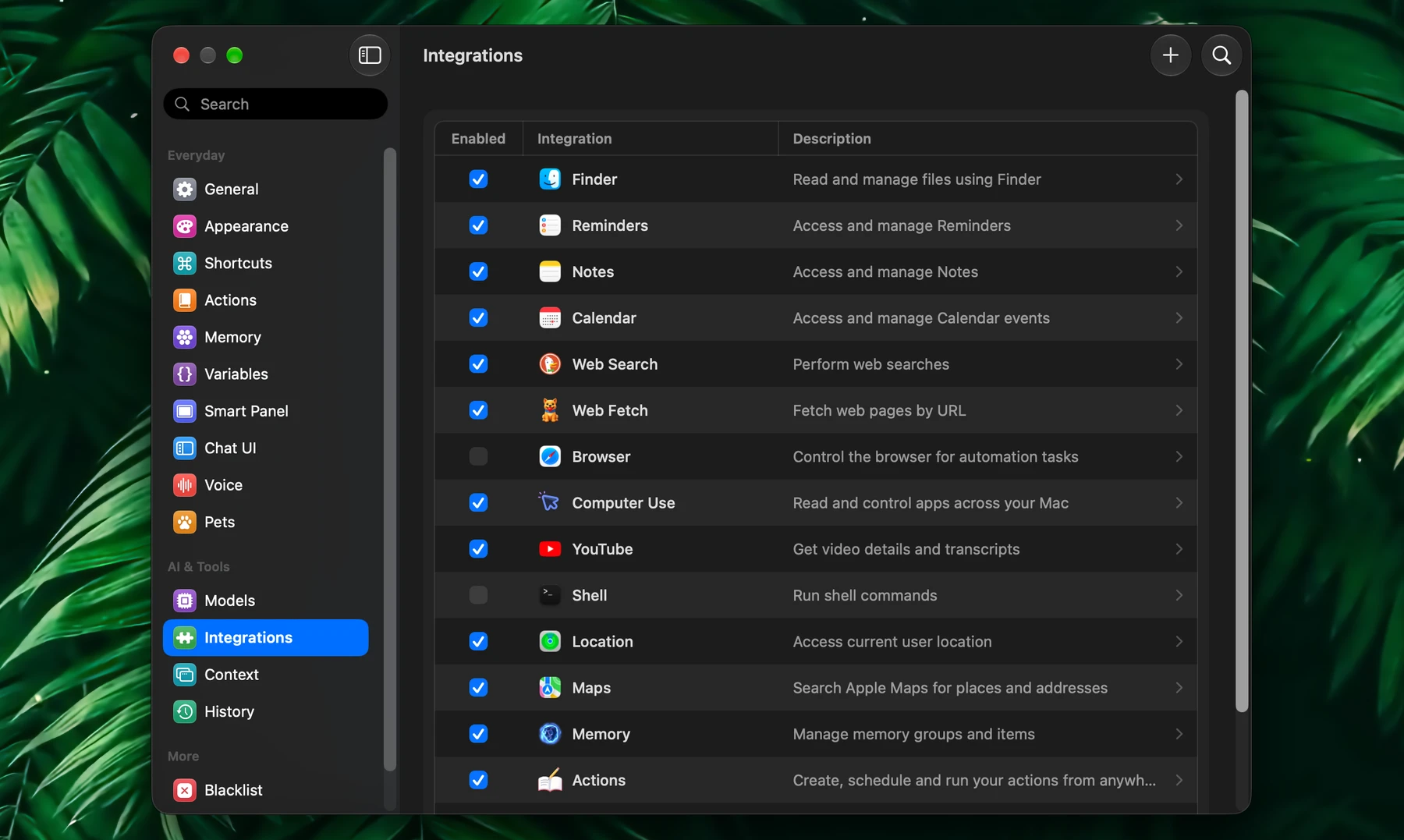
Fluent comes with 16 built-in integrations. They need no setup: check one in Settings → Integrations and ask. On a fresh install all of them are on except Browser and Shell.
At A Glance
| Integration | What it does | Try asking |
|---|---|---|
| Finder | Reads, searches, moves and removes files; converts images and videos | "How many PDFs are in this folder?" |
| Calendar | Reads, creates and changes events | "Add lunch with Anna on Friday at 1 pm" |
| Reminders | Reads, creates and completes reminders | "Remind me to renew my passport next Monday" |
| Notes | Finds, reads and creates notes in Apple Notes | "Save this recipe as a note" |
| Web Search | Searches the web, reads the results and finds pictures | "What's new in the latest macOS update?" |
| Web Fetch | Reads a page or document at a known address | "List the plans on example.com/pricing" |
| Browser | Controls tabs in your own browser | "Open my Amazon orders and list what arrives this week" |
| Computer Use | Works in your Mac's other apps with a pointer of its own | "Fill in the sign-up form in Safari with my details" |
| YouTube | Reads the video open in your browser | "Summarize this video" |
| Maps | Searches Apple Maps and gets directions | "How long is the drive to the airport?" |
| Location | Tells Fluent where you are | "What's the weather here this weekend?" |
| Shell | Runs shell commands | "Which apps use the most memory right now?" |
| Memory | Your Memory: what Fluent remembers and learns | "Remember that I'm vegetarian" |
| Actions | Creates, runs and schedules your actions | "Run Today's Agenda" |
| Code | Runs small scripts that combine tools and compute exact results | "Which days next week are overbooked, counting events and reminders?" |
| Fluent | Changes Fluent's settings and connects services | "Connect my Notion" |
Finder
Finder works with the files on your Mac:
- Reads text files, and the text of PDFs, Word and other Office documents, rich text, HTML and images (with text recognition)
- Searches files by content, or by any part of a name in any case and alphabet: "skyrim" finds Skyrim-1.png and the folder Skyrim. Lists folders, and shows a file's size and dates
- Creates files and folders, edits files, and copies or moves them, one at a time or many at once: "move all the PDFs on my Desktop into Invoices"
- Removes files by moving them to the Trash
- Answers one question across a whole folder: "total the invoices in this folder by month" reads every file and computes the exact numbers
- Compresses images and converts them between JPG, PNG, WebP and HEIC, optionally to a target file size; resizes images; compresses and converts videos, or scales them down: "convert the HEIC photos on my Desktop to JPG". The originals stay as they are: the results go to a compressed or resized folder next to them, or to a folder you name. A compressed file is kept only when it came out smaller, an image is resized only when it's larger than asked, and photos taken with the camera turned keep their orientation. Fluent replaces your originals only when you ask it to.
Editing, moving and removing ask for approval. When you open Fluent from Finder, "this folder" means the folder in the front Finder window.
Calendar And Reminders
Calendar lists your calendars and events, and creates, changes and deletes events. A new event can have a location (down to a precise place), notes, a link, an all-day flag, a time zone, a repeat and an alert. Changing or deleting an event asks first; deleting a repeating event removes the whole series.
A question without dates covers today through the end of next month, and a search by name covers a year back and two years ahead. Name a range to go further. Calendar can also count and total across a range: "how many hours of meetings did I have each month this year?"
Reminders lists your lists and reminders, creates reminders with a due date, notes and a list, and completes or deletes them. Completing and deleting ask first.
macOS asks for access to your calendars and reminders the first time.
Notes
Notes lists your folders and notes, searches them, reads a note and creates new notes. It doesn't change or delete existing notes. macOS asks once to let Fluent control Notes.
Web Search And Web Fetch
Web Search needs no account or API key. Results come with real snippets, and Fluent reads the pages themselves as clean text. If one search engine is slow or refuses, Fluent asks another, so one slow site doesn't hold up the answer. It has four tools:
- Web Search for a quick look-up
- Research for a broad question, across up to 50 sources
- Analyze Results to take the same details from many pages at once: "the price and capacity of each kettle in the top reviews"
- Image Search to find pictures: "show me pictures of Kyoto's temples"
Fluent cites its sources as small links in the answer; click one to open the page. The search badge lists the pages it found.
Web Fetch reads a page by its address, including PDFs and Office documents, or several pages at once.
Pictures In Replies
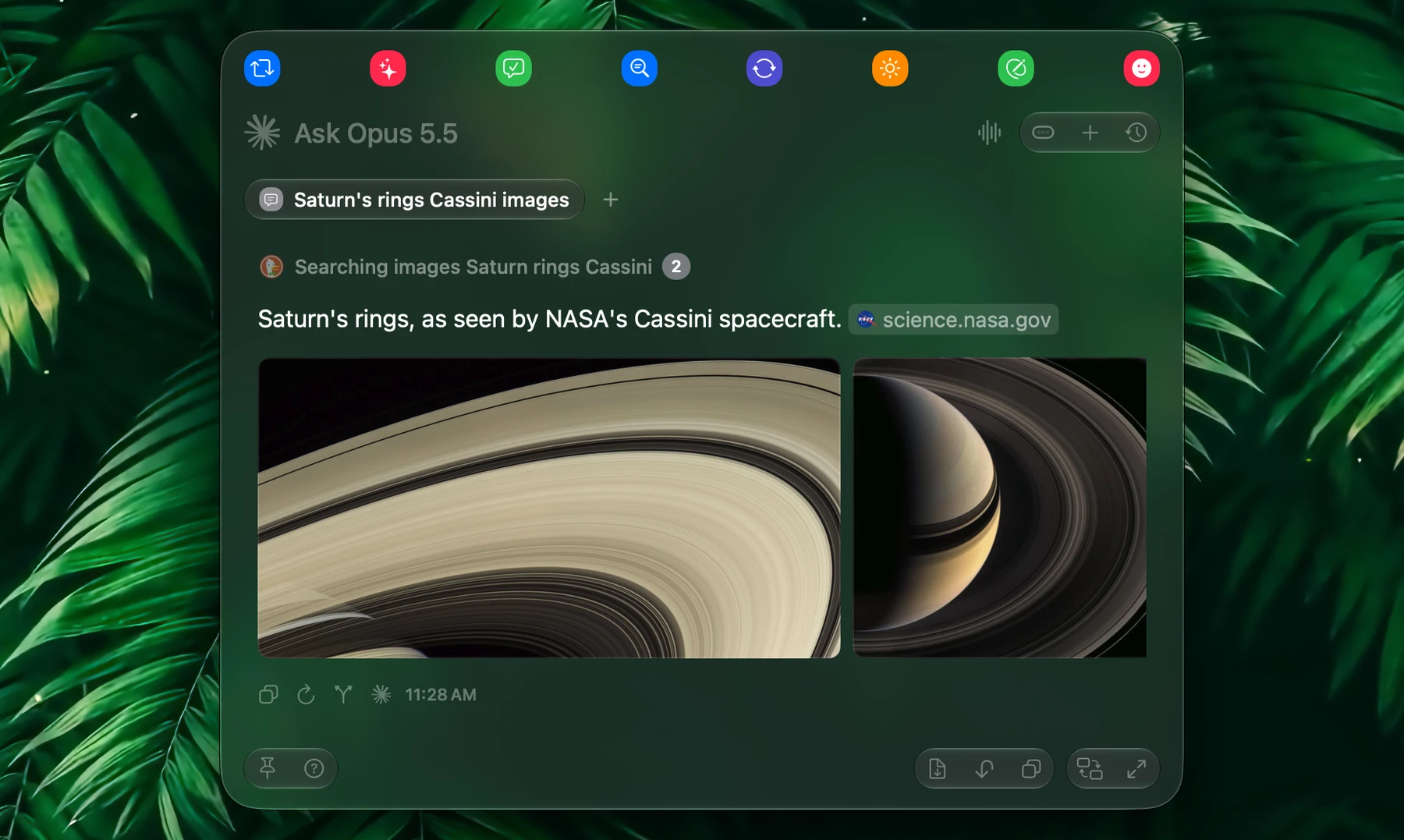
Ask for pictures, and the reply shows them: "show me pictures of Saturn's rings", "pictures of Kyoto's temples", "find a diagram of the water cycle". Say that it's pictures you want: asked only to "show" a place, some models describe it in words instead. One picture shows at its own shape; several show in a row you swipe through, or drag with the mouse.
| Click a picture | Opens it large. ← and → step through the rest, Esc closes it |
| Right-click one | Copy Image, Save Image As... or Open Image in Browser |
A picture shows by itself when Fluent's search found it, when it's the main picture of a page Fluent read, or when it's a file on your Mac. A picture at any other web address waits: the reply shows the address and a Load Image button, and nothing is fetched until you click it.
Pictures are kept on your Mac for the chats that show them. Delete a chat, and its pictures go with it.
Browser And YouTube
Browser works in your own browser, where you're already signed in. It opens pages, lists, switches, reloads and closes tabs, goes back and forward, reads the page, clicks, types, scrolls and runs JavaScript. Pick the browser in its settings under Default browser; it's Safari until you change it.
Browser is off by default because none of its tools asks first. Clicking, typing and running JavaScript need Allow JavaScript from Apple Events in that browser (see Context). Firefox and the browsers built on it can't be controlled.
YouTube reads the transcript and details (title, channel, views, description) of the video in the front tab of that same browser. It needs Allow JavaScript from Apple Events too. Try "summarize this video" or "what does she say about pricing?"
Computer Use
Computer Use works in your Mac's other apps: it reads an app's window through Accessibility, then clicks, types, scrolls and drags there with a pointer of its own, so your mouse and keyboard stay free. It needs the Accessibility permission, and Screen Recording only for screenshots. With Background browser control, it works in your open tabs in Chrome and other Chromium browsers without bringing the browser to the front. More in Computer Use.
Maps And Location
Maps searches Apple Maps for places, addresses and businesses, and gets directions by car, on foot or by bike, with alternate routes or avoiding tolls and highways. The answer shows a map with a button that opens the place or route in Apple Maps.
Location gives Fluent your current location, so "near me" and "here" just work, in Maps and in web searches. macOS asks for Location Services access the first time.
Shell
Shell runs shell commands on your Mac and returns their output, for what the other integrations don't cover: "which apps use the most memory right now?" It's off by default, and each command asks for approval until you change that.
Memory
Memory is the switch for all of Memory: with it off, Fluent doesn't remember what you tell it, learn your files or use your Memory groups. See Memory.
Actions
Actions lets you manage your actions from any chat:
- "Make me an action that turns meeting notes into a follow-up email." Fluent writes the instructions and picks the icon and color.
- "Run Today's Agenda." The action runs as it would from the Smart Panel, with its own model and tools.
- "Run it every weekday at 8:30." The action is scheduled and notifies you with its result. If you don't say when, Fluent offers a few times to pick from under the reply.
Changing or deleting an action asks first. Built-in actions can't be deleted. Actions that run on their own can't create, change or delete actions, and no action can run another. See Actions.
Code
Code lets Fluent write a small JavaScript program and run it inside Fluent, for work that spans several tools or needs exact numbers: going through many items, combining results, counting and totaling. The badge says what the script is doing, such as "Summing invoices".
Scripts run in a sandbox with no network or file access of their own. They can call your tools that are on and don't ask for approval, and they keep their results for follow-up questions in the same chat. A script never overwrites a file: that is asked for in the chat, where you approve it.
Try: "Compare my calendar for next week with my reminders and tell me which days are overbooked."
Fluent
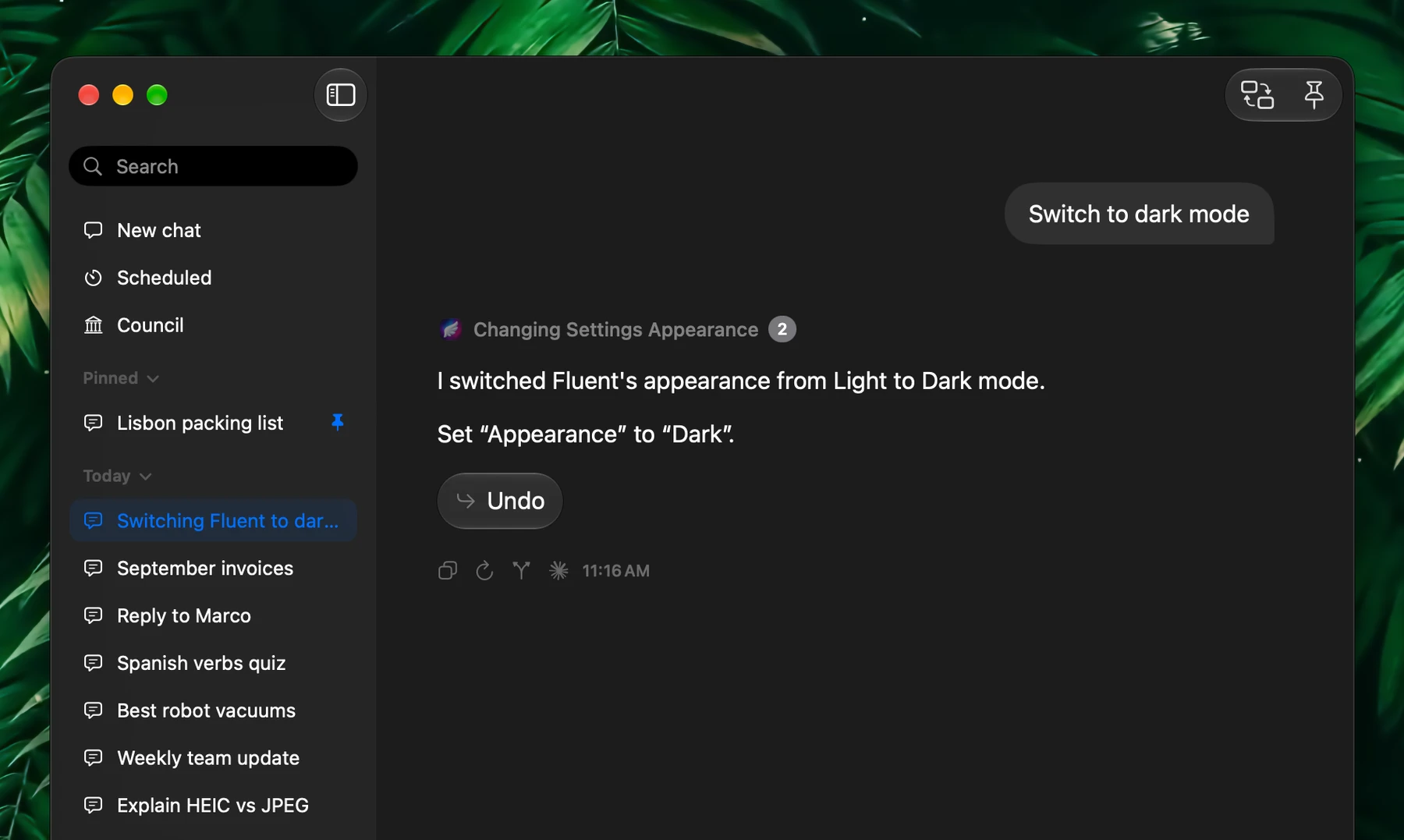
Fluent works on Fluent itself, from any chat.
Settings. Say "switch to dark mode", "make the Smart Panel text bigger" or "set my dictation shortcut to Control-Option-D". Fluent changes the setting and shows what changed under the reply, with Undo. Changes that delete data or hide Fluent, such as cleaning History automatically or hiding the menu bar icon, are only proposed: Fluent makes them when you click Change. Ask "where do I change the dictation shortcut?" and Settings opens with that setting highlighted. Actions that run on their own can look settings up but never change them.
Connections. Say "connect my Notion", "set up Groq" or "connect Ollama". Fluent finds the best way to connect, signs you in through your browser when the service asks for it, tests the connection and adds it. An API key goes in a field under the reply and straight into the Keychain: no model sees it. See External Integrations.
Questions. Quizzes and choices come with answer buttons under the reply. Click one or type your own answer; your pick is sent as your reply. Try "quiz me on Spanish irregular verbs".
Plan. Type @plan in your prompt to have Fluent split the request into steps that run at the same time before it answers. Fluent also plans on its own when a request needs it. Add Plan to an action's instructions to plan every run. Turn off the Plan tool in Fluent's settings to stop planning altogether.
Tool Configuration
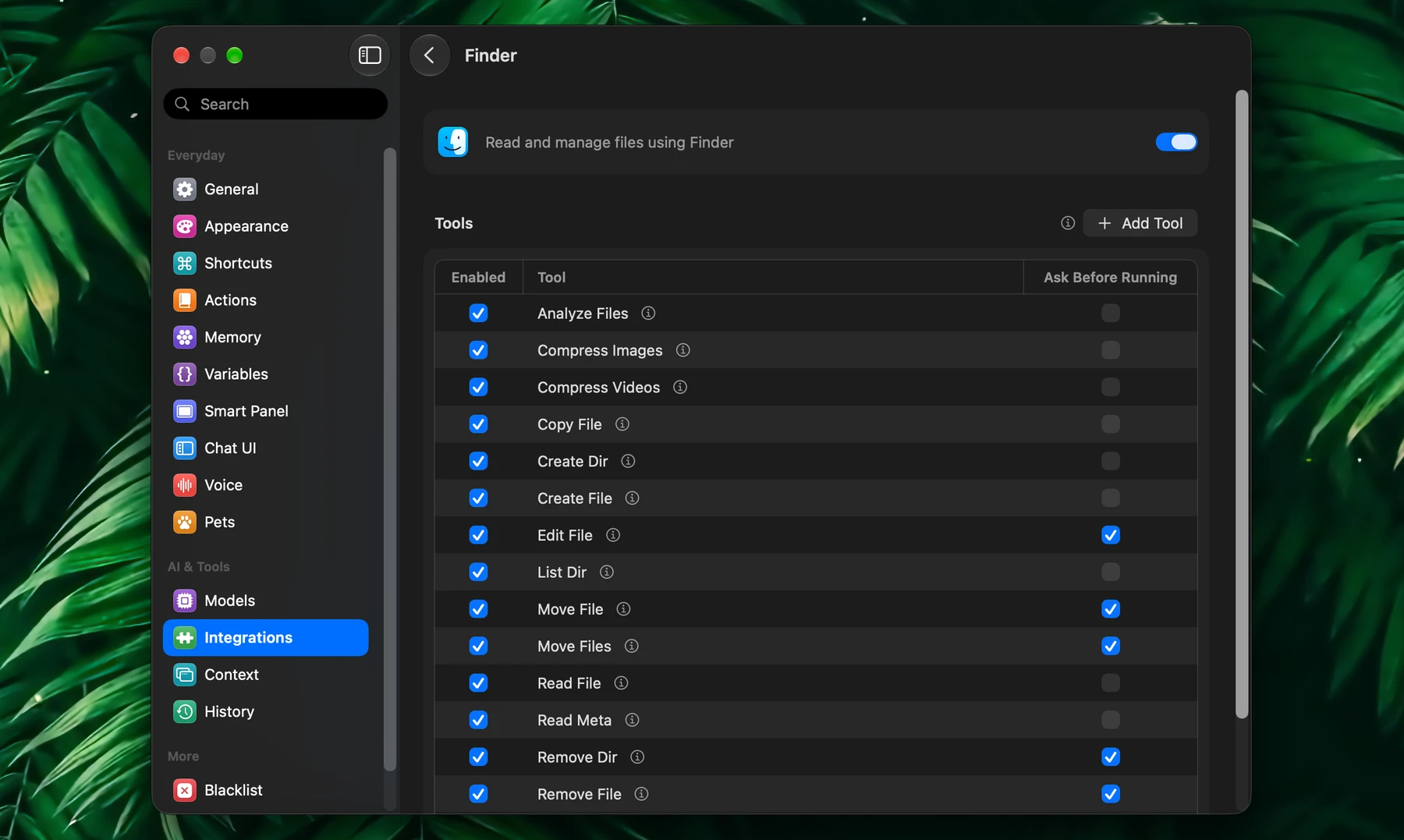
Click an integration in Settings → Integrations to open its page with its tools. Turn single tools on or off, tick Ask Before Running for those Fluent should ask about first, and see what a tool does behind its info icon. See Setup & Usage.
Custom Tools
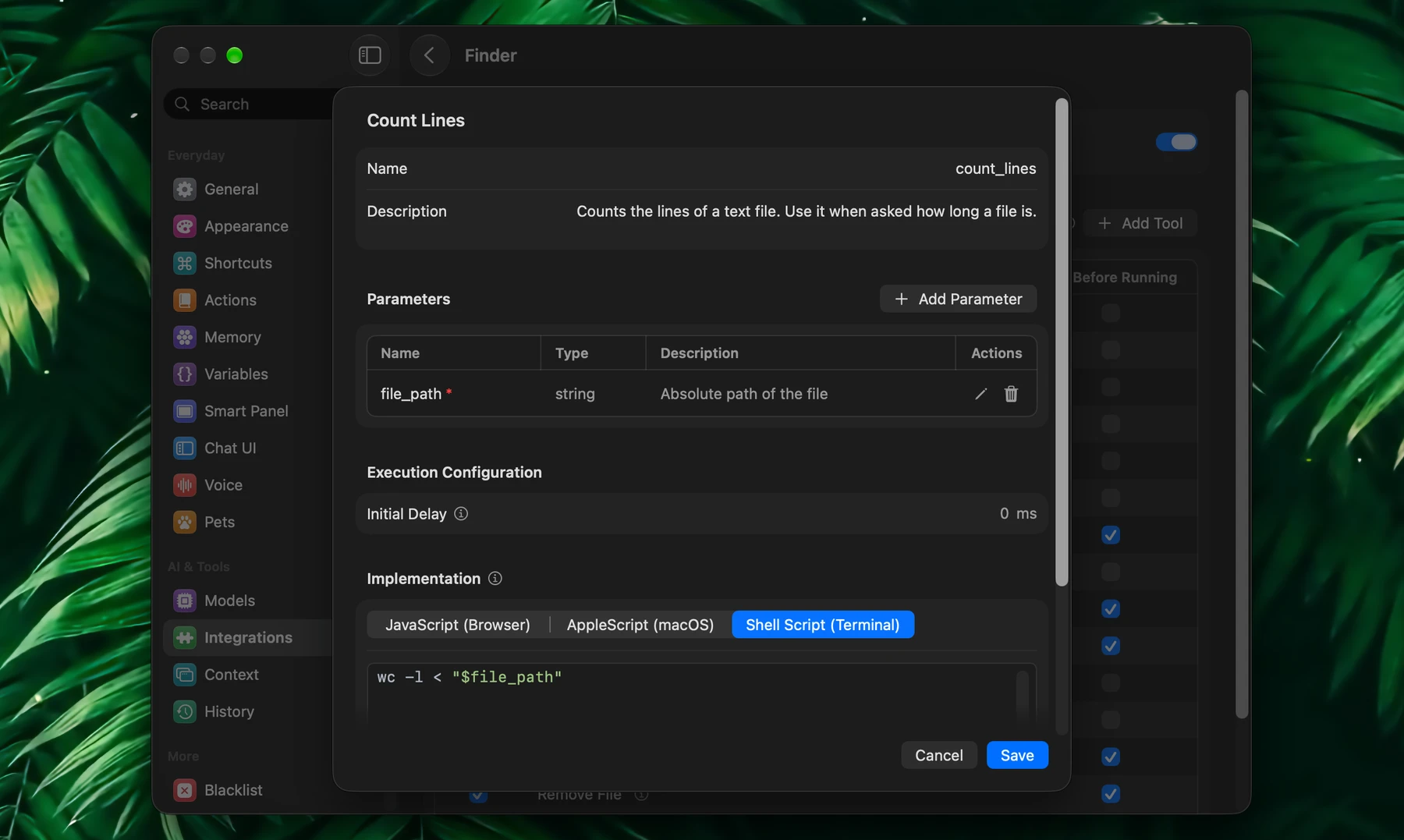
Many built-in integrations also take custom tools: your own JavaScript, AppleScript or shell script, run as a tool. Use them for small, exact steps you repeat often. See Setup & Usage.