
Chat
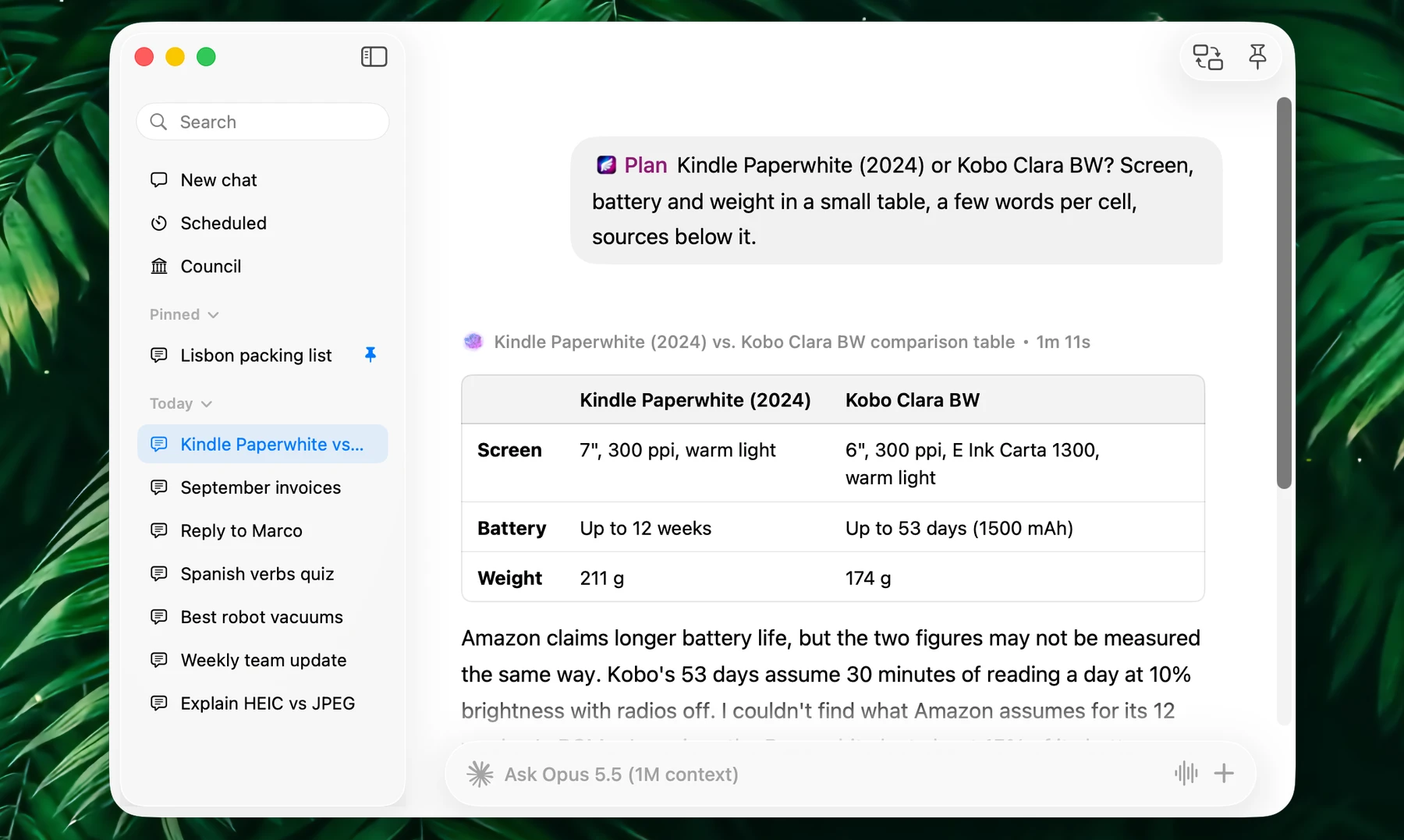
The chat window is Fluent's full-size chat: a regular window with all your conversations in a sidebar. Use it for long conversations, research and your scheduled actions; use the Smart Panel for quick work over other apps. Menus and Settings call it Chat UI.
Open It
| From | How |
|---|---|
| The Smart Panel | Press ⌘E, or click Switch to Chat UI in its footer |
| Any app | Press your chat shortcut. There's none until you set one in Settings → Smart Panel → Global Chat UI Shortcut. |
| The menu bar | Choose Toggle Chat UI |
⌘E switches between the chat window and the Smart Panel whenever either one is in front. In the toolbar, Switch to Smart Panel does the same, and Pin window keeps the window above other windows, even over apps in full screen.
While the chat window is open, even when hidden with ⌘H:
- the Smart Panel shortcut brings the chat window forward instead of opening the panel;
- an action you start with its own shortcut answers in the chat window, as a new chat, instead of in the Smart Panel.
Close the window with ⌘W, and the Smart Panel shortcut opens the panel again.
Sidebar
The sidebar starts with three rows:
- New chat (⌘N or ⌘T)
- Scheduled: your scheduled actions, see below
- Council: ask several models at once, see Council
Your chats follow: Pinned, then Today, Yesterday, This week, Last week and Earlier. Click a section's title to fold it. A long section ends with "There are N entries more": click it to show more.
A chat that's still answering shows a spinner. One that finished while you were elsewhere is shown in green until you open it.
Press ⌘F to search. Fluent looks through the chats' names and their text. When the window is too narrow for the sidebar, ⌘F brings it back.
| To | Do this |
|---|---|
| Pin a chat | Hover it and click the pin, or right-click → Pin chat. Up to 10 chats. |
| Rename it | Right-click → Rename chat, type the name, press Return. Esc cancels. |
| Delete it | Right-click → Delete chat, or select it and press Delete. This can't be undone. |
| Select several | ⌘-click to add or remove a chat, ⇧-click to select a range. Then press Delete, or right-click → Delete N chats. |
A chat that's still answering can't be deleted.
Chat names. The model you chat with gives each chat a short name, and renames it if the topic changes; this takes a small extra request now and then. A name you give a chat is never changed, and a chat that started with an action keeps the action's name. Turn this off in Settings → History → Name chats automatically.
Ask
The prompt at the bottom works as in the Smart Panel:
- Click the model icon to pick a model, or type # to search one. Tab / ⇧Tab step through models.
- Type / for actions and @ for tabs, apps, tools and Memory, or click +.
- ⌘` attaches the app, or browser tab, you were in before.
- Drop files anywhere on the window.
- With dictation on, the microphone button dictates into the prompt. See Voice.
Return sends, and so does ⌘↩. ⇧Return starts a new line. Esc puts you back in the prompt, closing an open menu first.
For example, drop two price quotes (PDFs) on the window and ask "Compare these offers and draft a polite reply to the cheaper one".
Replies
Replies show tables, code cards and math as in the Smart Panel. Click a chip in one of your messages to reopen its tab, app or file.
Each reply has a row of buttons under it. The last reply's row is always shown; hover an earlier reply to see its row.
| Button | What it does |
|---|---|
| Copy response | Copies the reply |
| Regenerate | Last reply only, also ⌘R. Fluent asks again and replaces the reply; the rest of the chat stays. |
| Fork from here | Starts a new chat with everything up to this reply, keeping the chat's name. The original stays as it was. |
| Model icon | Response details: the model and provider, Duration, First token, Speed, Input, Cached input, Output and, with NanoGPT, Cost |
| Memory | What Memory used or saved for this reply. Memory updated shows when it saved or changed something. |
| Time | When the reply finished |
When a reply ran an action on another model, an arrow and that model's icon follow, with its own details.
Plans and tools. A request with several parts is planned: the reply starts with one line, the plan's name and how long it took, as in the picture at the top. Click that line to see every step and the tools it used. Each tool Fluent uses outside a plan shows as a badge of its own; click it for the details. More in Smart Panel.
Questions. When Fluent needs a choice from you, for example in a quiz, the reply ends with answer buttons. Click one, or click Type an answer… and write your own: it's sent as your next message.
Tool approvals. A tool set to Ask for Approval (Settings → Integrations) waits for you. Click Approve or Reject on its badge, or press ⌘A or ⌘R. When the chat window isn't in front, a notification offers Approve and Reject. Your decisions stay with the chat when you open it again.
Scheduled
Scheduled lists every action that runs on a schedule, grouped by its next run: Today, Tomorrow, Later and No upcoming run. Each row shows the schedule, such as "Daily 8:30", and when it runs next, or Running while it runs.
- Hover a row and click the play button on its icon to run the action now.
- Right-click a row for Run now, Cancel run while it runs, and Edit action. Clicking a row also opens the action for editing.
- Schedule More opens the Actions window, where you set schedules. See Actions.
Each run is saved as a chat in the sidebar, unless the action's Save to history is off, so you can open the result and ask a follow-up.
Chat Window And Smart Panel
Both use the same models, actions, integrations and Memory, and save to the same History.
| Smart Panel | Chat window | |
|---|---|---|
| Opens | Over any app, with one shortcut | As a regular window |
| Best for | Quick tasks on what you're working on: rewrite, translate, ask about a page | Long conversations, research, Council |
| Your chats | Tabs, plus ⌘Y for History | Sidebar with search and pins |
| Putting an answer in your app | Insert (⌘↩) | Copy and paste |
A chat started in the Smart Panel is in the sidebar, and one from the chat window can be reopened in the Smart Panel with ⌘Y. Councils stay in the chat window.
The sidebar is your History. With Enable history off in Settings → History, new chats aren't saved, so they don't stay in the sidebar. Retention and cleanup are in History.
Keyboard Shortcuts
| Shortcut | What it does |
|---|---|
| ⌘N or ⌘T | New chat |
| ⌘F | Search your chats |
| Return or ⌘↩ | Send |
| ⇧Return | New line |
| ⌘R | Reject a tool waiting for you; otherwise regenerate the last reply |
| ⌘A | Approve a tool waiting for you |
| ⌘` | Attach or remove the app or browser tab you were in | |
| Tab / ⇧Tab | Next / previous model |
| ⌘E | Switch to the Smart Panel |
| Esc | Back to the prompt |
| Delete | Delete the selected chats |
| ⌘W | Close the window |
Settings
| Setting | Where | What it does |
|---|---|---|
| Global Chat UI Shortcut | Settings → Smart Panel | Opens and closes the chat window from any app |
| Name chats automatically | Settings → History | Lets the model name your chats |
| Font family, Font weight, Font size | Settings → Smart Panel | The text in the chat window and the Smart Panel |
| Smooth mouse wheel scrolling | Settings → Smart Panel | Chats glide on each turn of a mouse wheel |
| Chat UI background | Settings → Advanced | The animated background of New chat and Scheduled |