
Team
Teammates save you hours on routine work. Describe a job in a sentence, and a teammate does it on its own while Fluent runs: it drafts replies to your support emails, warns you before a free trial charges you, or chases a refund until it's paid. Team is in beta.
Your team is in the chat window: click Team in its sidebar.
Hire A Teammate
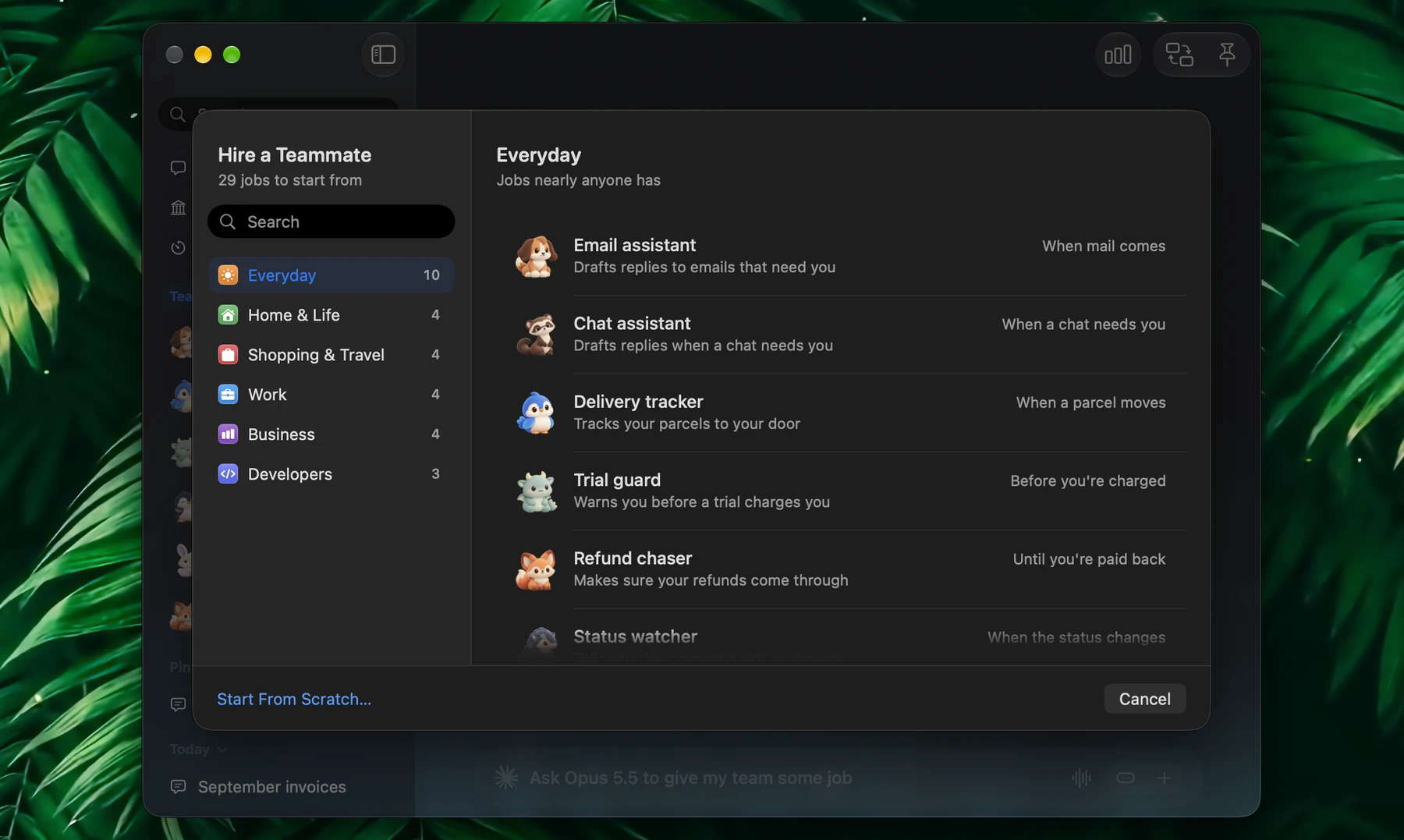
On the Team page, click Hire a Teammate:
- Using a Template… shows 29 ready-made teammates. Pick one and click Hire….
- From Scratch… starts a chat that begins "Hire someone to ", for you to finish.
Or type the job into the Team page's prompt box:
- "Draft replies to my support emails"
- "Tell me when the IKEA BILLY bookcase goes below €70"
- "Every Friday at 16:00, write my weekly recap from my calendar and sent mail"
Fluent then asks what only you know, one question at a time, such as which email account, or how many days before a charge to warn you. It hires the teammate with a name, a role and its jobs, and gives it a face: one of the Pet characters.
A chat that already does the work can become a teammate: right-click it in the sidebar and choose Make a Teammate…, or drag it onto Team.
Templates
| Group | Teammates |
|---|---|
| Everyday | Email assistant, Chat assistant, Delivery tracker, Trial guard, Refund chaser, Status watcher, Morning briefer, To-do catcher, News curator, Downloads tidier |
| Home & Life | Meal planner, Bill keeper, Apartment scout, Slot hunter |
| Shopping & Travel | Deal hunter, Trip planner, Gift finder, Thread follower |
| Work | Meeting prepper, Follow-up keeper, Recap writer, Job hunter |
| Business | Payments clerk, Review responder, Reddit scout, Competitor analyst |
| Developers | Build doctor, Issue triager, Release reader |
The Morning briefer plans your day, and its brief also tells you what the rest of your team got done, each line beside that teammate's face.
How A Teammate Works
A teammate's work is its jobs, and each job starts on its own:
| Starts | For example | How |
|---|---|---|
| When something comes in | New mail, a chat message, a parcel update, a price drop, a new listing | Fluent checks the page, the site's unread count or the app's badge itself, as often as every minute, and asks the model only when something changed |
| At set times | A plan every morning, a recap every Friday | It runs one of your actions on its schedule, see Actions |
Then it does the work with your apps, sites, actions and integrations: it drafts, files and reminds. It asks before it deletes something or runs a command, and a tool set to Ask Before Running waits for your Approve. When it's done, the teammate reports to you in its conversation and notifies you. A run that finds nothing to do says so in its conversation, with what came in, and doesn't notify you.
Each teammate answers with your default model, or one of its own. A check that finds nothing new costs no request.
What Teammates Remember
Teammates keep what they learn in Memory, on their own: what they found out, people, projects and decisions, and what they already handled. They save and update details as their work goes on, so you, your chats and your other teammates can ask about it later:
- A Sprint keeper files each sprint review: what shipped, what slipped and why. Later, in any chat: "What slipped from Sprint 9?"
- An Email assistant remembers which customer prefers replies in German, and drafts the next one that way.
This works while Memory is on in Settings → Integrations. A teammate can keep a web page in Memory whole, but a file from your Mac only as the details that matter in it: your own files go into Memory when you add them.
The Team Page
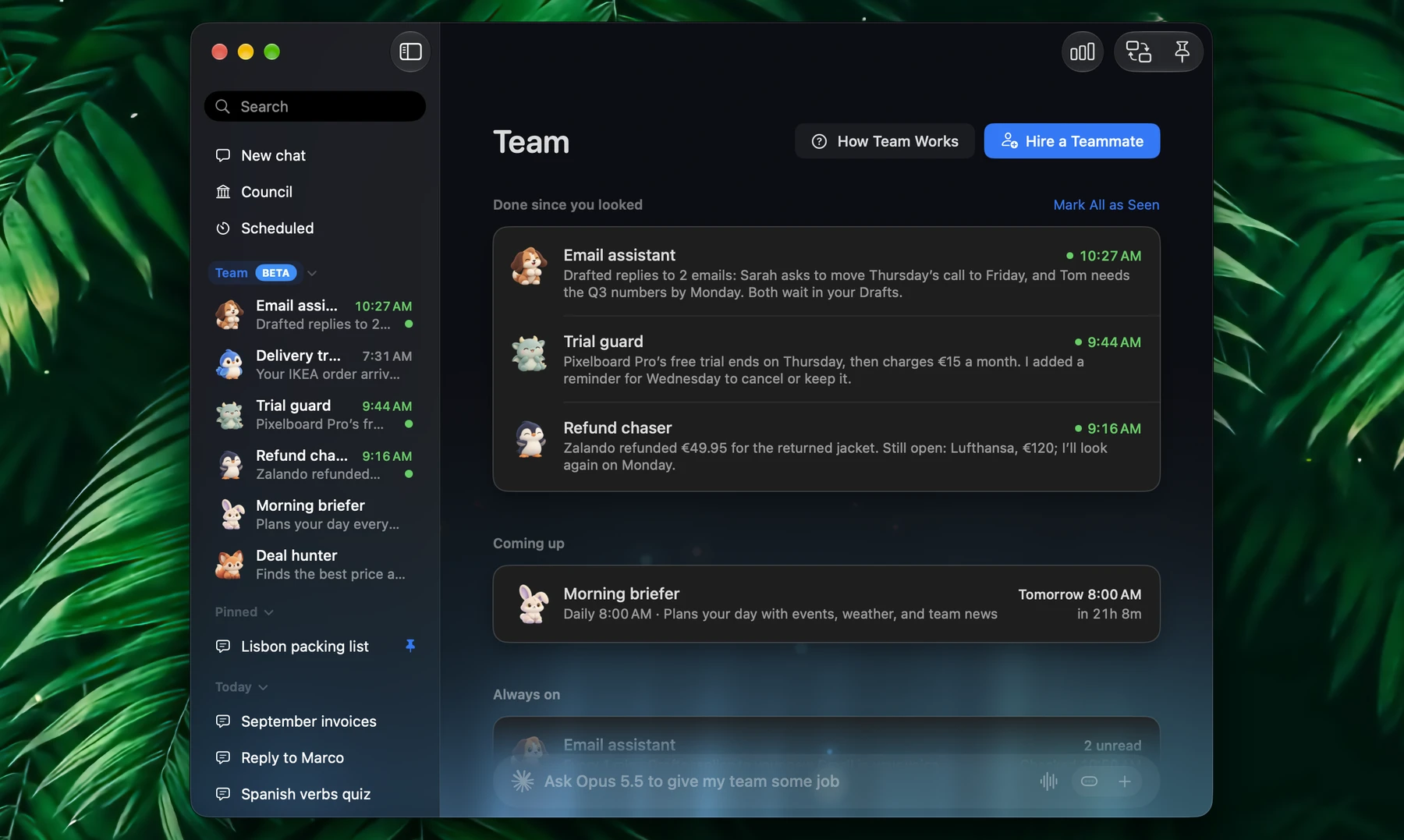
| Section | Shows |
|---|---|
| Needs you | Approvals waiting for you, with Approve and Reject, and jobs that need fixing, with Fix It, which asks the teammate to fix it in its conversation |
| Done since you looked | What your teammates finished. Click one to open its teammate's page; Mark All as Seen clears the list |
| Coming up | Work at set times, soonest first |
| Always on | Jobs that start when something comes in, with how often each checks, or Live for a page that updates itself |
Team Stats, in the toolbar, shows the time your team saved you, in all and by teammate. Fluent estimates how long the work would have taken you by hand, once a stretch of it is done. Past a day, it reads in days and hours, like "4 days, 12 hr".
Share The Time Saved
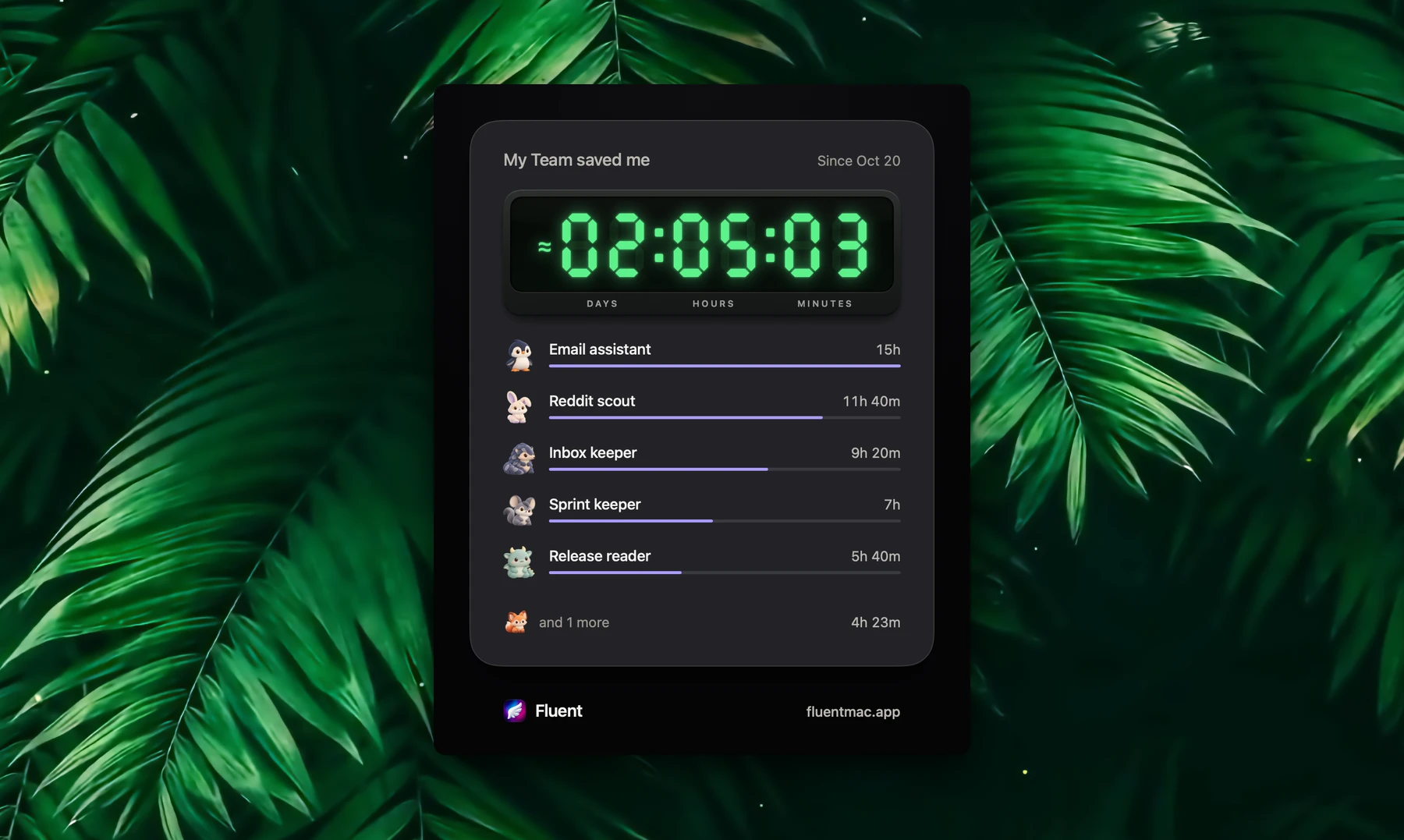
Once your team has saved you time, Share, under the rows in Team Stats, makes it a picture to post or send: the time on a bedside clock, and your teammates with theirs, most first. Copy Image, Save Image… or Share… it. On a teammate's page, the picture is that teammate's. It's light or dark as Fluent looks.
Fluent makes it too, in any chat or from Telegram: "How much time has my team saved me? Send me the picture."
A Teammate's Page
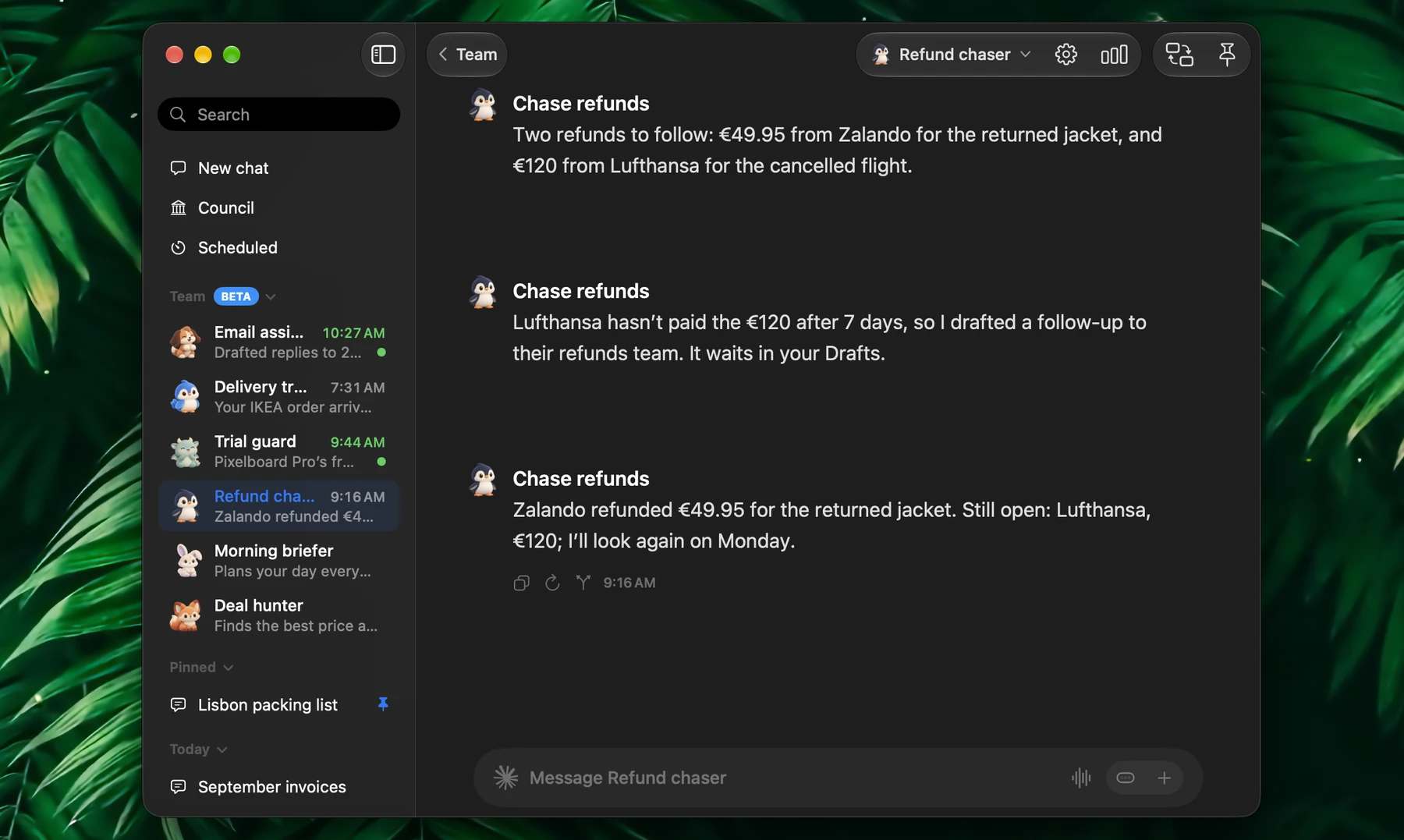
Click a teammate in the sidebar to open its page: your conversation with it, with its reports in it. Its row in the sidebar shows its newest message. Ask it things, or change its work in your own words:
- "What came in this morning?"
- "Only tell me about parcels that need me"
- "Also follow my Zalando return"
Send it a message while it's still replying, and it reads it as it works, or answers right after, as in any chat.
Notebook and Jobs, the gear in the toolbar:
- Notebook: notes it keeps in mind in all its work (Add a note…), and files it reads when its work needs them (Add Files…, or drop files and links on it). To give it a chat, right-click the chat in the sidebar and choose Add to Notebook.
- Jobs: each job with when it runs. Right-click one for Run now, Change Schedule…, Edit action or Remove Job…. Add a Job… asks for one in its conversation.
Click its name, at the end of the toolbar, for its menu. Right-clicking its row in the sidebar shows the same one:
| Item | What it does |
|---|---|
| Run now | Runs one of its jobs now, or All Jobs |
| Pause / Resume | Stops its work until you resume it |
| Keep Mac Awake | Keeps your Mac awake while it's plugged in, so this teammate's work goes on all night, with the lid closed too. A small sun after its name shows it's on. See Keep Mac Awake below |
| Rename… | Gives it a new name, one no other teammate has |
| Face | One of the Pet characters, its initials, one of eight signs of work (a briefcase, a chart, an envelope, a calendar, a document, a cart, a magnifying glass or a person), or a picture of your own with Choose Picture… |
| Model, Reasoning | Its own model and thinking level, or the ones in Settings |
| Notifications | When Work Is Done, Only When It Needs You or Off. A run that finds nothing to do never notifies |
| Let Go… | It leaves the team, and its jobs and reports go with it. Choose whether the actions made for it go too |
Right-clicking its face at the top of its conversation offers the same faces, Choose Picture… and Rename….
What Teammates Need
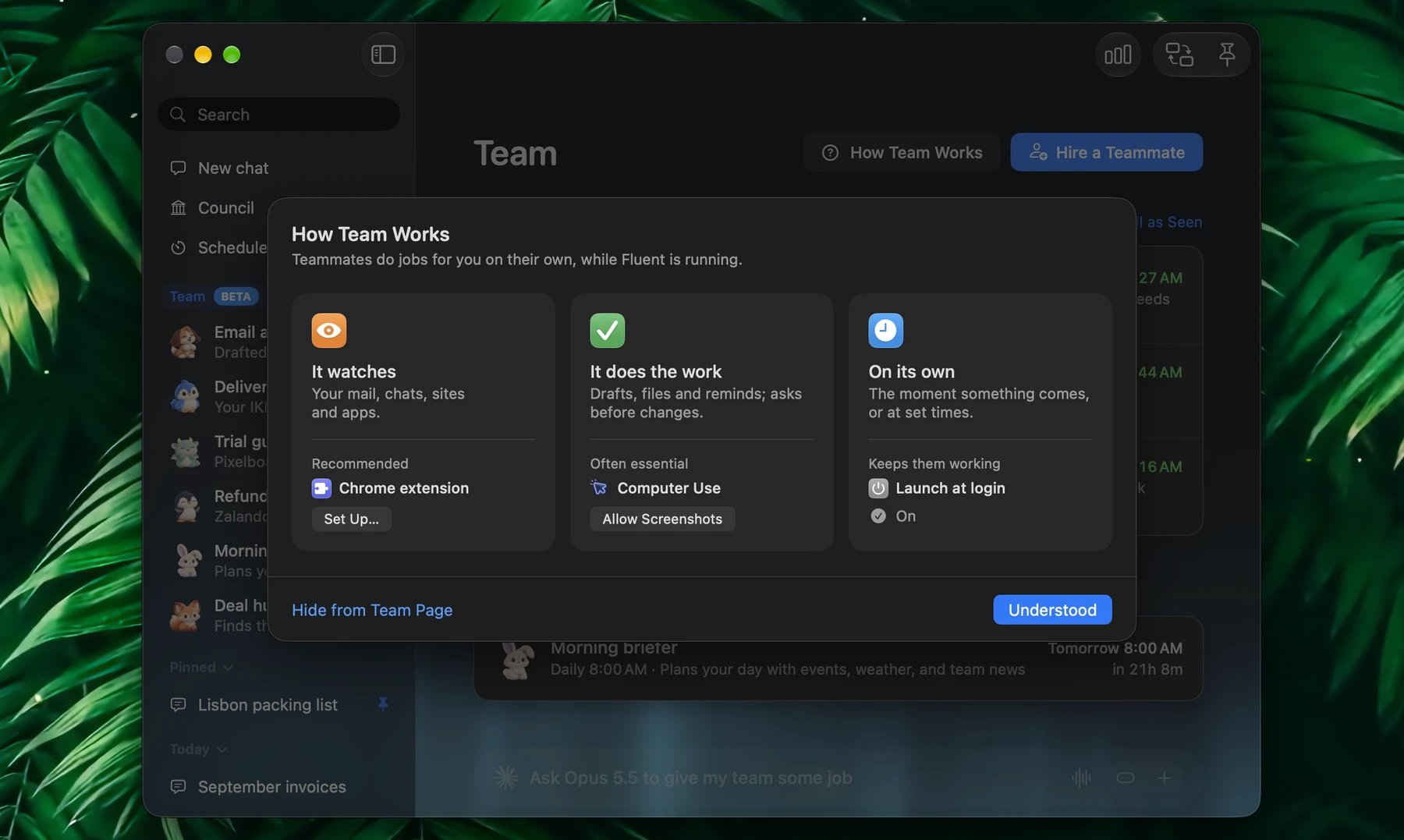
How Team Works, on the Team page, shows what teammates need and turns it on:
| Why | ||
|---|---|---|
| Computer Use, often essential | Teammates read and act in your apps and browser through it. It needs Accessibility and Screenshots | Turn On, Allow Accessibility, Allow Screenshots |
| Chrome extension, optional | Recommended for the most powerful background work: teammates work in background tabs, even while you're away. Without it, Fluent still works in your browser, signed in as you, through Computer Use | Set Up…, see Computer Use |
| Launch at login | Teammates work only while Fluent runs | Turn On |
To take the How Team Works button off the Team page, click Hide from Team Page in its sheet. Turning off Hide help button in Settings → Chat UI → Team brings it back.
Teammates work while Fluent is running and your Mac is awake. When the Mac wakes, their checks look again at once, and work at set times that came due meanwhile is made up once, while it's still closer to its own time than to the next run.
Keep Mac Awake
To keep a teammate working through the night, turn on Keep Mac Awake in its menu, or Keep Mac awake while plugged in on its card (the gear in the toolbar). A small sun after its name shows it's on. It keeps your Mac awake while the teammate has checks or jobs at set times, and isn't paused:
| Your Mac | The teammate's work |
|---|---|
| Plugged in, lid open | Goes on all night. The display still turns off |
| Plugged in, lid closed | Goes on too, once Fluent is allowed in Login Items: click Allow… under the switch on the teammate's card. Until then, the Mac sleeps when you close it |
| On battery | Waits while the Mac sleeps, and catches up when it wakes |
Once Fluent is allowed in Login Items, Apple menu → Sleep doesn't put your Mac to sleep while it's plugged in and a teammate keeps it awake: unplug it, or turn Keep Mac Awake off. Unplugged, or with Fluent quit, your Mac sleeps as usual again.
Good To Know
- Teammates use the integrations, Memory and approvals you've set in Settings: what asks before running asks for them too. Out of the box, that's deleting and running a command, see Approvals. Their approvals wait under Needs you with Approve and Reject, whichever model they work on.
- When a teammate's model can't answer, for example while Claude Code is signed out, what its job found waits, and the teammate looks at it again a little later. Its row under Always on says Not judged meanwhile.
- Team is an integration of its own in Settings → Integrations, on by default. Turned off, your chats can't reach the team, and your teammates keep working. Its tools don't ask before running unless you turn on Ask Before Running for them there.
- A teammate's runs are its chats, listed on its page, not under Today in the sidebar.
- Your teammates' reports can come to your phone too: turn on Send Fluent's notifications in Telegram, and reply to one there to talk about it. See Telegram.
- A picture you choose as a face is cut to a square from its middle. Fluent keeps a copy of its own, so moving or deleting the file changes nothing.
- Scheduled actions keep working without any teammate. A teammate can take one on: it keeps its schedule, and its results come to you from the teammate.