
Telegram
Talk to Fluent from your phone, wherever you are. Message your own Telegram bot, and Fluent answers from your Mac with your model, your integrations and your Memory, as if you'd asked at your desk. It sends you files from your Mac and its notifications too, and every chat is in History, so you can go on with it on the Mac.
Setting it up takes a couple of minutes, with nothing to install: you make the bot in Telegram, and Fluent reads it straight from your Mac.
Set It Up
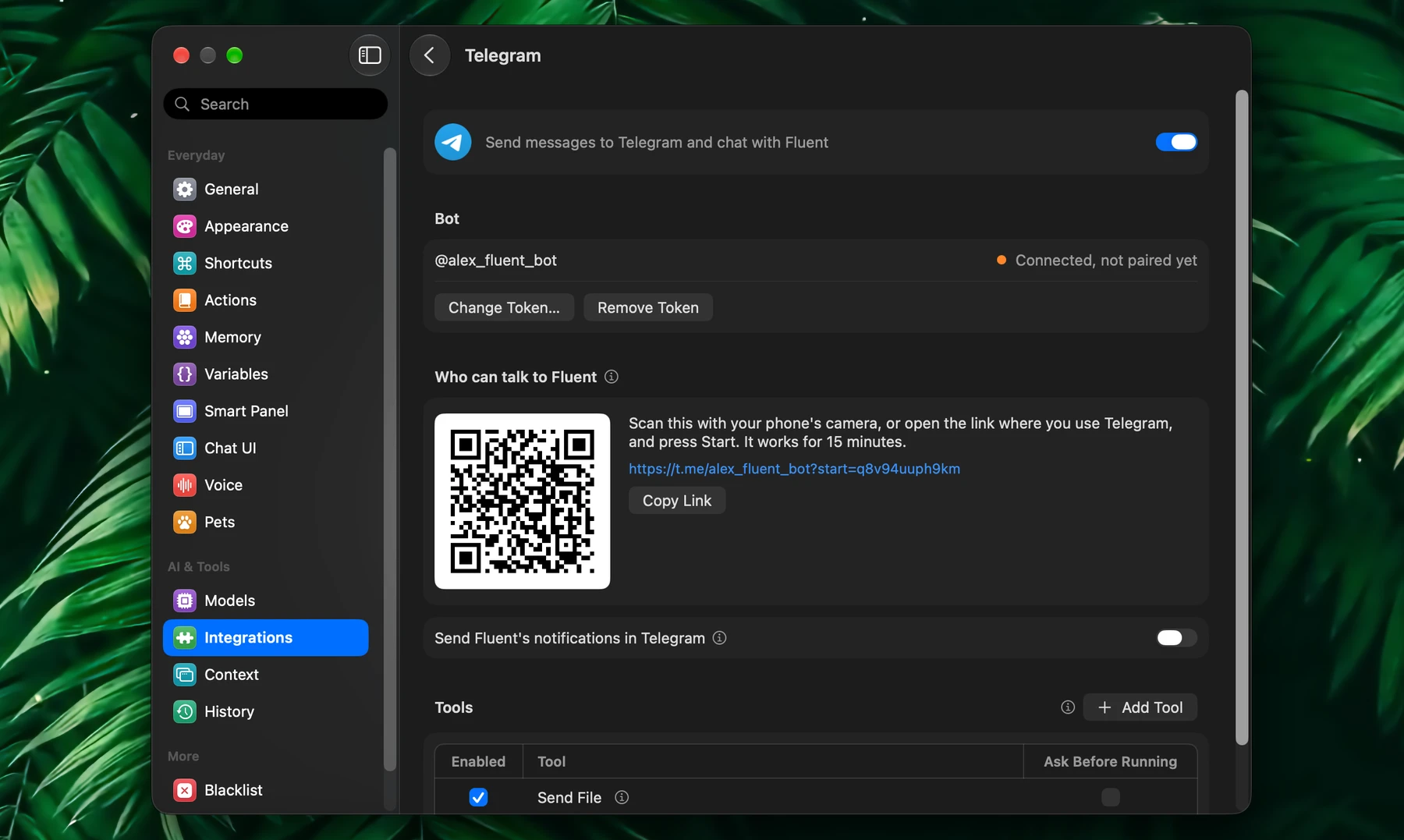
- Open Settings → Integrations → Telegram and turn it on.
- Make a bot for Fluent: click Open @BotFather, send it
/newbot, and pick a name and a username for your bot. Paste the token BotFather sends you into Bot token and click Save. - Click Pair Your Telegram… and scan the code with your phone's camera, or open the link where you use Telegram. Press Start there. The code works for 15 minutes.
The bot answers "Paired with Fluent on your Mac", and you can write your first request.
The bot is yours alone: only the accounts you pair can talk to Fluent, and anyone else who finds it is told it's private. Pair Another Account… adds another account of yours, and Unpair removes one.
Try Asking
| Send | What Fluent does |
|---|---|
| "What's on my calendar tomorrow?" | Reads Calendar and lists your day |
| "Remind me to call the bank at 9" | Adds the reminder in Reminders |
| A photo of a whiteboard, then "turn this into to-dos" | Reads the picture and adds each item to Reminders |
| "Send me the slides from my Desktop" | Finds the file on your Mac and sends it to the chat |
| A message you forward, then "what should I answer?" | Reads it as someone else's words and drafts a reply |
| "How much time has my team saved me? Send the picture." | Sends the time-saved picture from Team Stats |
In The Chat
The chat is one conversation, as a chat in Fluent is:
- Messages close together are one request: send a picture, then what to do with it.
- Reply to one of Fluent's messages to go on with its conversation, a teammate's report included.
- Approvals come with Allow and Don't Allow. Writing yes or no works too; anything else you write is a no, and your next request.
- Questions with a few likely answers, such as a quiz's, come with the answers as buttons. Tap one, or write your own.
- Pictures, PDFs and documents up to 20 MB are read. Voice messages and videos aren't read yet.
- Forwarded messages are read as what someone else wrote, never as your instructions.
| Command | What it does |
|---|---|
/new | Starts a new conversation. Until then, the chat stays one conversation, however long it's quiet |
/stop | Stops the reply being written |
/help | Says what you can do here |
On Your Mac
Each conversation is saved in History and shows in the chat window's sidebar with Telegram's logo. Open it to see what Fluent did, tools included, and go on at your desk: what you add there is read before your phone's next message. Files you sent show as attachments; click one to preview it.
Notifications
Turn on Send Fluent's notifications in Telegram on the Telegram page, and what Fluent notifies you about on your Mac comes to your phone too:
- Your teammates' reports. Reply to one to talk about it with Fluent.
- Finished scheduled actions, with their results, for actions with Notify on run on.
- Approvals a teammate or an action running in the background waits for. Tap Allow or Don't Allow, or answer on your Mac.
Sending To Telegram
With Telegram on, any chat or action can send you a message or a file from your Mac:
- "Send me this PDF on Telegram"
- An action every weekday at 8:00: "List today's meetings and send them to me on Telegram"
Fluent never sends hidden files, such as keys, or anything from your Library folder except iCloud Drive and other cloud folders. Sending doesn't ask first: to approve each one, tick Ask Before Running for Send Message and Send File under Tools on the Telegram page.
Channels And Groups
Fluent can post in your own Telegram channels and groups too:
- From a paired account, add your bot to the channel as an admin who can post, or to the group.
- The bot tells you in your chat with it, and the Telegram page lists it under Channels and groups.
- Ask by its name: "post this summary in Acme Updates", or "send it to my Telegram channel" when you have just one.
If the bot was in that channel before you set it up, remove it and add it again so Fluent notices. Forget takes one off the list. Messages in groups don't reach Fluent: only your own chat with the bot does.
Good To Know
- Your Mac does the work. Fluent answers while your Mac is awake and Fluent is running. Messages wait in Telegram while it sleeps. When it wakes, Fluent answers what you sent in the last 30 minutes and tells you the older ones weren't acted on.
- The same Fluent as on your Mac: your default model, the integrations that are on, Memory, and the approvals you set.
- Keep your Telegram account safe. Whoever can use your Telegram account can use Fluent as you can. Turn on two-step verification in Telegram's Privacy and Security settings.
- A bot just for Fluent. One app at a time can read a bot's messages. If the page says another app is reading them, the token is in use elsewhere: make Fluent a bot of its own.
- Added a Telegram integration yourself? While an external integration of yours is named "Telegram", models use its tools instead of Fluent's. Rename it in Settings → Integrations to use both. Chatting with your bot works either way.
- Remove Token stops reading the bot, and Change Token… takes a new one. Paired accounts stay either way; another bot starts with no channels or groups.
- The token is kept in the Keychain. Your messages go through Telegram, as in any Telegram chat. See Privacy Principles.